Text to Speech Tools
Text to speech tools read digital text aloud, which can help with focus, understanding, and proofreading your own writing. This page covers the tools available in Brightspace, Word, your devices, and your browser.
On this page:
ReadSpeaker
Langara provides webReader and docReader in Brightspace. Sign in to TextAid with your Langara email and password.
ReadSpeaker is text to speech software. If your school has it, you may see webReader and docReader in your learning management system (such as Brightspace), and have access to TextAid, a web app and browser extension for reading content anywhere on the web.
webReader
If your school has ReadSpeaker, a Listen button appears on Brightspace Topic, Discussion, and Quiz pages: 
Activating the Listen button will reveal the Player: 
The player will read aloud, and (by default) highlight, content as it is read.
In quizzes, each question has its own Listen button. The player will stop after reading each question and possible responses. Answer the question and select the next Listen button to continue. 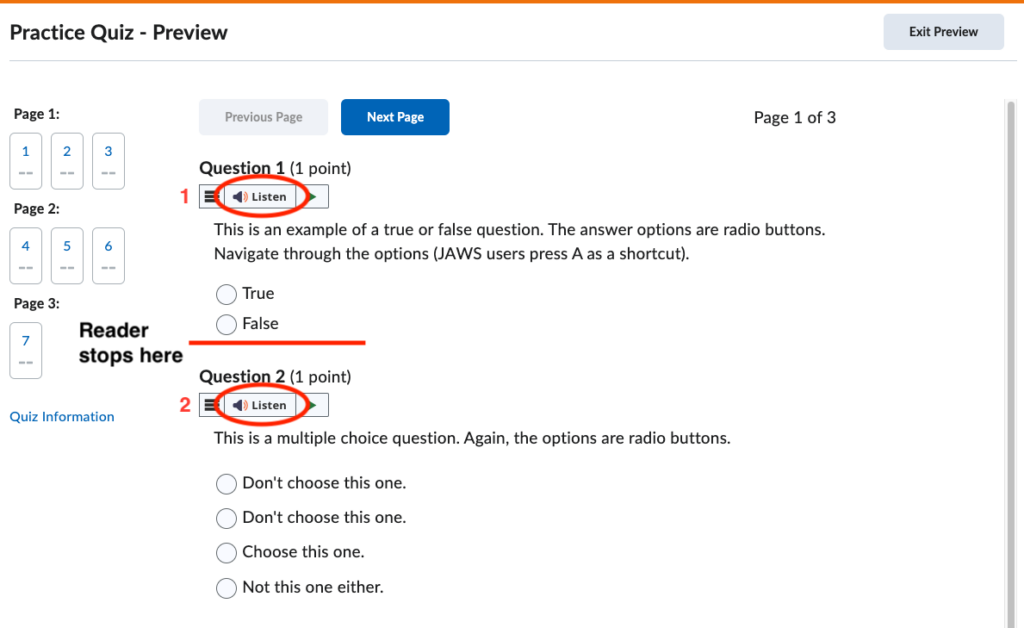
The Player has controls for playback, speed, and volume. More settings and tools are in the player menu: 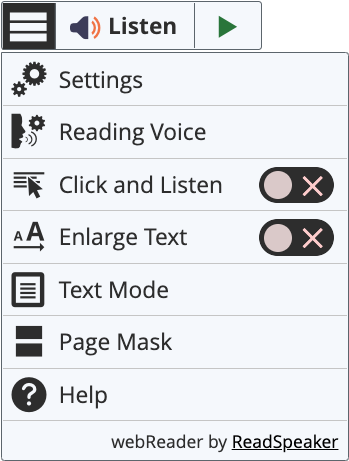
Under Settings you can customize the appearance, including colours and highlighting.
Choose Reading Voices to change voices.
While it reads, a second, smaller toolbar appears at the bottom of the window. 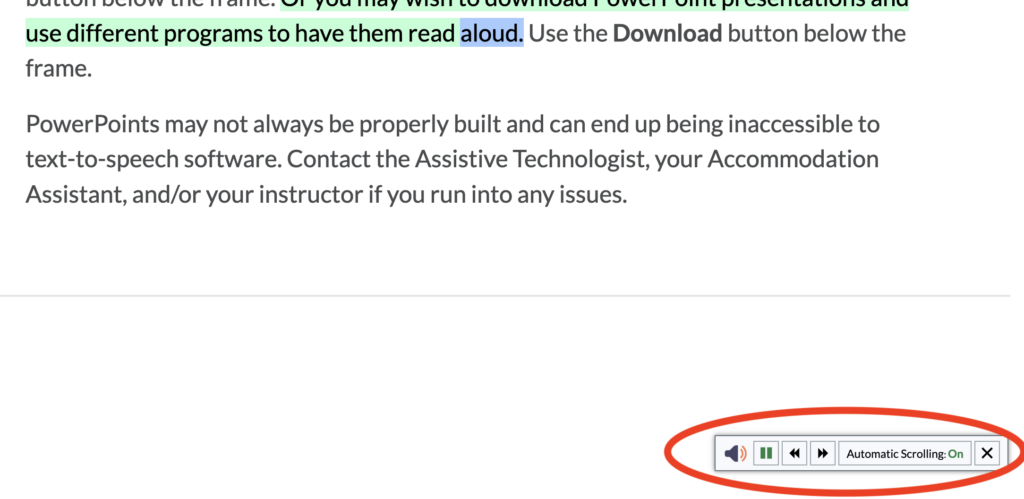
Select Content
When you select text, a Listen button appears beside it: 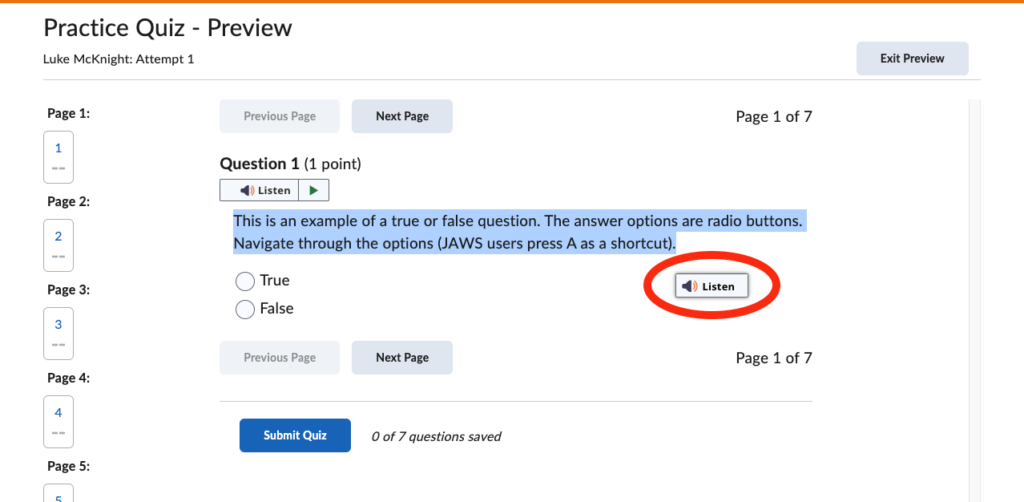
Choose Listen to hear the selected text.
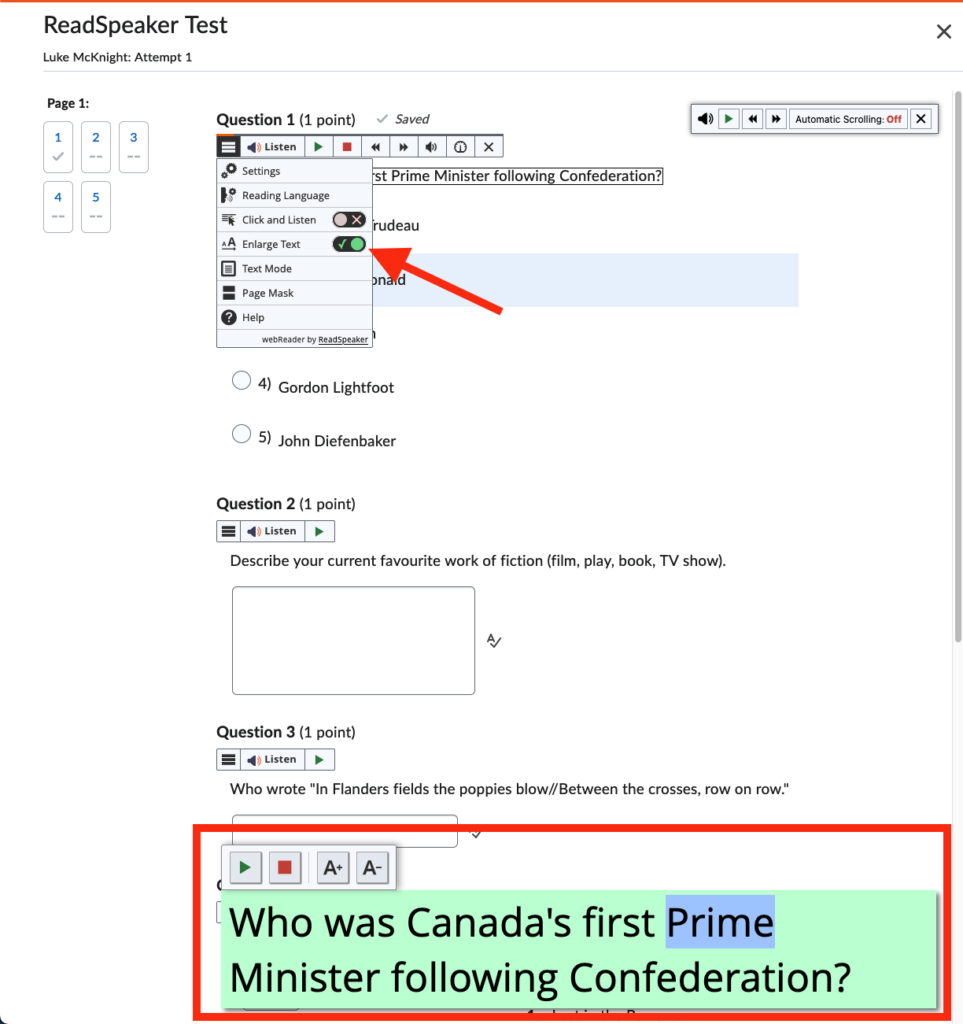
Enlarge Text
Enlarge Text opens a panel at the bottom of the screen that shows the text being read in large print. You can change its appearance.
- Select the player menu button.
- Toggle Enlarge Text to on.
- Click Listen.
Text Mode
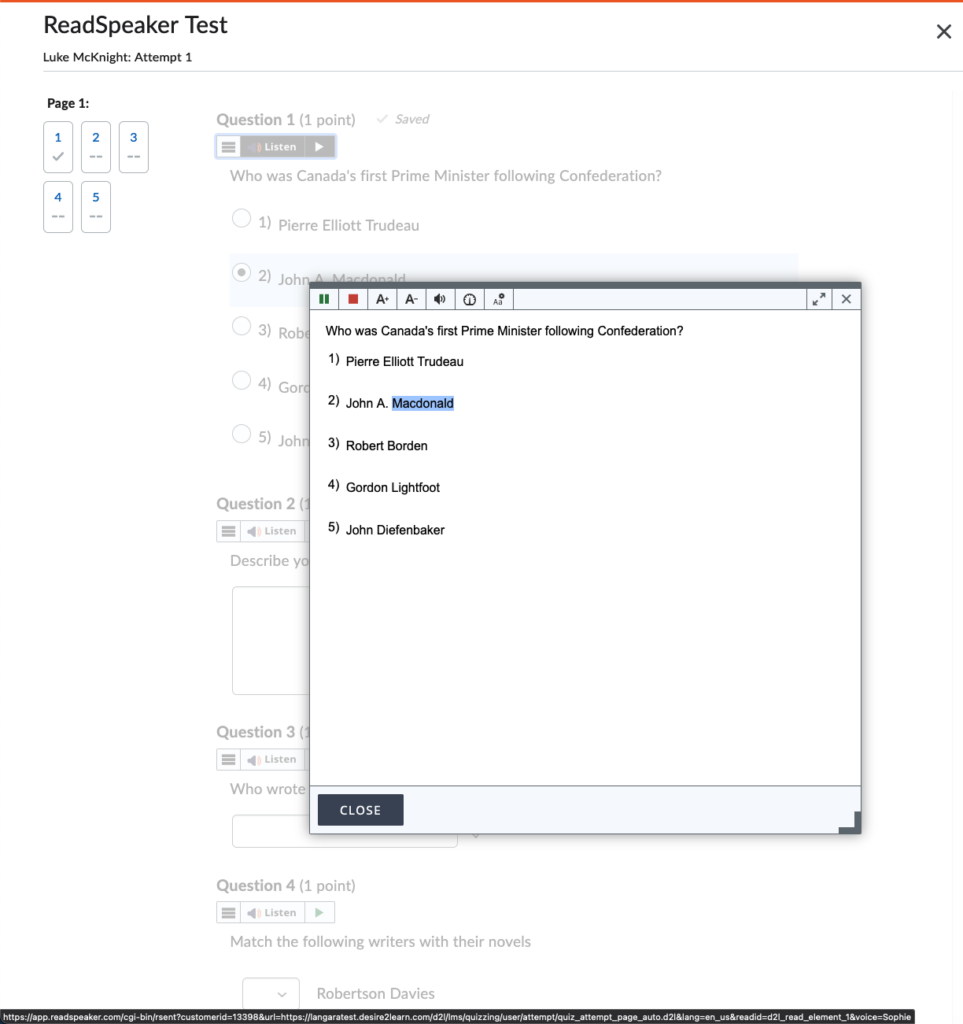
Text Mode shows a simplified, text-only view of the page.
- Select the player menu button.
- Choose Text Mode.
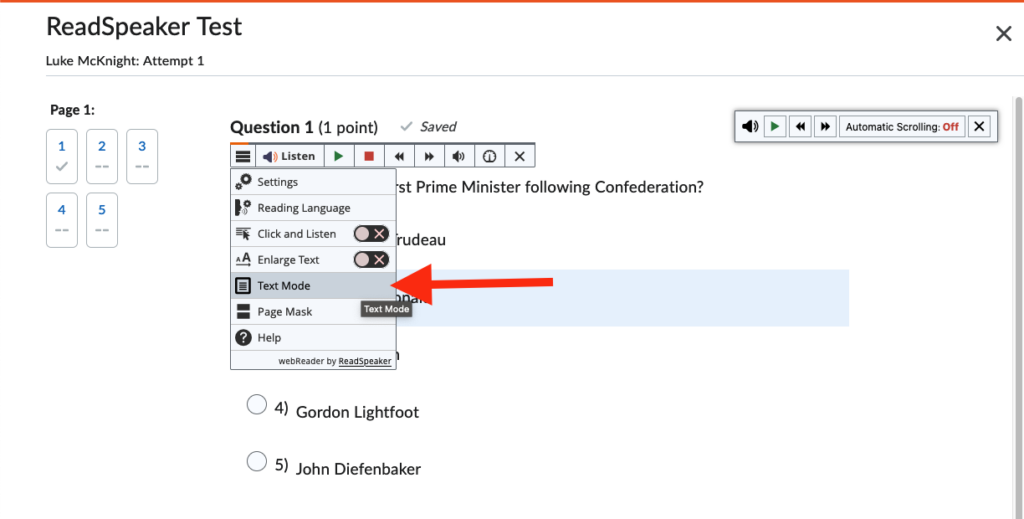
- A new overlay window will open showing the simplified version of the page.
Page Mask
Page Mask dims the page except for a strip around the mouse pointer. This can help you focus on what is being read.
- Select the player menu button.
- Choose Page Mask.
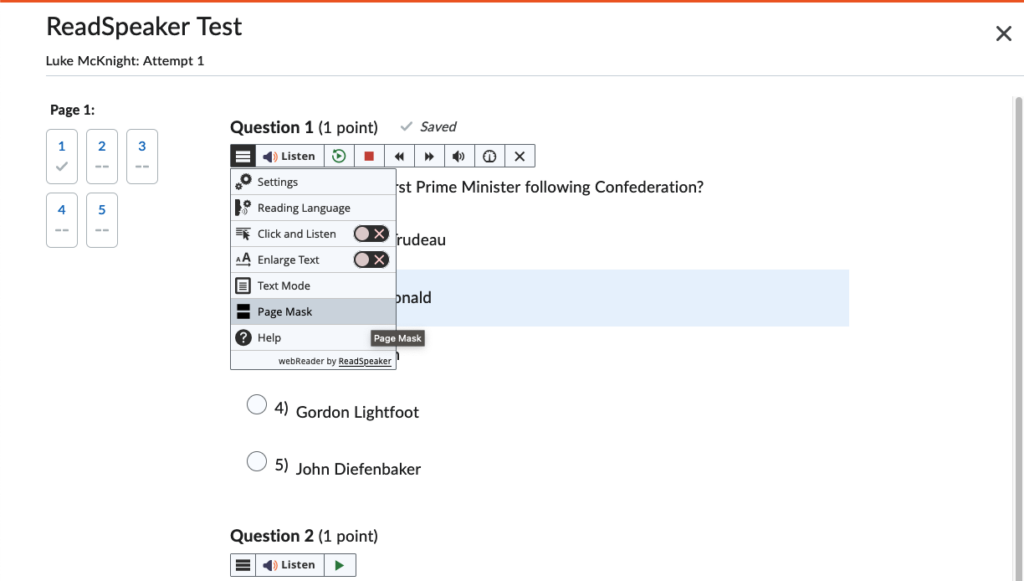
- The screen will dim except for a horizontal line that follows the mouse.
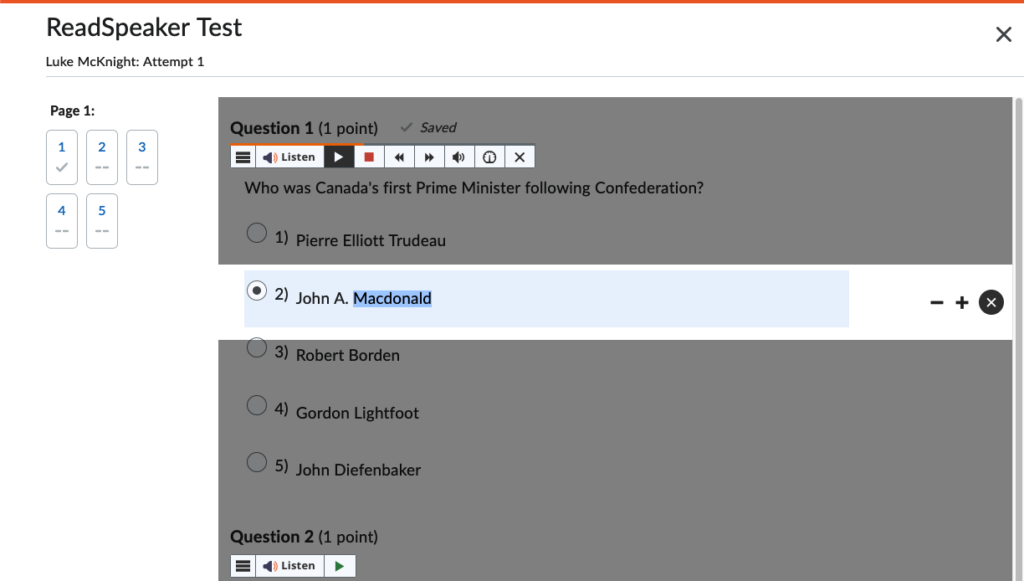
Change the size of the strip with the + and – buttons on its right side.
Click and Listen
Click and Listen reads aloud whatever text you click. It is turned off in quizzes so that you can’t select an answer by accident.
- Select the player menu button.
- Toggle Click and Listen to on.
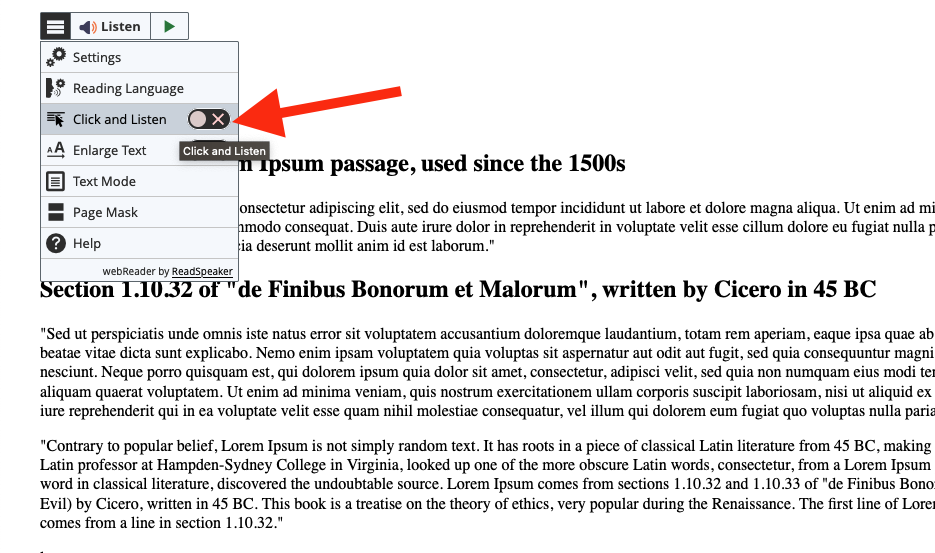
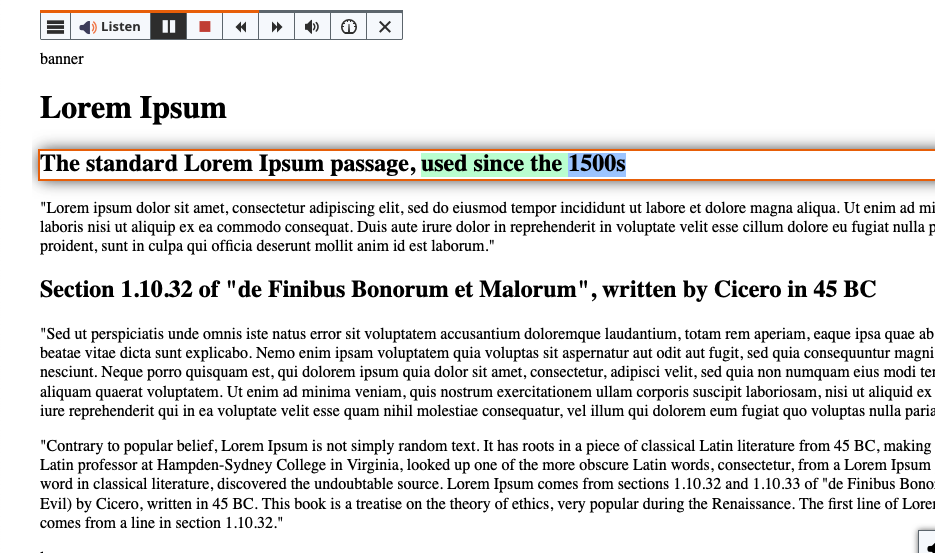
- Click on text on the page. You will see a red outline around what is being read as well as the highlighting of sentences and words.
Reading Math
Math written with an equation editor, such as the Brightspace equation editor or Equatio, can be read aloud by the Listen tool. However, unlike ordinary text, math is not highlighted as it is read.
docReader
If your school has ReadSpeaker, an Open with docReader button appears below the preview of PDFs, documents, and presentations uploaded to Brightspace.
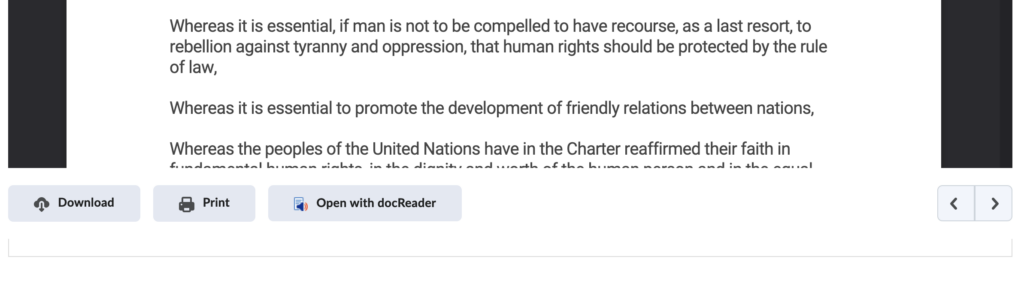
Select Listen, or highlight text and choose Listen, to start reading. 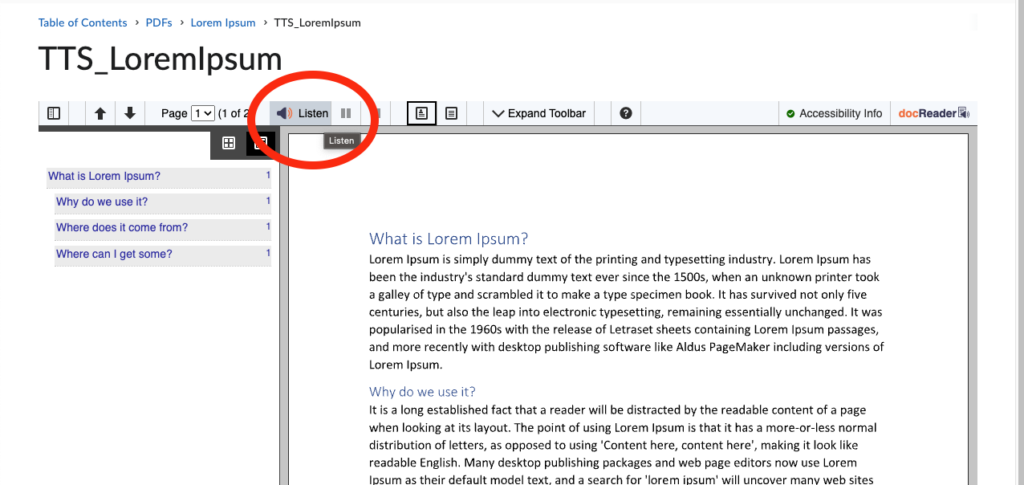
Select Text Mode to see a simplified version of the document.
Select Layout Mode to return to the original view of the document. 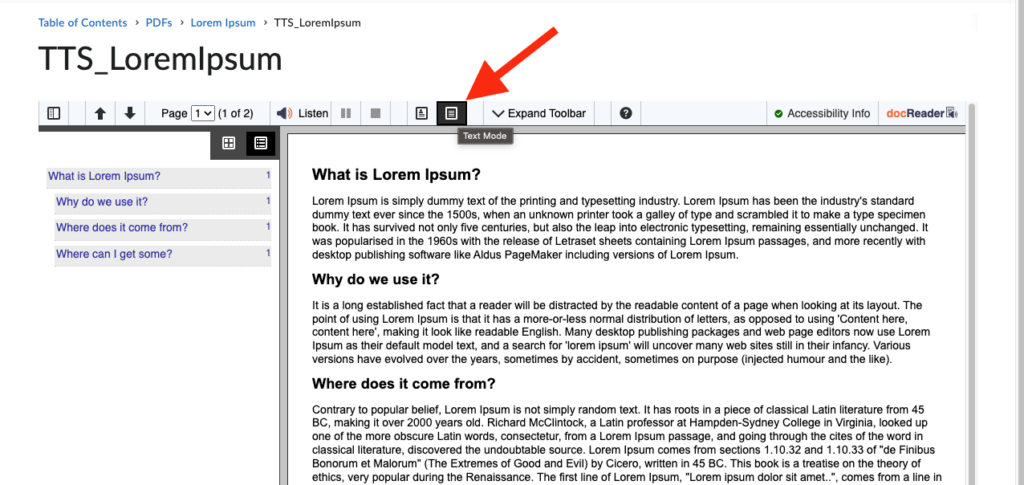
Select Expand Toolbar for more options, or Collapse Toolbar to hide them. 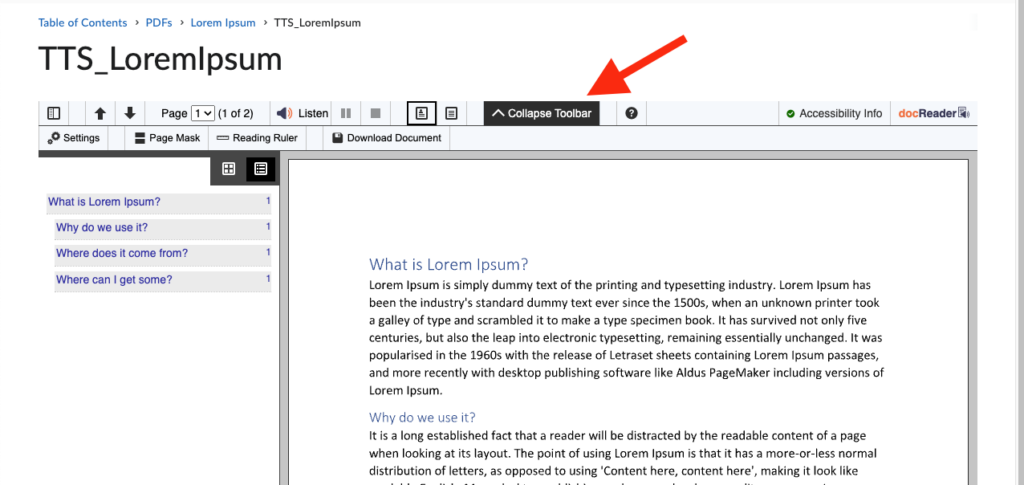
Page Mask dims the document except for the lines around the mouse pointer.
Reading Ruler underlines the line under the mouse pointer as you read.
The Settings menu has options for reading speed, colour and highlighting settings, as well as font and spacing options in Text Mode. 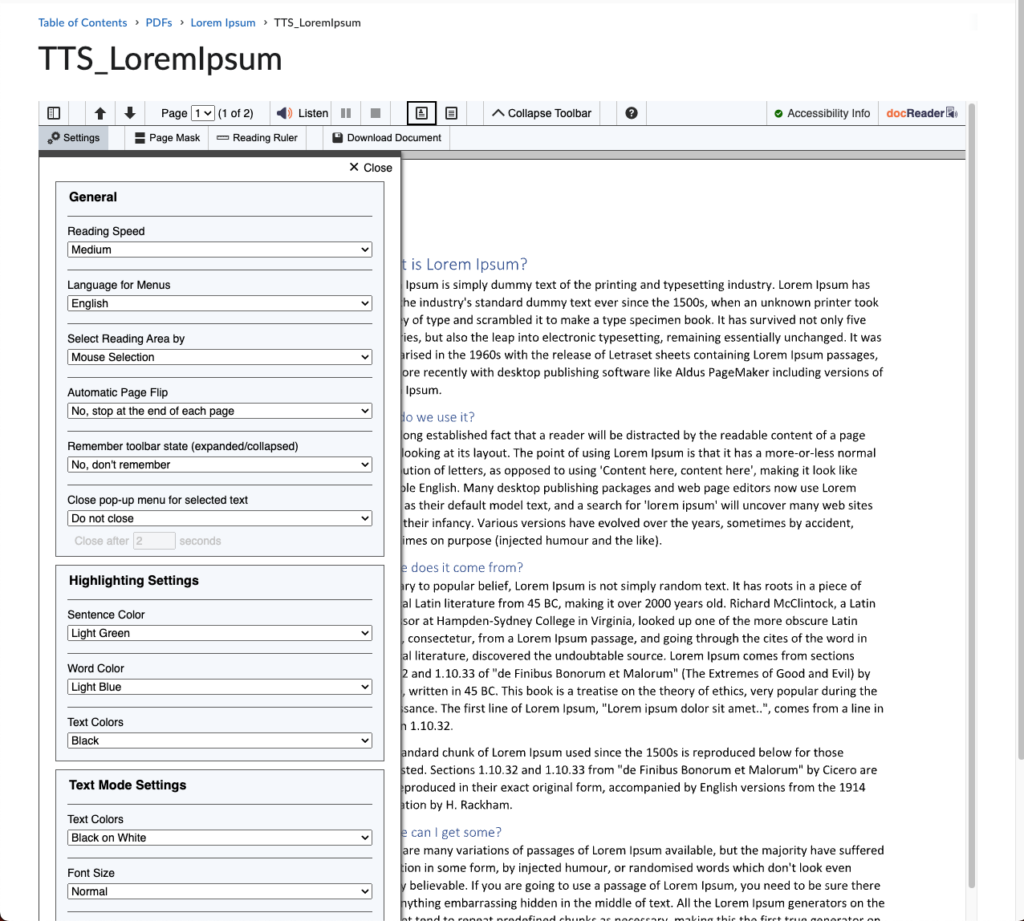
TextAid
TextAid works like webReader, but anywhere on the web. It is a web app with a browser extension for Chrome and Firefox.
To get the extension, go to TextAid and sign in.
Select Sign in with Microsoft and use your Langara email and password.
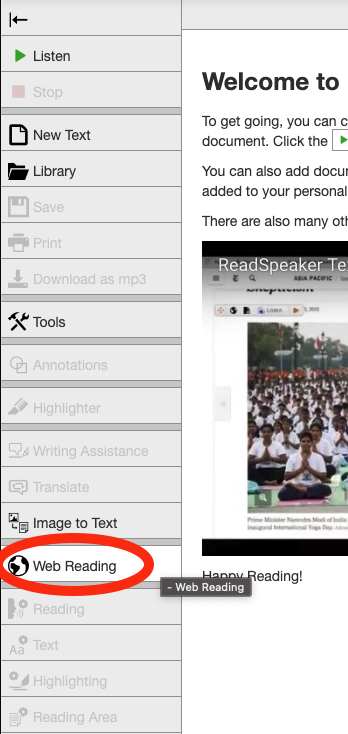
- Select Web Reading.
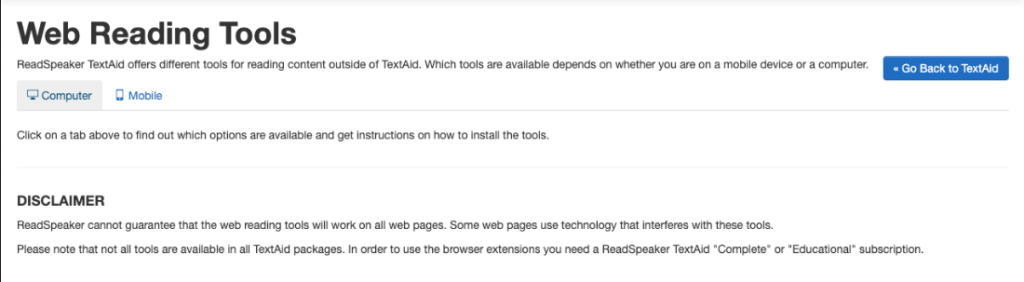
- Select Computer or Mobile.
- Choose your preferred browser.
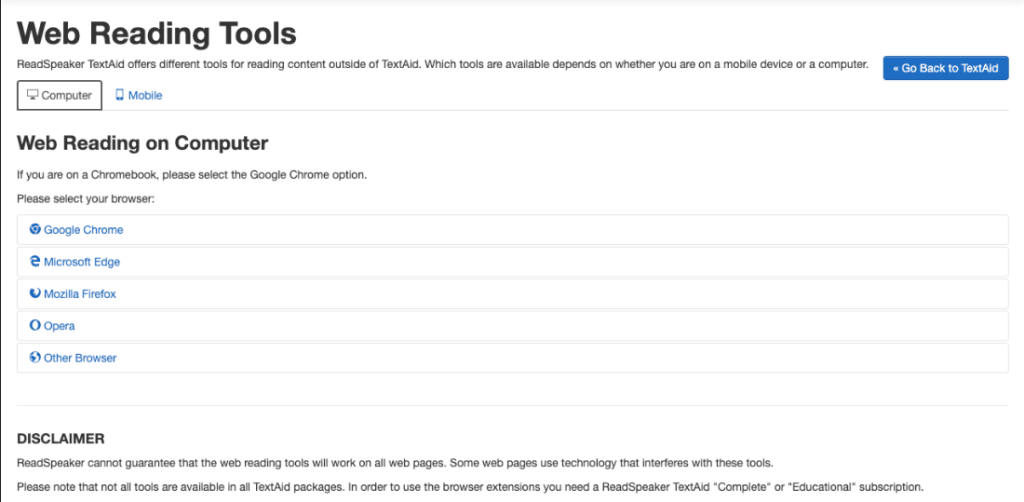
- Each option includes instructions and a link to install the extension.
Once the extension is installed, you can open it straight from the browser without going through TextAid first.
Using the extension
- Select the Extensions icon (a puzzle piece in Chrome and Firefox) near the top right of the browser.
- Choose ReadSpeaker® TextAid.
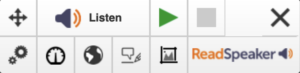
- The ReadSpeaker tool will open.
- A pop-up will guide you to log in if you are not currently logged in.
- Highlight text and select the Play button (green arrow).
- Change highlighting, reading speed, and language on the toolbar using the gear, speedometer, and globe icons.
- Writing assistance tools are only available in Word or Google Docs.
- The Snapshot tool (frame icon) allows you to extract text from pictures.
Learn More
Word
Langara students can access the full Microsoft 365 suite of tools using their Langara email and password.
Microsoft Word has two text to speech tools: Read Aloud and Immersive Reader.
Read Aloud
Read Aloud is available in the desktop version of Word. Move to the Review tab and click Read Aloud, or press Alt + Ctrl + Space. 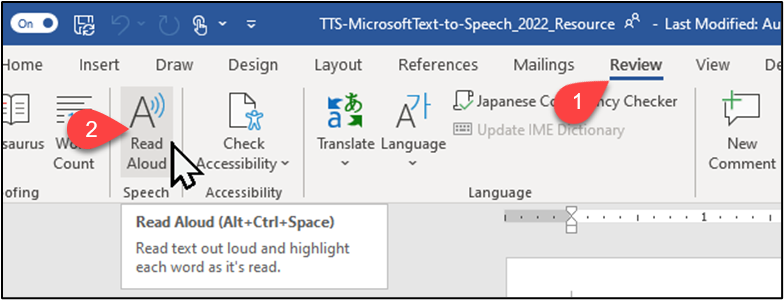
A small toolbar appears with controls and voice options. 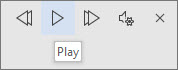
Users can have Read Aloud read from their cursor position or select text and have only the selection read.
Immersive Reader
Immersive Reader is available in both desktop and browser versions of Word. Immersive Reader is also available in the browser version of PowerPoint.
To open Immersive Reader, move to the View tab and select Immersive Reader. 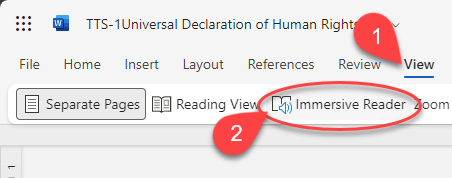
The document’s appearance will change. At the bottom of the window, users can access Read Aloud tools. 
In Immersive Reader, users can customize text size and spacing, font styles, background colour, and more. 
For more information, read Listen to your Word documents – Microsoft Support.
Device Built-in
Android
- Download Android Accessibility Suite if not already on device.
- Open Settings.
- Select Accessibility.
- Select Installed Apps.
- Choose Select to Speak.
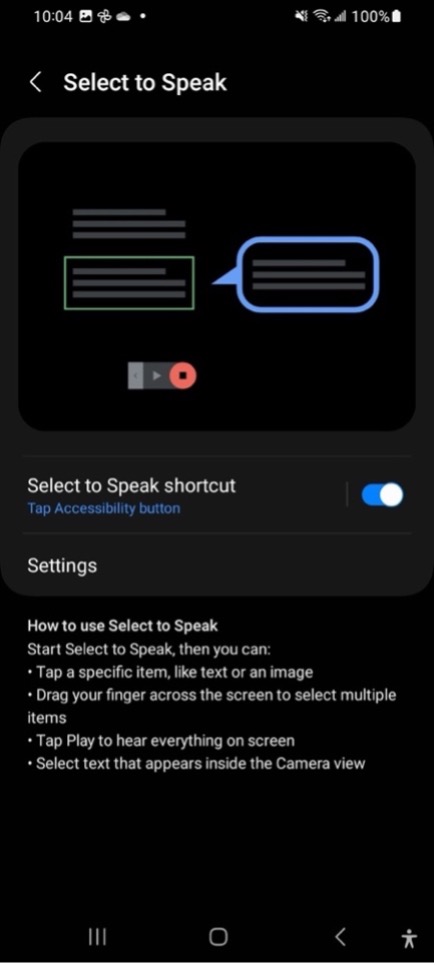
- Follow prompts to set up service.
- In apps you want read aloud, tap the accessibility icon in the bottom right.
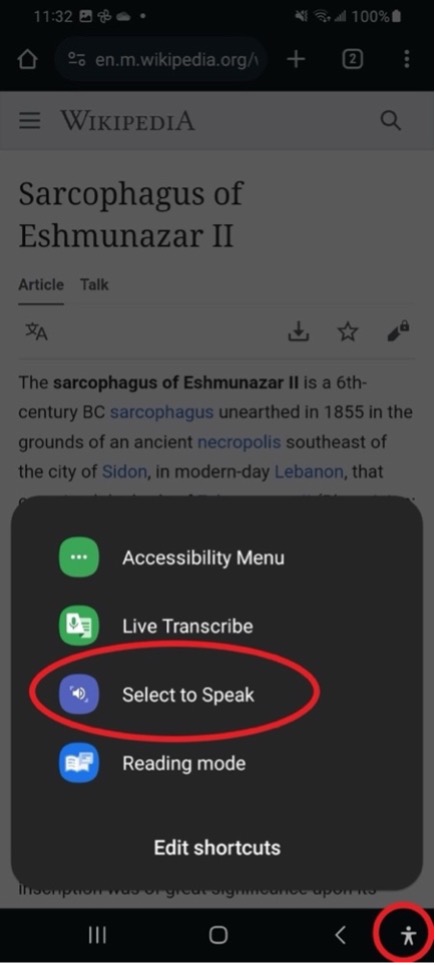
- Tap on text or tap and drag around text you want read aloud.
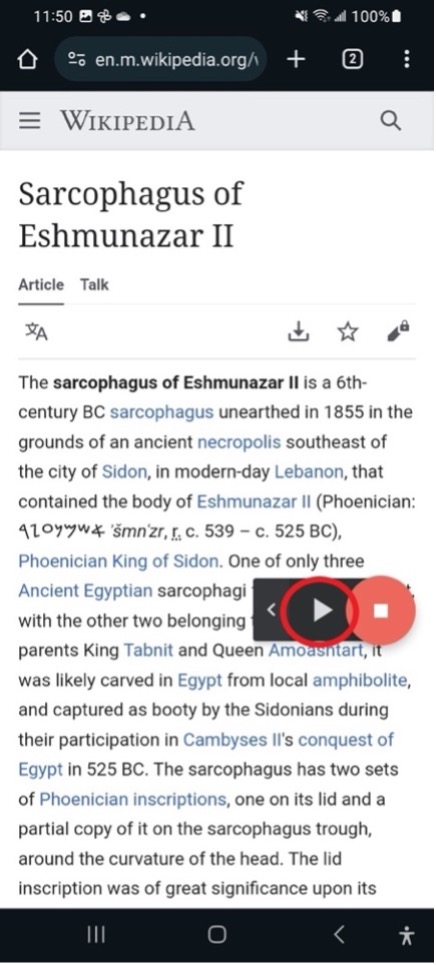
- Use toolbar to stop, pause, or change settings.
These steps may be slightly different on your phone.
Android also has a Reading mode app, which shows the text on screen in a simplified view and can read it aloud.
- Install the Reading mode app from the Google Play Store and open Reading mode.
- Navigate to Settings > Accessibility.
- Select Installed apps.
- Select Reading Mode.
- Set desired Reading mode shortcut.
- Open the Accessibility shortcut and select Reading Mode.
- Reading mode does not work on every page. It works best on documents and text-heavy pages.
- Reading mode changes the appearance of content.
- Press Play to begin reading.
- Press Settings to change appearance and audio settings.
Learn More
ChromeOS
- Navigate to Settings > Accessibility > Text-to-speech.
- Toggle on Select to Speak.
- Select the Select to Speak icon (circle with speaker) on the Shelf and click and drag over content you want read aloud. Or highlight text and press Search + S.
- The Select to Speak navigation bar will appear with options to pause, skip, rewind, and change speed.

Additional options for voices and highlighting are available under Settings > Accessibility > Text-to-Speech > Select to speak settings.
iOS
Use Read & Speak (called Spoken Content in iOS 18 and earlier) to have text read aloud.
- Go to Settings > Accessibility.
- Tap Read & Speak.
- Turn on Speak Selection.
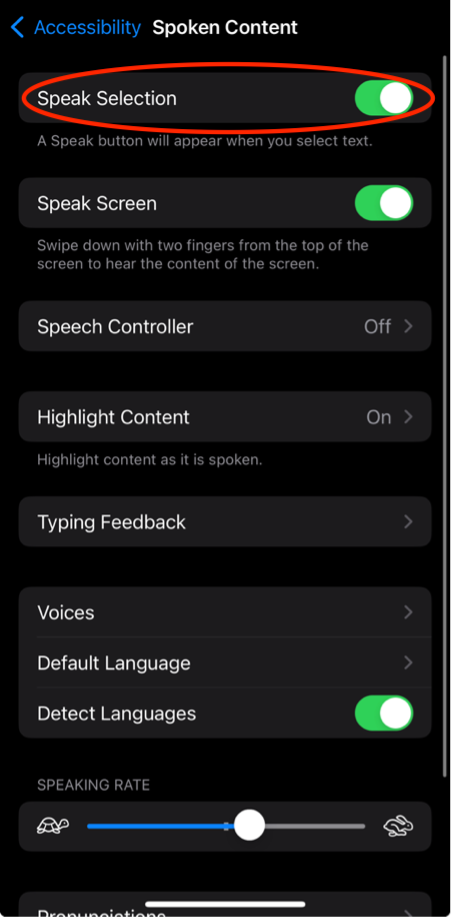
- Highlight text and select Speak to hear selected text read aloud.
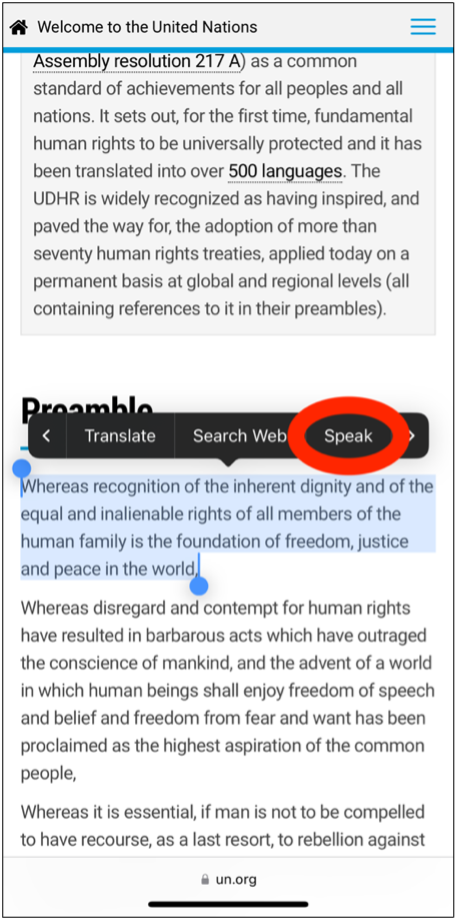
To hear everything on screen read aloud:
- Go to Settings > Accessibility > Read & Speak.
- Turn on Speak Screen.
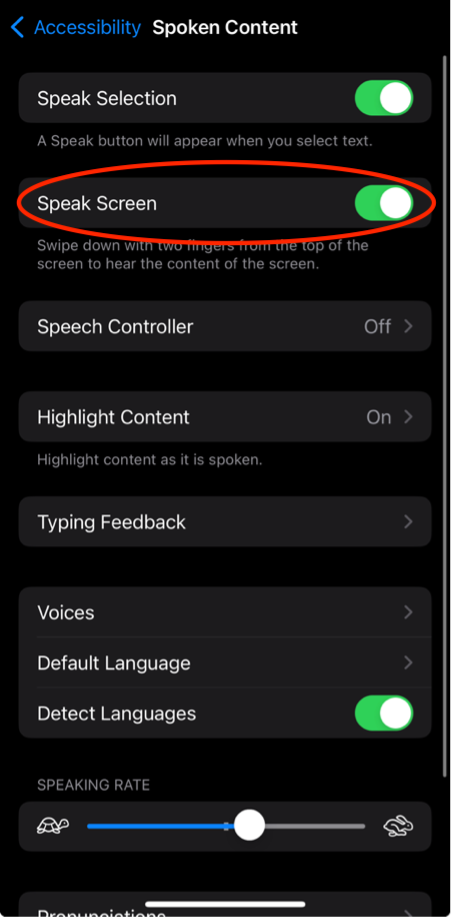
- Swipe down from the top of the screen with two fingers to hear everything on the screen.
- Use the toolbar to control speech.
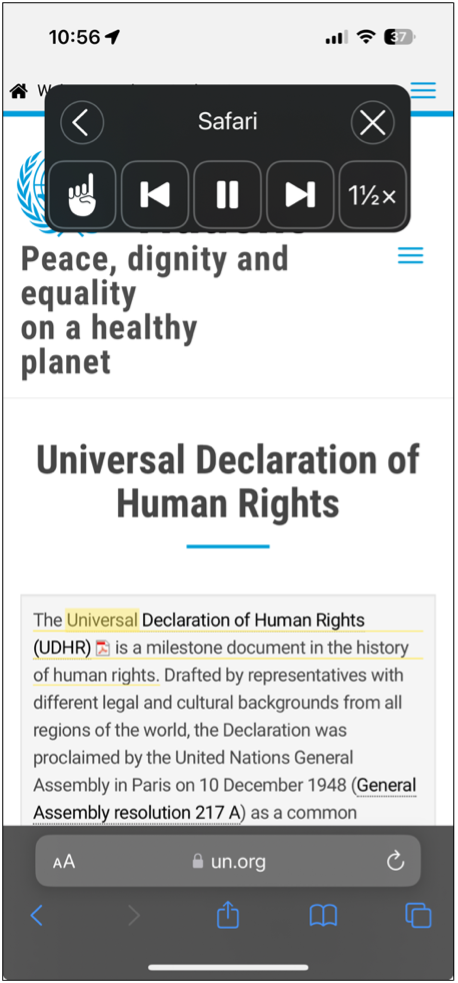
In Safari, use Listen to Page when available:
- Select the
 icon in the address bar and choose Listen to Page.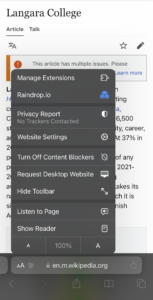
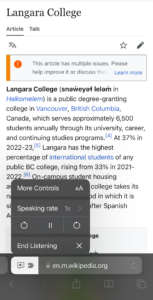
- Control playback by tapping on
 in the address bar.
 - Control reading speed, skip forward and back, pause, or stop listening.
Learn More
macOS
Turn on Speak selection:
- Go to System Settings > Accessibility > Read & Speak (called Spoken Content in older versions of macOS).
- Turn on Speak selection.
- Select the ⓘ button beside it to change options such as highlighting and the controller.
- The default keyboard shortcut for Speak selection is Option + Escape.
- Choose a System voice and select Play Sample to check the voice and speed.
To hear text, select it and press Option + Escape. The speech controller appears with options for controlling speech.
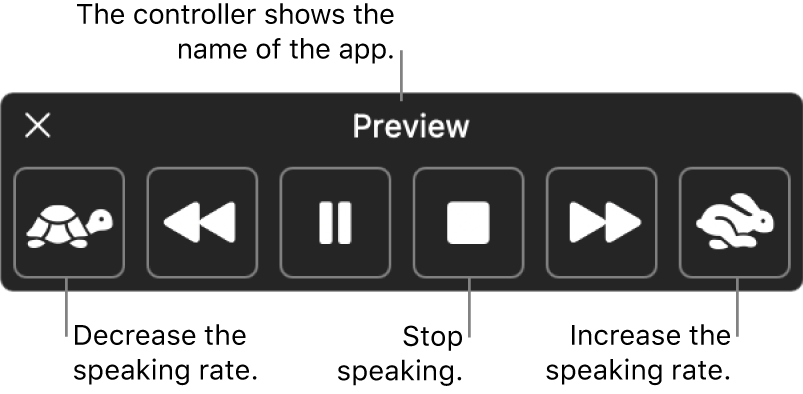

In macOS Tahoe 26 and later, Accessibility Reader shows the text of any app in a full-screen view where you can change the font, colours, and spacing, and have the text read aloud.
Learn More
Browser tools
Chrome
Chrome’s Reading mode shows a simplified version of a page and can read it aloud.
- Open Reading mode in one of these ways:
- Right-click on the page and select Open in reading mode.
- Select the Reading mode icon in the address bar, when it appears.
- Open the Chrome menu (three dots) and select More tools > Reading mode.
- Press Alt + Shift + R (Windows and ChromeOS) or Command + Option + R (macOS).
- Select Play to have the page read aloud. Use the controls to pause, skip between sentences, and change the speed.
- Under Settings, choose a voice, the highlighting, and the font, size, spacing, and colours.
Reading mode doesn’t work on every page, for example forms, quizzes, and login pages.
Edge
Edge has two reading tools: Read Aloud and Immersive Reader.
There are 3 ways to activate Read Aloud:
- Press Ctrl + Shift + U.
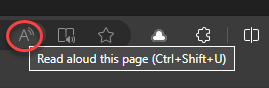
- Click the A icon in the address bar. Read Aloud will begin reading from the top of the page.
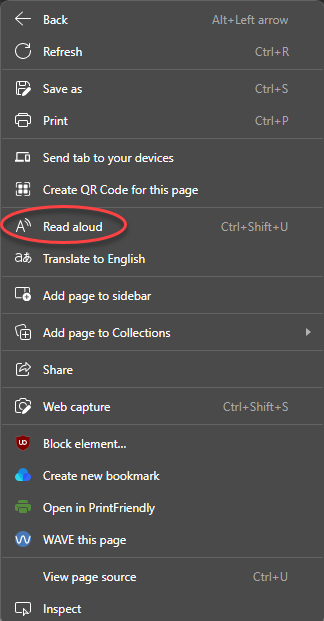
- Right-click on text and select Read Aloud or Continue to read aloud from here. Additionally, users can select text, right-click and click Read Aloud Selection.
To use Immersive Reader, press F9 or click the Immersive Reader icon in the address bar (when available). 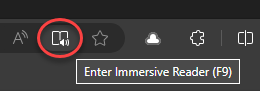
Immersive Reader offers a simplified version of webpages with full Read Aloud functions. Additional visual customizations and reading preferences are available. 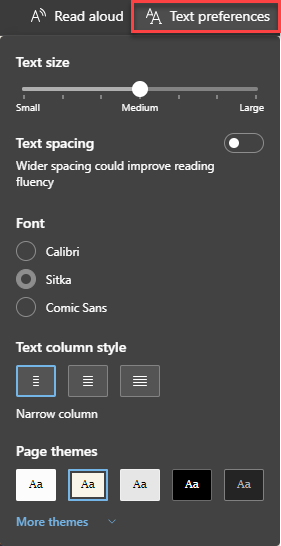
Firefox
Press F9 or Ctrl + Alt + R (Windows) or Command + Option + R (macOS) to open or close Reader View, or click the lined paper icon in the address bar. 
Reader View includes built-in text to speech and display customization.  The look of webpages can be customized, including the font as well as line, character, and word spacing.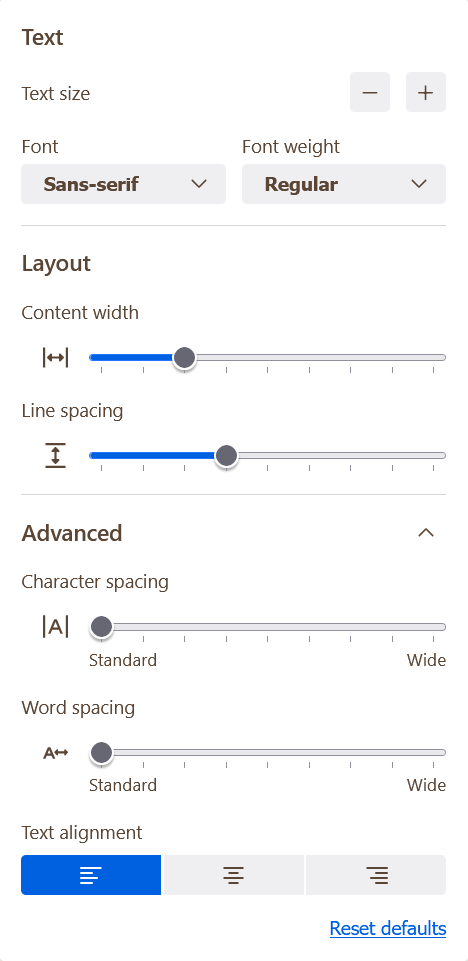
The background colour can be changed, as well as the colour of links, font, background, and highlighting under the Custom tab. 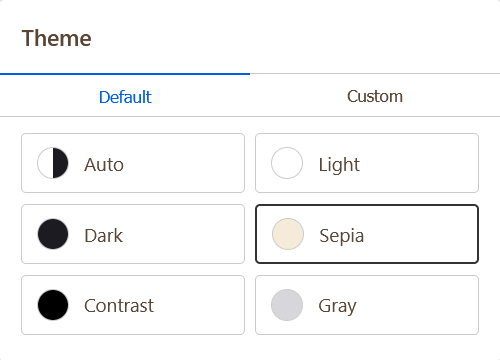
The Read aloud tool (headphone icon) offers read aloud functions, variable speed, and voice options. 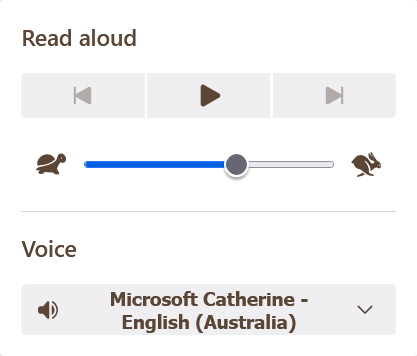
Reader View is not available on all webpages.
Safari
Safari uses the Mac’s built-in speech. Turn on Speak selection first (see macOS above), then in Safari:
- Highlight text.
- Right-click.
- Select Speech.
- Select Start Speaking.
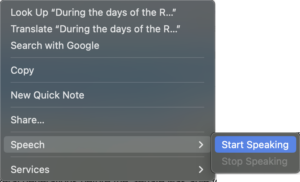
Or highlight text, select Edit from the menu bar, choose Speech, and click Start Speaking.
Use the speech controller to control reading and speed.
Safari’s Reader shows a simplified version of articles, which may make them easier to read. Click Show Reader in the address bar. 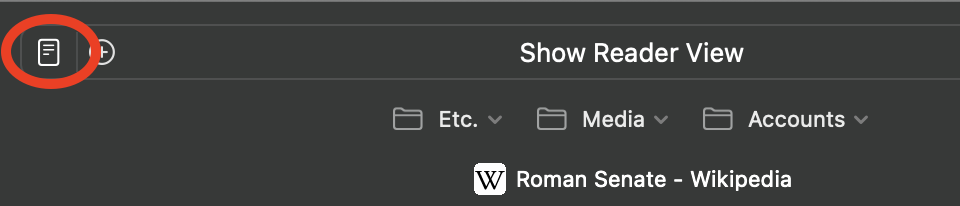
You can also press Command + Shift + R, or open the View menu and select Show Reader. Reader is not available on all websites.
Hide distractions when reading articles in Safari on Mac – Apple Support (CA)