Mind Mapping
A mind map is a diagram that organizes information visually, as a hierarchy of topics with links between related ideas. Mind mapping can help you brainstorm ideas for a paper, organize notes and research, plan tasks, and see connections between concepts. It can also help with organization and focus.
The most useful mind mapping tools can turn a map into a text outline, which is a great way to start an essay or assignment. Each tool below explains how.
On this page:
GitMind

GitMind is a mind mapping tool you can use online or download for Windows, macOS, iOS, and Android. A free account includes many features; some need a paid account.
To use GitMind:
- Create a new map.
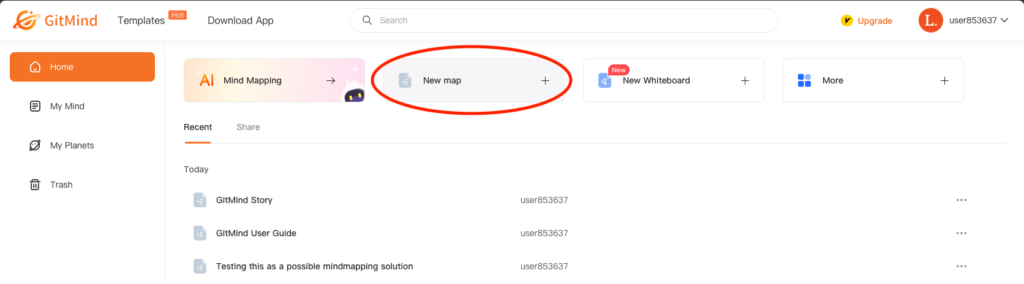
- Use the toolbar to add nodes, subnodes, and customize the appearance of content.

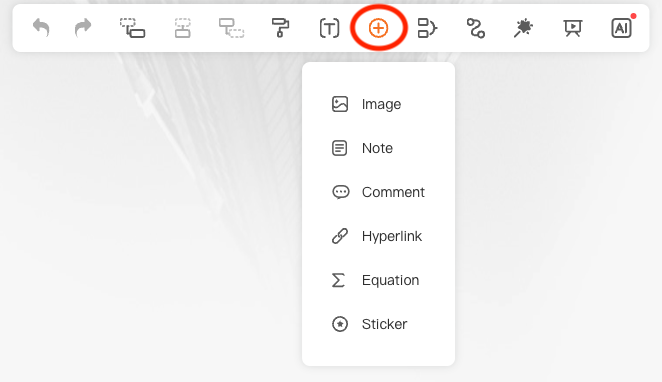
- Select a node and click Insert to add images, notes, links, and more.
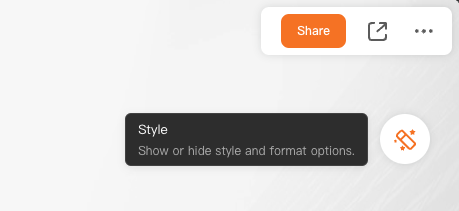
- Select Style to change background, theme, and map style.
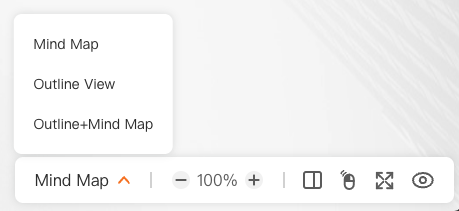
- Select Outline View to see a hierarchical text version of your map.
- Export as an image or document.
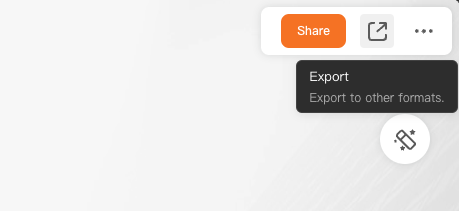
When you export to a Word document, nodes and subnodes appear as different sizes of text but are not real heading levels.
One especially useful GitMind feature is Split Screen.
- Open the More menu and select Split Screen.
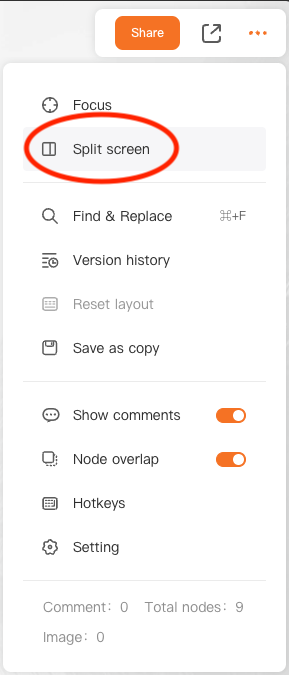
- Open a document, webpage, or whiteboard beside your map, for project planning, note-taking, and research.
To review keyboard shortcuts, select More and click Hotkeys.
Learn more in How to use GitMind.
MindMeister

MindMeister is an online mind mapping tool that runs in your web browser. You need to create an account. The free plan is limited to a few mind maps; paid plans have more features.
To create a mind map:
- Select Mind Map.
- Begin with a title or main topic.
- Press Tab to add a subtopic.
- Press Enter to add a sibling (equivalent subtopic).
- Select Actions to add comments, notes, connections, and other tools.
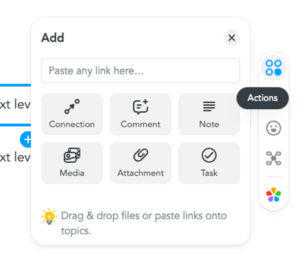
To switch to a text outline:
- Click Mind Map in the bottom left corner of the window.
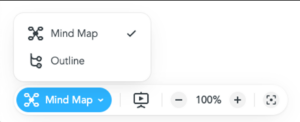
- Select Outline.
- Changes you make in Outline view also appear in the mind map.
To export an outline:
- Select Export in the top left.
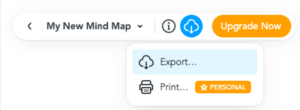
- Choose Export…
- Choose Document Outline.
- Check Include topic styling.
- Click Export…
- The exported document is an .RTF file with real heading levels.
Learn more about MindMeister features.
MindMup

MindMup is an online mind mapping tool. It is free to use, and a paid version has more features. You need a Google account to use MindMup.
To use MindMup:
- Navigate to MindMup.
- Select CREATE A FREE MAP.
- On your first visit, MindMup asks to connect to your Google account.
To create a mind map:
- Build the mind map by entering topics, subtopics, and siblings.
- Press Tab to create a subtopic.
- Press Enter to create a sibling topic.
- The toolbar has buttons to create siblings, subtopics, and connections.
- Create connections between nodes by selecting the first node and then clicking Connect to another node on the toolbar and clicking the destination node, or holding Alt and clicking the destination node.
- Press N to add a note to a topic.
- Or open View > Sidebar > Show Notes to add and edit notes in the sidebar.
To export an outline:
- Open the File menu.
- Select Download as.
- Choose Outline.
- Make sure MS Word/Google Writer is the selected format.
- Check the Include text notes box. Without it, your notes are left out.
- Click Export.
- Click Download. MindMup saves a Word document.
The exported outline uses nested lists to show the structure of the map. To get real heading levels instead, change the Outline type setting before exporting.
Mindomo

Mindomo is an online mind mapping tool that runs in your web browser. It is free to use, and a paid version has more features.
To create a Mindomo mind map:
- Click Create and choose a diagram style.
- We recommend Blank mind map or Blank concept map.
- Click the placeholder and type the main topic.
- Press Tab to create a subtopic. Repeat as needed.
- Press Enter to create a sibling topic.
- Click the down arrow on a topic for more options:
- Notes, to add detail.
- Hyperlinks and attachments.
- Media such as images, videos, audio recordings, and icons.
- Relationships, to connect two topics with a line.
Open the menu and select Shortcuts to see a list of keyboard shortcuts to add topics, subtopics, and relationships between topics.
To convert a mind map to an outline:
- Expand the menu and select View as Outline to see a bullet point version of the mind map.
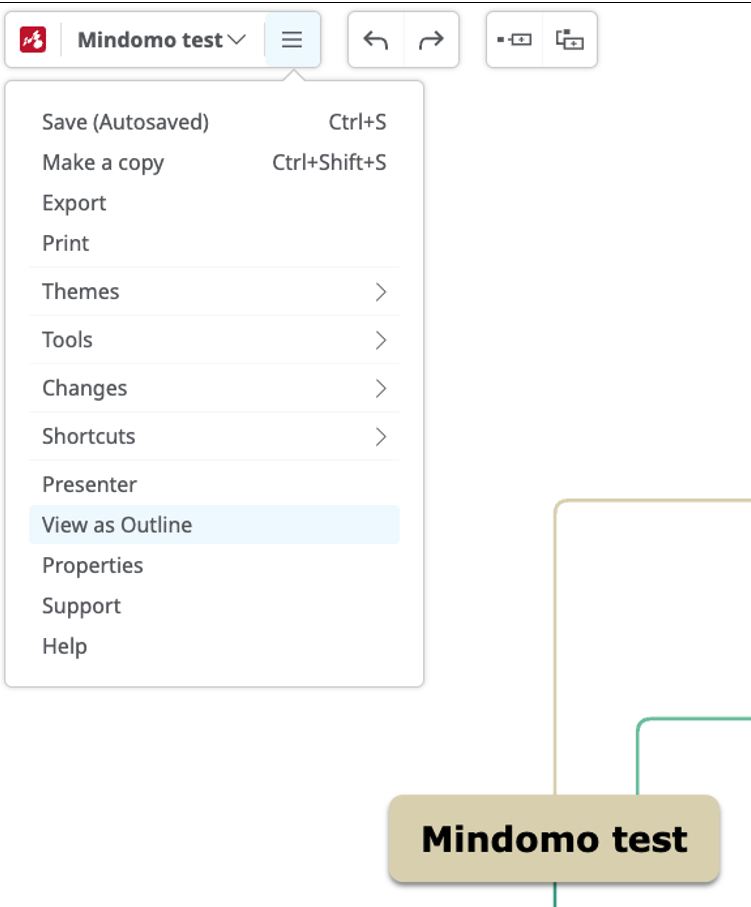
- Changes you make in the outline also appear in the mind map.
To export an outline:
- Open the menu and select Export.
- Choose Text File (.txt), click Export and select My Computer.
- The exported document includes tab indents to show structure.
Microsoft Word

Use Microsoft Word to create document outlines.
Word Outline
Word can’t draw a mind map, but its Outline view is a good way to organize ideas as an outline. Outline view is only in the desktop versions of Word (Windows and macOS). To install Word, go to Microsoft 365 and select Install apps.
Sign in to Microsoft using your Langara email and password.
To create an outline:
- Navigate to View > Outline.
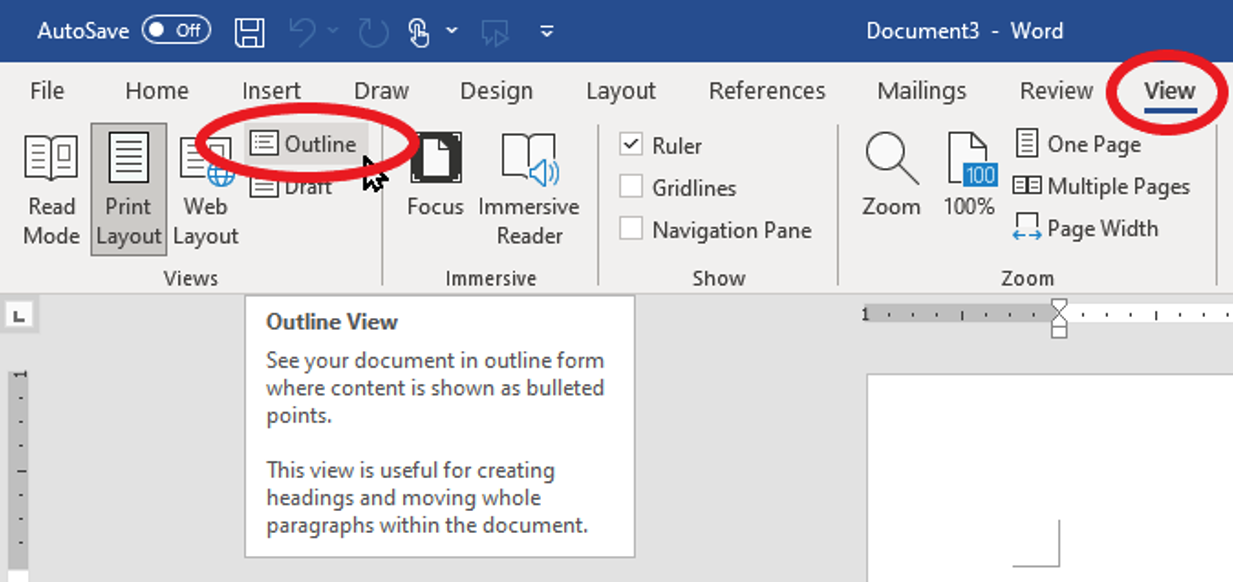
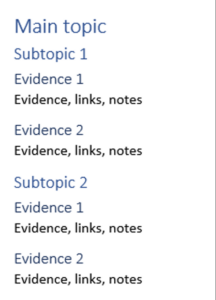
- Enter your main topic as Level 1.
- Press Tab and enter subtopics. Repeat to create as many levels as needed.
- Or use the promote and demote buttons to set the level.
- Enter links, notes, and evidence as body text.
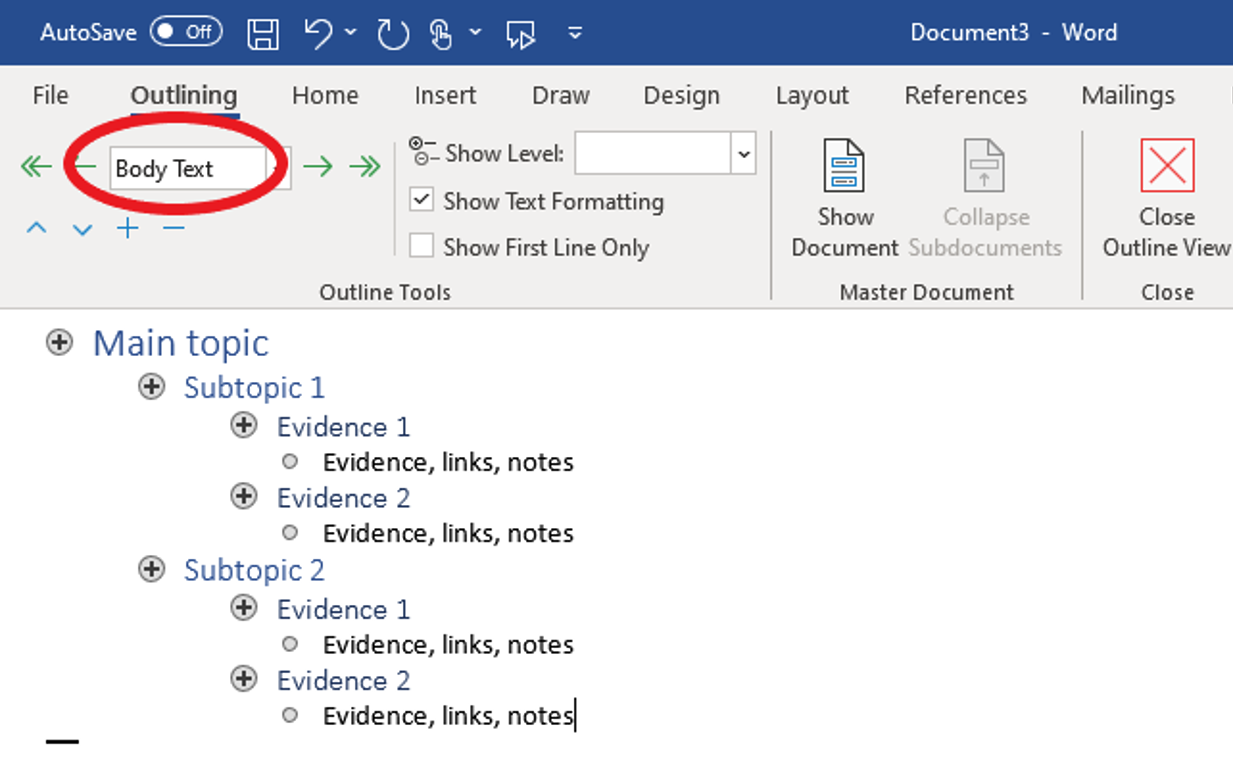
- Click Close Outline View to return to the document. The outline will appear as text with heading levels organizing topics, subtopics, and content.
You can also turn a Word outline into PowerPoint slides: see Create a PowerPoint presentation from an outline – Microsoft Support.
Inspiration
Inspiration 10 is available on computers in L121.
Inspiration is software for creating diagrams, outlines, and maps, with templates and a built-in tutorial.

Inspiration
Download a free trial of Inspiration or buy a licence. These steps and links are for Inspiration 10; newer versions may look different.
To begin:
- Choose a document type: Diagram, Outline, or Map.
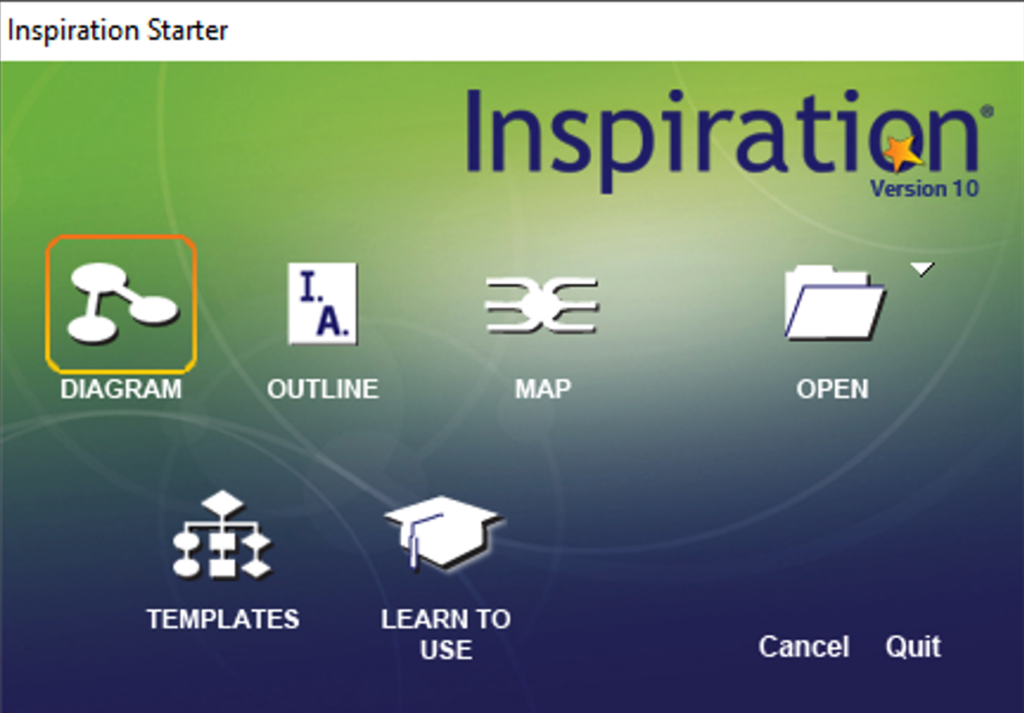
- A diagram lets you arrange topics, subtopics, and notes freely.
- Maps follow a more structured process with a central main idea.
- An outline is a text list of your ideas, arranged in levels.
- Start with your main topic and add subtopics.
- Use the Relate tool in a Map to create connections.
- Use the Link tool in a Diagram to create connections.
- In a Diagram or Map, select Outline (or open the View menu and choose Outline) to see it as a text outline.
- When your outline is complete, select File > Export.
- Choose Microsoft Word.
- You can change what to include in the export, but the default settings usually work best.
- Click Save, then open the document in Word to continue your project.
For more information:
- Inspiration resources and videos
- Inspiration explainer videos
- Inspiration how-to videos
- Inspiration user manuals
- Inspiration Needs Report Justification Guide (this interactive guide is organized by user need and links to Inspiration features that may help).
Kurzweil
Kurzweil is available on computers in L121.

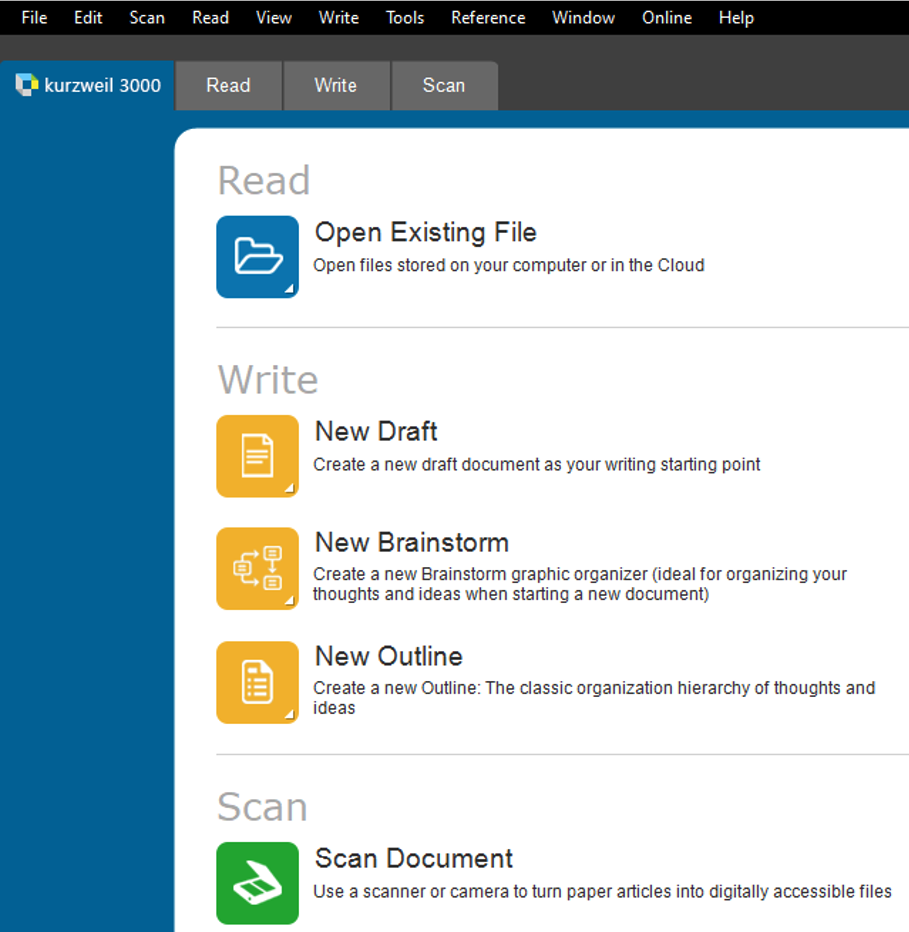
Kurzweil 3000 is a literacy suite with many tools (see also Reading Alternate Format Material). Its Brainstorm tool makes a mind map that can be turned into an outline and then a draft document.
Kurzweil
Students in British Columbia may be able to get Kurzweil through ATBC grant funding, or buy a Kurzweil licence from Bridges Canada. Visit the Kurzweil download centre for trials and updates.
By default, Kurzweil reads aloud as you type. To change this, go to Tools > Options and check or uncheck the options under Speak as Typing.
Select File > New > Brainstorm > Blank or From Template. There are templates for many different layouts.
- Enter a main topic.
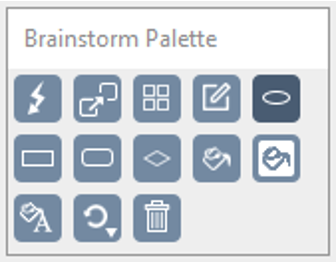
- Add subtopics as ovals, rectangles, or rounded rectangles.
- Using different shapes and colours is another way to organize your ideas.
- The Brainstorm Palette has tools for shapes, links, and other options.
- Use Quick Takes to quickly enter subtopics.
- Create Links between ideas.
- Select Arrange to clean up the diagram.
- This can change the look of your diagram a lot. To go back, select Edit > Undo.
To convert the diagram to an outline:
- Select Outline View.
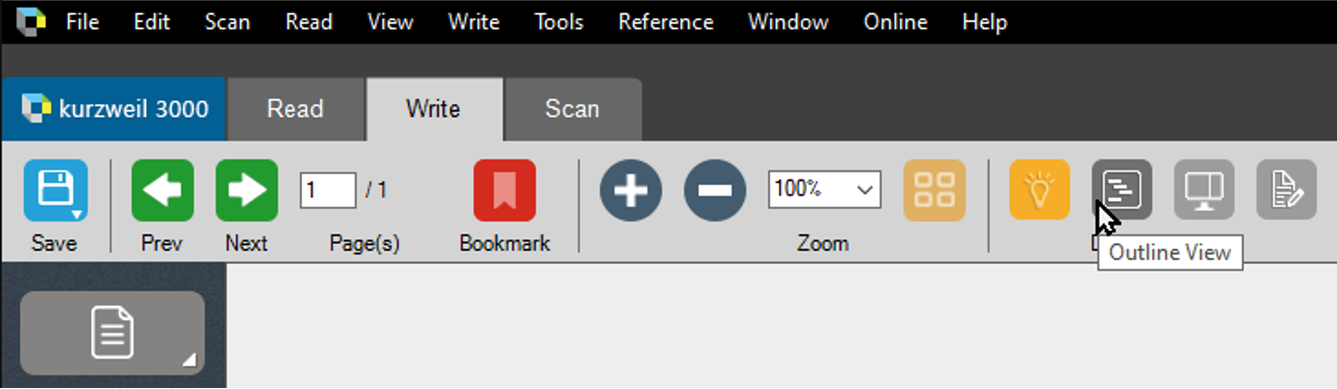
- Outline View converts the diagram to a list of indented bullet points.
- You can add information, notes, links, or other media in Outline View.
- Select Split Screen View to open a blank Draft document beside the outline, and start writing.
- Choose Save As… and select MS Word 2007 (*.DOCX).
- Open the document in Word to complete the project.