Browsers
Browsers aren’t assistive technology as such, but they have settings and tools that can make the web easier to use. These guides are for the desktop versions (Windows and macOS); the mobile versions have some similar features.
On this page:
Chrome

Chrome is the most widely used browser and works well with most assistive technology.
To find settings and tools, select Customize and control Google Chrome (three vertical dots near the top right) or press Alt + F. 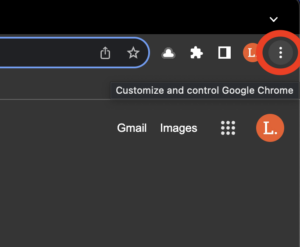
UI Options Plus
UI Options Plus is a Chrome extension (it also works in Edge) with many display settings in one panel. Use the scrollbar or the left and right arrows to move between tools:
- Zoom – uses Chrome browser zoom up to 500%.
- Letter spacing – up to 2x website default.
- Word spacing – up to 4x website default.
- Line spacing – up to 3x website default.
- Syllables – puts a dot between the syllables of words.
- Contrast – several combinations of background and text colours.
- Right-click to select – right-click any part of a block of text to select all of it.
- This makes it easier to copy text or have it read aloud.
- Selection highlight – changes the colour of selected text.
- Text-to-speech – reads selected text aloud when you click Play.
- Reading mode – simplifies the page and removes distractions like ads and sidebars (this can break the layout of some pages).
- Table of contents – builds a table of contents from the page’s headings.
- Enhance inputs – makes link and button text larger, bold, and underlined.
Change a setting with the left and right arrows, by typing a number, or with its on/off switch.
To reset all customizations to default, right-click the extension icon and choose Reset.
Some websites, such as this one, incorporate a version of the UI Options Plus extension. On this site, select + Show preferences to take advantage of the customizations available.
Page Zoom
- Zoom in: Ctrl (Command on macOS) + =
- Zoom out: Ctrl + -
- Reset to actual size: Ctrl + 0
The zoom settings can also be accessed from the View menu on the toolbar (macOS) or under More on Windows.
Chrome remembers the zoom level for each website: the next time you visit, the site opens at the same zoom. To clear the zoom levels Chrome has saved:
- Select More > Settings.
- Click Privacy and security > Site settings.
- Click Additional content settings > Zoom levels.
- Click X (Remove zoom level) beside a site to set it back to the default.
Default Fonts
- Select More > Settings.
- Select Appearance.
- Font size sets the default text size, and Page zoom sets the default zoom for all sites.
- Customize fonts has more options:
- Minimum font size
- Default fonts
Change text, image and video sizes (zoom) – Google Chrome Help
Live Caption
Chrome can automatically caption audio and video playing in the browser. To turn it on, select More > Settings > Accessibility and turn on Live Caption.
See Chrome in Closed Captions for details, and for other captioning tools.
Reading Mode
Chrome’s Reading mode shows a simplified version of a page, with your choice of font, size, spacing, and colours, and can read it aloud. Right-click on the page and select Open in reading mode.
See Chrome in Text to Speech Tools for step-by-step instructions.
Get Image Descriptions
If you use a screen reader, Chrome can describe images that have no alt text. See Get image descriptions on Chrome – Google Chrome Help to turn this on. The descriptions are generated automatically and may not be accurate.
Highlight Focused Elements
When you navigate with a keyboard, Chrome can briefly highlight the link, menu, or button that has focus. To turn this on:
- Go to Settings.
- Select Accessibility.
- Turn on Show a quick highlight on the focused object.
Caret Browsing
Press F7 to turn on caret browsing, which lets you move a text cursor around the page with the keyboard and select text.
Links
- Accessibility on Chrome – Google Chrome Help
- Chrome keyboard shortcuts – Google Chrome Help
- Use Chrome with accessibility extensions – Google Chrome Help
- Chrome web store collection of accessibility extensions
- Google Accessibility for customers and partners (accessibility conformance reports for Google products)
Edge

Edge is the default browser in Windows. It is built on the same engine as Chrome, so many features and settings are the same, and Chrome extensions work in Edge.
To find settings and tools, select Settings and more on the toolbar or press Alt + F.
UI Options Plus
UI Options Plus is a Chrome extension (it also works in Edge) with many display settings in one panel. Use the scrollbar or the left and right arrows to move between tools:
- Zoom – uses Chrome browser zoom up to 500%.
- Letter spacing – up to 2x website default.
- Word spacing – up to 4x website default.
- Line spacing – up to 3x website default.
- Syllables – puts a dot between the syllables of words.
- Contrast – several combinations of background and text colours.
- Right-click to select – right-click any part of a block of text to select all of it.
- This makes it easier to copy text or have it read aloud.
- Selection highlight – changes the colour of selected text.
- Text-to-speech – reads selected text aloud when you click Play.
- Reading mode – simplifies the page and removes distractions like ads and sidebars (this can break the layout of some pages).
- Table of contents – builds a table of contents from the page’s headings.
- Enhance inputs – makes link and button text larger, bold, and underlined.
Change a setting with the left and right arrows, by typing a number, or with its on/off switch.
To reset all customizations to default, right-click the extension icon and choose Reset.
Some websites, such as this one, incorporate a version of the UI Options Plus extension. On this site, select + Show preferences to take advantage of the customizations available.
Page Zoom
- To zoom in: Press Ctrl (Command on macOS) + =
- To zoom out: Press Ctrl + -
- To reset to actual size: Press Ctrl + 0
Additionally, open the Settings and more button and click the + or – on the Zoom line of the menu.
Default Fonts
- Navigate to Settings.
- Select Appearance from the sidebar.
- Navigate to Zoom.
- Select the Page zoom dropdown to set the default zoom percentage.
- Navigate to Fonts.
- Select the Font size dropdown to change the default font size.
- Select Customize fonts for additional options.
Read Aloud
Edge has two reading tools. Read aloud reads the page aloud, and Immersive Reader is a distraction-free view of the page that can also read it aloud.
To start Read aloud, select text, or right-click where you want it to start, and select Read aloud. Or press Ctrl + Shift + U. A toolbar at the top of the window lets you pause, skip ahead or back, and change the voice and speed.
Immersive Reader isn’t available on every page. When it is, an icon of an open book with a speaker appears in the address bar. Click the icon or press F9. Its toolbar has options for text size and spacing, font, and page colour themes, plus grammar, focus, and pronunciation tools.
Use Immersive Reader in Microsoft Edge – Microsoft Support
See Text to Speech Tools for step-by-step instructions with screenshots.
Keyboard Navigation
Caret browsing lets you move a text cursor around web pages with the keyboard and select text to copy. Press F7 to turn it on or off, or:
- Open Settings.
- Select Accessibility.
- Under Keyboard, turn on Navigate pages with a text cursor.
Links
Firefox

Firefox isn’t built on the same engine as Chrome and Edge, so its extensions, settings, and some keyboard shortcuts are different. It is still a popular browser, very customizable, with many excellent features, including built-in text to speech.
Page Zoom
- To zoom in: Ctrl (Command on macOS) + =
- To zoom out: Ctrl + -
- To reset to actual size: Ctrl + 0, or click the zoom percentage icon in the address bar
Or, hold Ctrl (Command on macOS) and scroll up (with the mouse wheel or two fingers on a trackpad) to zoom in and scroll down to zoom out.
Firefox can also zoom only the text (select View > Zoom > Zoom Text Only, then use the same shortcuts). This may break the layout of some pages.
To set the zoom for all pages, go to Settings > General and, under Language and Appearance, choose a Default zoom.
Default Fonts
To set a minimum font size:
- Go to Settings and find the Language and Appearance section.
- Under Fonts and Colours, select the Advanced… button.
- In the Minimum Font Size drop-down, select the minimum size in pixels for text.
- Uncheck Allow pages to choose their own fonts, instead of their selections above.
- Click OK.
Read more about Firefox minimum text size options.
To override page font styles:
- Open Settings.
- Under Language and Appearance > Fonts and Colours, select Advanced.
- Set the various fonts you would like to use.
- Uncheck Allow pages to choose their own fonts, instead of their selections above.
- Click OK.
Default Colours
Firefox lets you choose your own colours for text, backgrounds, and links.
- Go to Settings.
- Under Language and Appearance, select the Colours button.
- Choose your colours, then set Override the colours specified by the page with your selections above to Always.
More information on overriding page colours.
Reader View
Firefox’s Reader View strips many pages down to the text and main images, and lets you change the background colour, font, text size, alignment, and spacing. When Reader View is available, a page icon appears in the address bar. 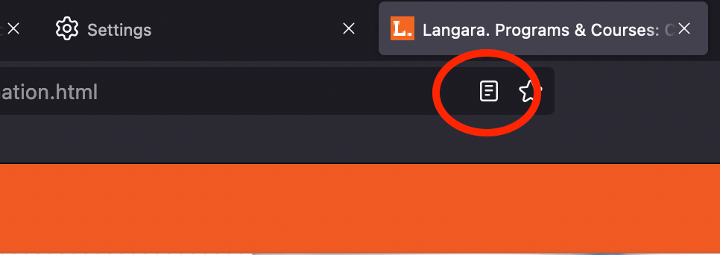
Select the icon, or press F9 or Ctrl + Alt + R (Command + Option + R on macOS).
A toolbar on the simplified page has options to change its appearance and to have it read aloud. See Firefox in Text to Speech Tools.
Firefox Reader View for clutter-free web pages – Firefox Help
Page Viewing
To see a page without its styles (just the text, links, and images), select View > Page Style > No Style.
Keyboard Navigation
As in other browsers, press Tab to move between links, buttons, menus, and other controls, and Shift + Tab to move back.
Press F7 to turn caret browsing on or off. It lets you move a text cursor through a web page and select text, as in a text editor.
Search
To search within a web page, press Ctrl (Command on macOS) + F. For a quick search with fewer options, press /. Press ' (apostrophe) to search only the links on the page, which is a quick way to jump to a section.
Press Escape to close the search tool.
Eye Dropper
Windows:
- Select Open Application Menu.
- Open More tools.
- Select Eyedropper.
macOS:
- Select Tools.
- Choose Eyedropper.
Click a colour in the magnified view that appears. Its hex colour code is copied to the clipboard, ready to paste into another app.
Copy Text from Image (macOS only)
- Right-click on an image.
- Select Copy Text from Image.
- A pop-up containing the image’s text appears.
- The complete text is automatically copied to the clipboard.
- To copy only part of it, select that text and press Command + C.
- Click Close or press Escape.
See Optical Character Recognition for other ways to copy text from images.
Known Issues
- Because Firefox isn’t built on the same engine as Chrome, some web pages and features may behave differently.
- Some extensions are only made for Chrome and aren’t available for Firefox.
Links
- Accessibility features in Firefox – Firefox Help
- Mouse shortcuts in Firefox – Firefox Help (zoom, go back and forward, work with tabs)
Safari
Safari is the built-in web browser on macOS, iOS, and iPadOS. It has fewer extensions than Chrome, but some features of its own.
Select Safari > Settings in the menu bar (Preferences in older versions), or press Command + ,, to open Safari’s settings.
Page Zoom
- To zoom in: Command + =
- To zoom out: Command + -
- To reset to actual size: Command + 0
Safari can also zoom text only, but this often breaks the layout of web pages.
Minimum Font Size
- Select Safari > Settings…
- Select the Advanced tab.
- Check Never use font sizes smaller than and choose a size.
Set defaults for current site
- Select Safari from the menu bar.
- Select Settings for [current website].
- Choose Use Reader when available and set the zoom for that site with Page Zoom.
You can change or remove these settings later in Safari > Settings > Websites.
To set defaults for all websites:
- Select Safari in the menu bar.
- Select Settings.
- Go to the Websites tab.
- Select Page Zoom in the sidebar.
- At the bottom right, choose a zoom percentage beside When visiting other websites.
- To always use Reader when it’s available, select Reader in the sidebar and choose On beside When visiting other websites.
Customize settings for each website in Safari on Mac – Apple Support (CA)
Reader View
Safari’s Reader shows many articles in a simpler, easier-to-read view.
Select Show Reader in the address bar (in newer versions of Safari, it’s in the page menu at the left of the address bar), or press Command + Shift + R.
To change the font, text size, and background colour, use the Aa button. 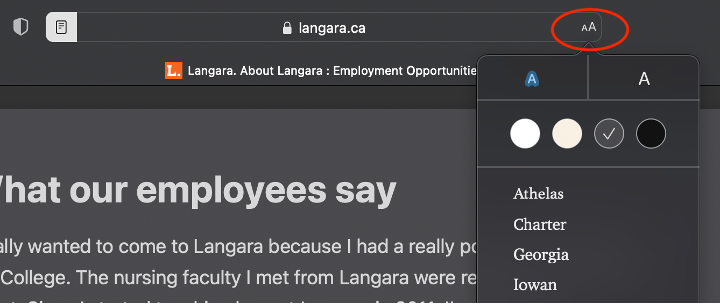
Hide distractions when reading articles in Safari on Mac – Apple Support (CA)
Text to Speech
Highlight text and select Edit > Speech > Start Speaking, or right-click and select Speech > Start Speaking.
You can also choose Start Speaking without highlighting anything, but on some web pages it may start reading at odd points.
Select Edit > Speech > Stop Speaking to stop.
Change the voice in System Settings > Accessibility > Read & Speak (Spoken Content in older versions of macOS). See Safari in Text to Speech Tools.
Keyboard Navigation
First, turn on keyboard navigation in macOS:
- Go to System Settings > Keyboard.
- Turn on Keyboard navigation.
Then, in Safari:
- Select Safari > Settings in the menu bar.
- Go to the Advanced tab.
- Under Accessibility, check Press Tab to highlight each item on a webpage.
Useful shortcuts:
- Reload current page: Command + R
- Move focus to address bar: Command + L
- Move back one page: Command + [
- Move forward one page: Command + ]
- Move down the page vertically: Space
- Move up the page: Shift + Space