Closed Captions
This page covers ways to turn on captions in video players, meeting apps, browsers, and devices, including automatic live captions for audio that isn’t captioned. Making sure videos have accurate captions is the responsibility of whoever owns the content.
On this page:
Kaltura
Kaltura is a video platform many schools use for course videos.
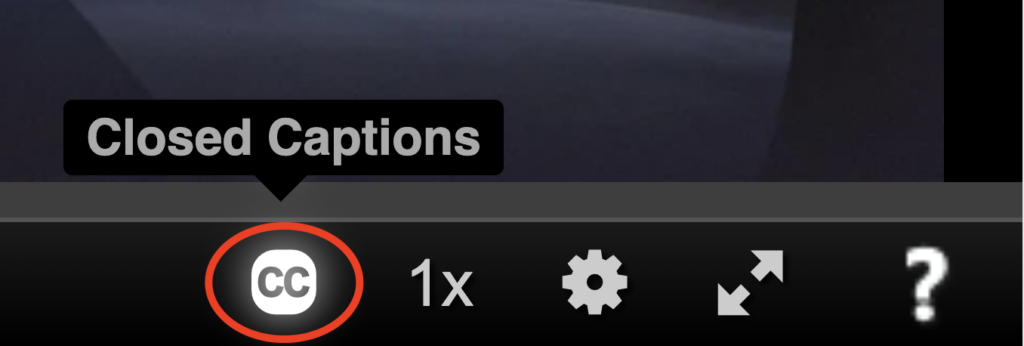
To display closed captions in Kaltura:
- Select the Closed Captions button.
- Choose a language.
![The Closed Captions menu open with Off and English [auto] options.](../assets/images/closed-captions/kaltura-cc-language.png)
- [auto] means the captions are machine-generated and may contain errors, especially in names and specialized terms.
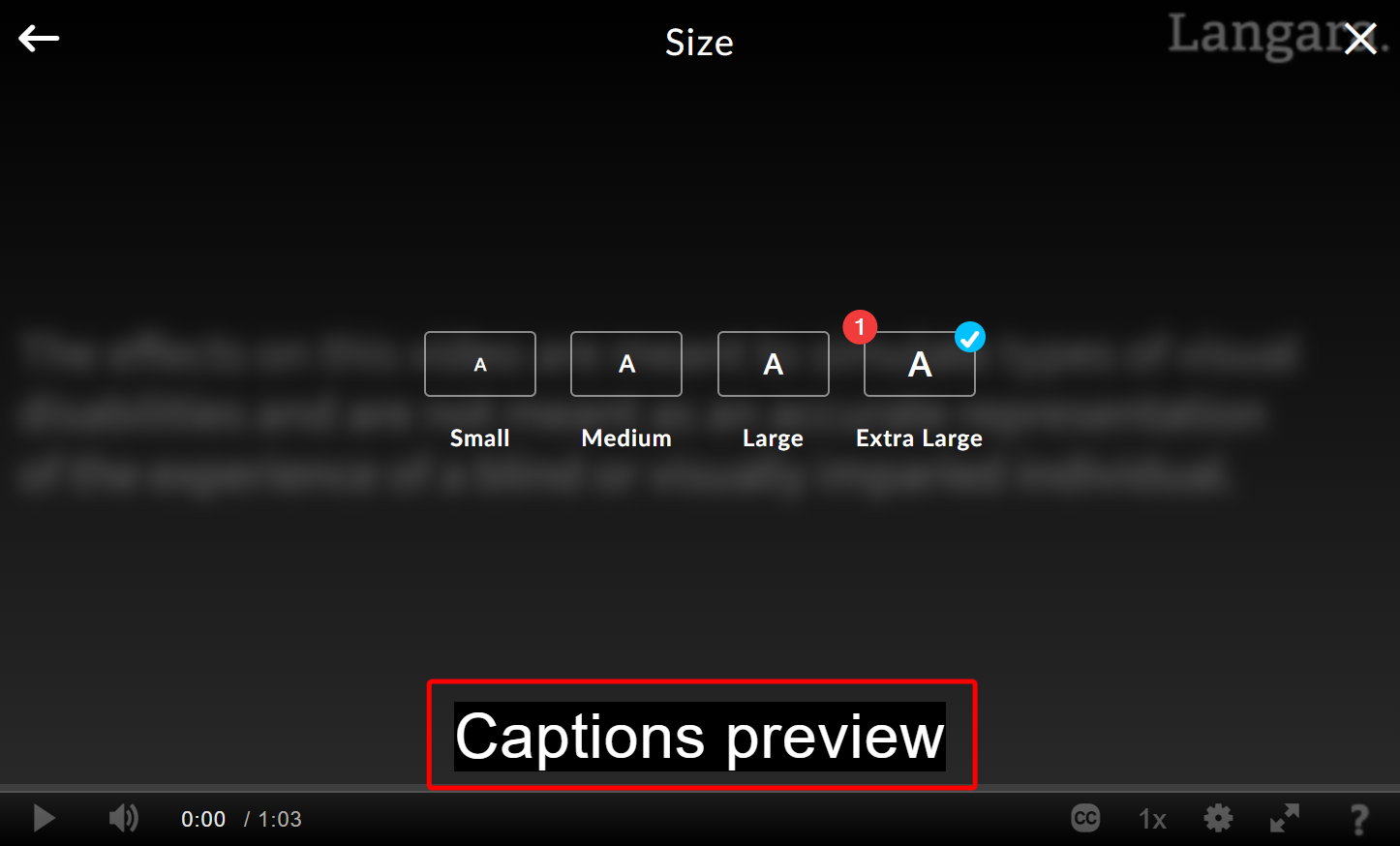
To customize the appearance of captions in Kaltura:
- Open the Closed Captions menu (1).
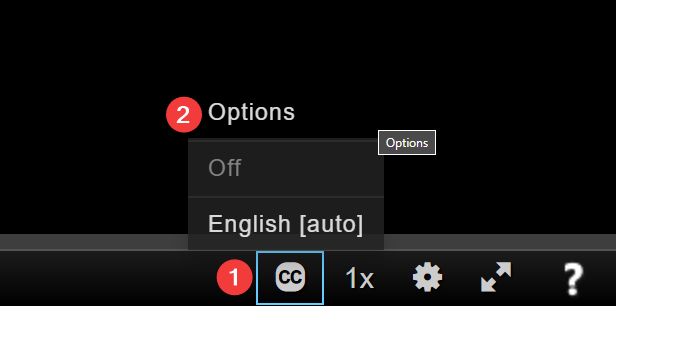
- Select Custom and choose Edit custom captions.
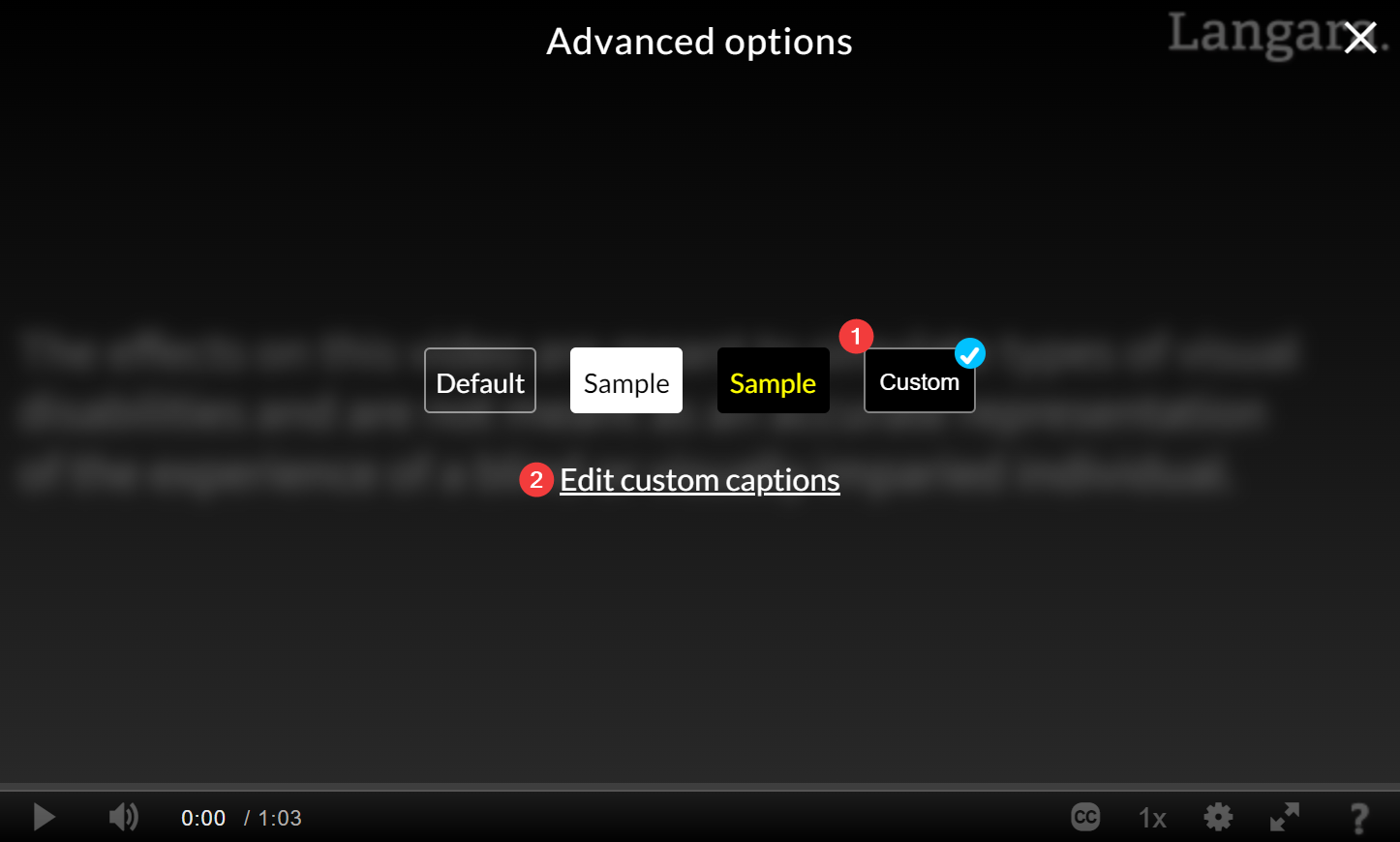
- Choose the format you want to change (Size, Color, Font, Background).
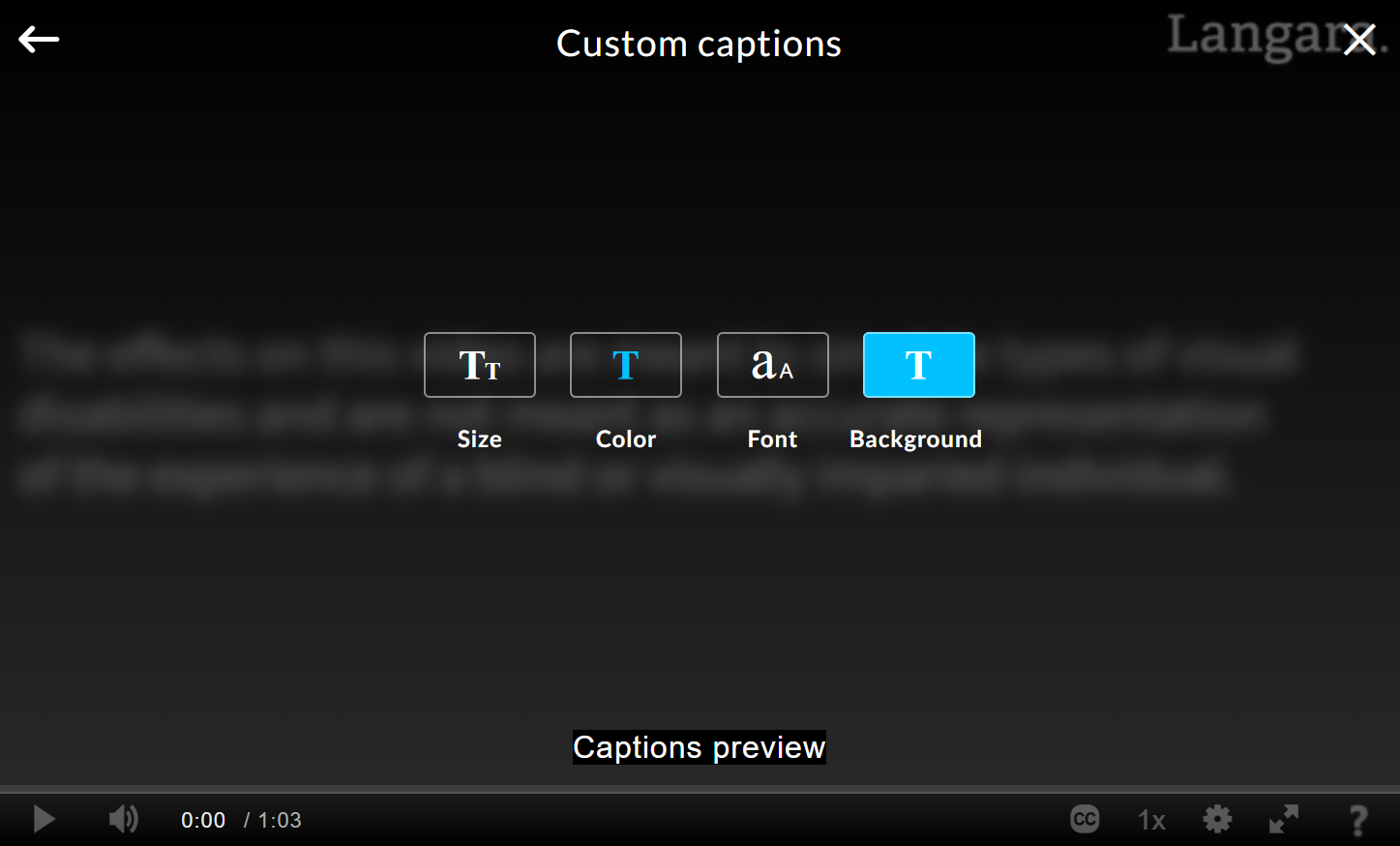
- In this example, choosing Size and then selecting Extra Large shows a preview of the new appearance.
YouTube
To view captions on YouTube videos:
- Click Settings.
- Select Subtitles/closed captions.
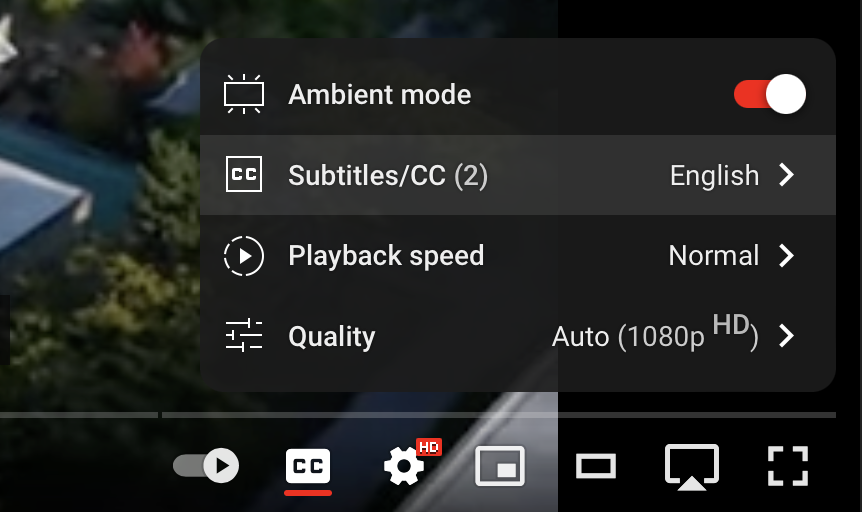
- Choose a language.
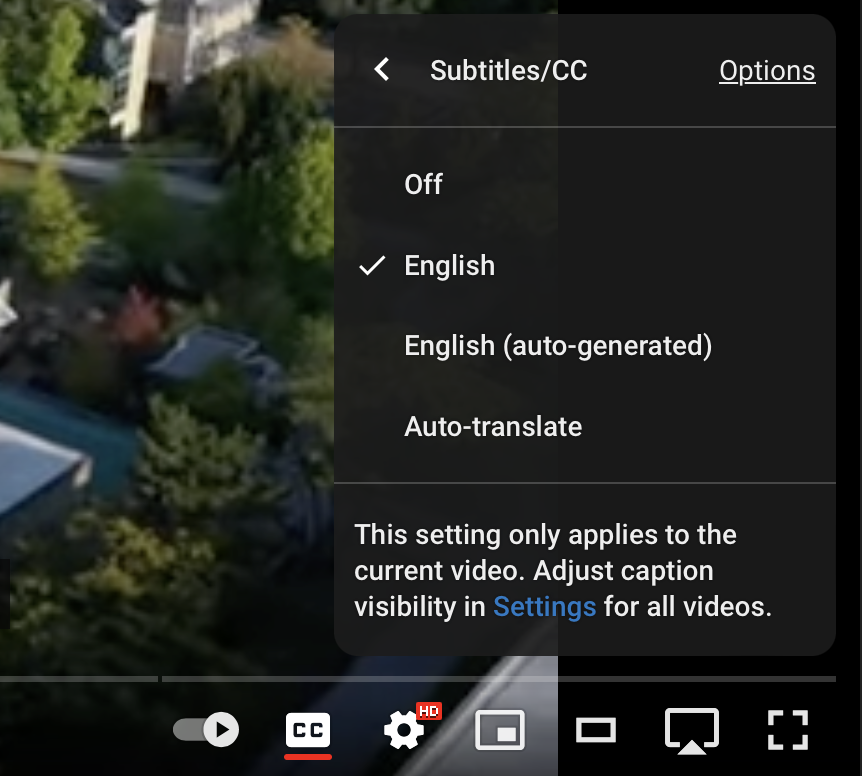
- Choose a language.
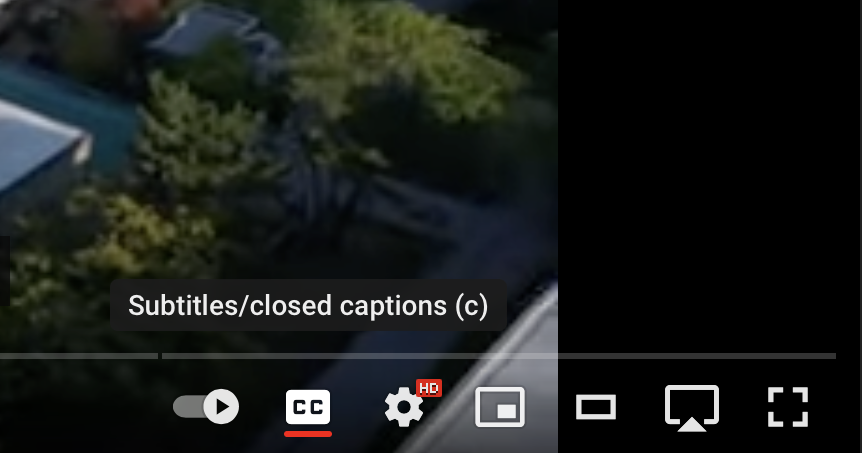
- Click Subtitles/closed captions on the player toolbar to toggle captions on and off.
Zoom
To show captions in a meeting:
- Select Show Captions in the meeting toolbar (it may be under More).
- Choose the language being spoken and select Save.
Each participant can show or hide captions for themselves.
To always see captions, open the Zoom app’s settings, go to Accessibility, and check Always show captions.
To view and save the full transcript:
- Select the arrow (^) on the Show Captions button and select View Full Transcript.
- Select Save Transcript.
Transcripts are not saved automatically with local recordings, so save the transcript yourself.
If Show Captions is missing, the meeting host needs to turn on automated captions in the Zoom web portal:
- Sign in to Zoom.
- Go to Settings.
- Select the Meeting tab.
- Scroll to In Meeting (Advanced).
- Turn on Automated captions. To allow saving transcripts, also turn on Full transcript and Save Captions.
Enabling or disabling automated captions Viewing captions in a meeting or webinar
Teams
To turn on live captions during a Teams meeting, select More actions (three dots) in the meeting controls, then Captions.
To show captions in every meeting:
- Select Settings and more (three dots beside your profile picture).
- Select Settings.
- Select Captions and transcripts.
- Turn on Always show live captions in meetings.
The first time captions start, Teams may ask for the language being spoken. Select English (Canada) or another language and click Confirm.
Captions appear at the bottom of the meeting window. Select Settings beside them to change the language, style, font, and position.
Use live captions in Microsoft Teams meetings – Microsoft Support
Windows
Windows 11 can caption any audio playing on your computer, and speech picked up by your microphone. Automatic captions don’t replace proper captions, but they help when a video has none. To turn them on:
- Open Settings and select Accessibility.
- Choose Captions.
- Toggle Live captions on.
- Alternatively, press Windows + Ctrl + L.
- Use the Settings (gear) icon on the captions window to move it, change the language, include or exclude microphone audio, and change how captions look.
Use live captions to better understand audio – Microsoft Support
Android
Live Transcribe
Live Transcribe shows conversations around you as text on screen. If it isn’t on your phone, install Live Transcribe & Sound Notifications from Google Play.
- Go to Settings > Accessibility.
- Select Installed apps.
- Choose Live Transcribe and turn on Live Transcribe shortcut.
- Tap Accessibility shortcut.
- Select Live Transcribe.
- Follow the prompts to set permissions.
- Use the shortcut to open Live Transcribe.
Live Caption
Live Caption captions audio playing on your phone, such as videos and podcasts. Press a volume button, then tap the Live Caption icon under the volume controls.
Audio accessibility features for Android
Caption style
On Samsung phones:
- Go to Settings > Accessibility.
- Select Hearing enhancements.
- Tap Caption preference.
- Turn on Show captions.
- Tap Caption size and style to change how captions look.
On other phones, look for Caption preferences under Settings > Accessibility.
Chrome
Chrome can automatically caption audio and video playing in the browser. Automatic captions don’t replace proper captions, but they help when a video has none. To turn them on:
- Open the Chrome menu (three dots) and select Settings.
- Select Accessibility.
- Turn on Live Caption.
Chrome’s captions use your computer’s caption style settings:
Manage captions and translations in Chrome – Google Chrome Help
macOS and iOS
macOS
Subtitles and Closed Captions
- Go to System Settings > Accessibility.
- Choose Captions.
- Choose a caption style and options.
These settings change how existing captions look. To caption a video that has none, use Live Captions (below).
Use subtitles and closed captions on Mac – Apple Support (CA)
Live Captions
On a Mac with Apple silicon, Live Captions can caption audio from apps, calls, and videos, and conversations around you:
- Open System Settings > Accessibility.
- Under Hearing, select Live Captions (labelled Beta in some versions).
- Turn on Live Captions.
- Use the settings to change the font and background colour.
- Click and drag the Live Captions widget anywhere on the screen.
- Click and drag from any corner to resize the widget.
- Click anywhere on the widget to reveal controls.
- Use Pause to pause captions.
- Click the microphone to switch between captioning your Mac’s audio and speech around you (picked up by the microphone).
Get captions of spoken and computer audio on Mac – Apple Support (CA)
iOS
Subtitles & Captioning
To show captions automatically when a video has them:
- Go to Settings > Accessibility.
- Select Subtitles & Captioning.
- Turn on Closed Captions + SDH.
- Select Style to change how captions look.
Live Captions
Live Captions automatically captions audio playing on your iPhone, such as videos and calls, and conversations around you. To use it:
- Go to Settings > Accessibility.
- Select Live Captions (labelled Beta in some versions) and turn on Live Captions.
- Select Appearance to change the caption text, colour, and opacity.
- Tap the Live Captions widget (sound wave icon) to start captioning.
- Tap the Live Captions window for options including full screen, pause, and close.
- Tap the microphone to switch between captioning audio on your iPhone and speech around you (picked up by the microphone).
Live Captions may not be available in every language or region, and automatic captions can contain errors.
Get live captions of spoken audio on iPhone – Apple Support (CA)
For dictation (typing with your voice) on any device, see Speech to Text Tools. To record and transcribe lectures and meetings, see Note-taking and Transcription.