Note-taking and Transcription
Note-taking is a skill, and technology helps most when paired with a method that works for you. This page covers popular note-taking methods, and apps that record and transcribe lectures, either afterward or live as you listen.
On this page:
Note-taking Strategies
Few people have ever been taught how to take notes. Technology and accommodations help most when you already have a note-taking method that works for you. Many schools have a learning or academic success centre with note-taking workshops and tutoring.
Langara’s Academic Success Centre has resources, workshops, and tutoring that can help with note-taking.
Consider these free tools for note-taking:
- Microsoft OneNote
- Apple Notes
- Google Keep
- Microsoft Word (select File > New and choose a notes template)
- Google Docs (select File > New > From template gallery > Class notes)
Popular note-taking methods include:
Outline notes are bullet points that mimic the organization of the material or presentation.
Cornell notes organize material using a template (Word, Google Docs Template).
Sentence note-taking means writing a sentence for each point, then organizing the material once the overall structure is clear.
Mapping is a visual style that emphasizes major concepts and connections between ideas. Consider MindMeister, Inspiration or OneNote. See also Mind Mapping.
Boxing is a visual style that organizes material with boxes around each subtopic.
Learn more about note-taking strategies in Student Success.
Note-taking Software
Record and Transcribe
One way to take notes is to record the audio and transcribe the recording later. You can’t correct or annotate the transcript as you go, but it may suit you better if you find it hard to focus and write at the same time. This method also suits lectures and presentations, because the recorder can be placed near the speaker.
Ask your instructor before recording a class, and keep recordings private.
To record audio:
- On a digital recorder, press the record button to start recording.
- Get to know its other features, such as sound modes and recording levels, before class.
- On a phone, tablet, or computer, open a recording app and start recording:
- Samsung: Voice Recorder. On newer Galaxy phones it can also transcribe recordings.
- Google Pixel: Recorder, which also transcribes.
- Apple: Voice Memos, on iPhone, iPad, and Mac.
- Windows: Sound Recorder.
- When you’re done, press Stop. Then move the recording to a computer: for a digital recorder, use its cable; from a phone, use cloud storage (such as OneDrive, iCloud, or Google Drive) or email the file to yourself.
To transcribe audio to text, use any of the following tools:
Microsoft Word
Microsoft Word for Windows and Word for the web have an excellent transcription tool. The audio file must be a .wav, .mp4, .m4a, or .mp3 file.
Word Transcribe
- On Windows, open a new Word document.
- On macOS, open a new document in Word for the web instead. Transcribe is not in Word for Mac.
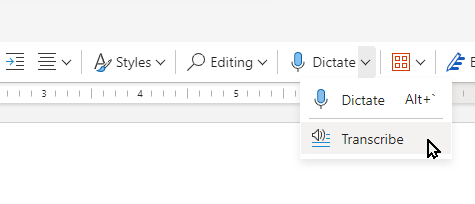
- On the Home ribbon, select the arrow below or beside Dictate and choose Transcribe.
- Select the Upload audio button.
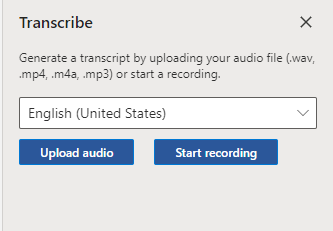
- Choose your file and select Open.
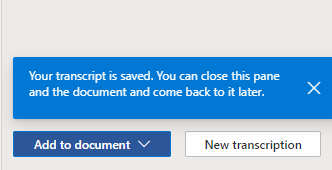
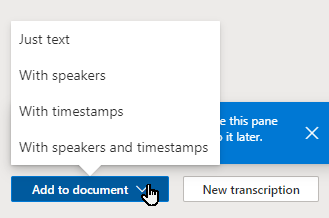
- When it’s done, you can edit the transcript and add it to your document, with or without speaker names and timestamps.
You can upload up to 300 minutes of audio a month.
Dragon
Langara has a limited number of Dragon licences. Contact Accessibility Services for information.
Dragon for Windows can transcribe .wav, .mp3, and .m4a recordings to text.
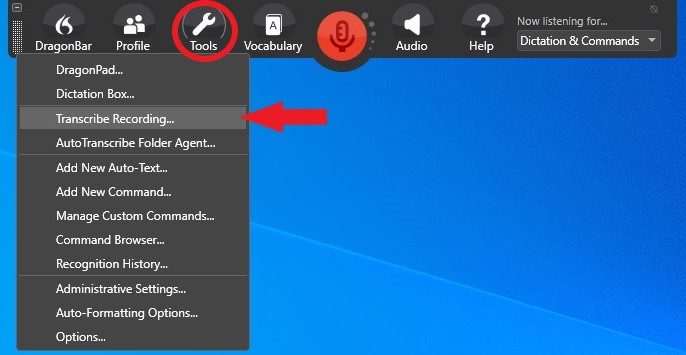
Transcribe with Dragon
- Open the Tools menu and select Transcribe Recording.
- Choose a file and select Transcribe.
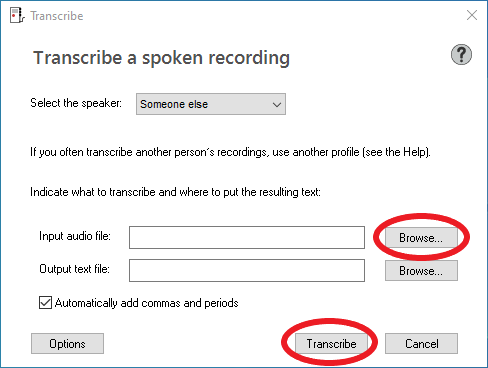
- If the recording is of someone else’s voice, select Someone else in the Select the speaker menu.
- By default, the text file is saved in the same folder as the audio file.
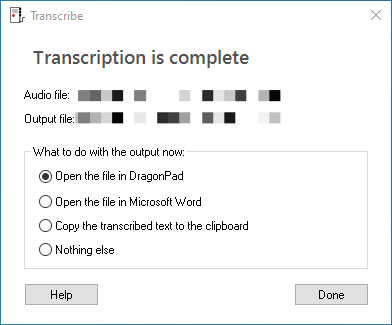
- Wait for the transcription to finish. Dragon creates an .RTF text file, which you can open in DragonPad or Word, or keep for later.
Watch a demonstration of Dragon’s transcription tool (video, 2:01).
macOS and iOS
Voice Memos can transcribe recordings in some languages, including English.
macOS and iOS Voice Memos
On a Mac:
- Go to the Voice Memos app
 on your Mac.
 - Click the recording with the transcript you want to view.
- Click
 to view the transcript.
 - Select the text you want to copy, Control-click (or right-click) it, then choose Copy. Paste it into a document, email, or anywhere else.
View a Voice Memos transcription on Mac – Apple Support (CA)
Audapolis
Audapolis is a free, open source editor for Windows, macOS, and Linux that transcribes audio on your own computer, without uploading it, and lets you edit the transcript.
Live Note-taking and Transcription
Live transcription apps record and transcribe audio as it happens, and let you add notes and highlights while you listen.
Because the audio is recorded by your own device, they may not work well in large lectures or noisy rooms, where the speaker is far from the microphone or there is background noise and echo. They work best for small meetings, seminars, and group work.
Most of these apps upload your recordings to the company’s servers. Check their privacy terms, and ask your instructor and group before recording.
OneNote
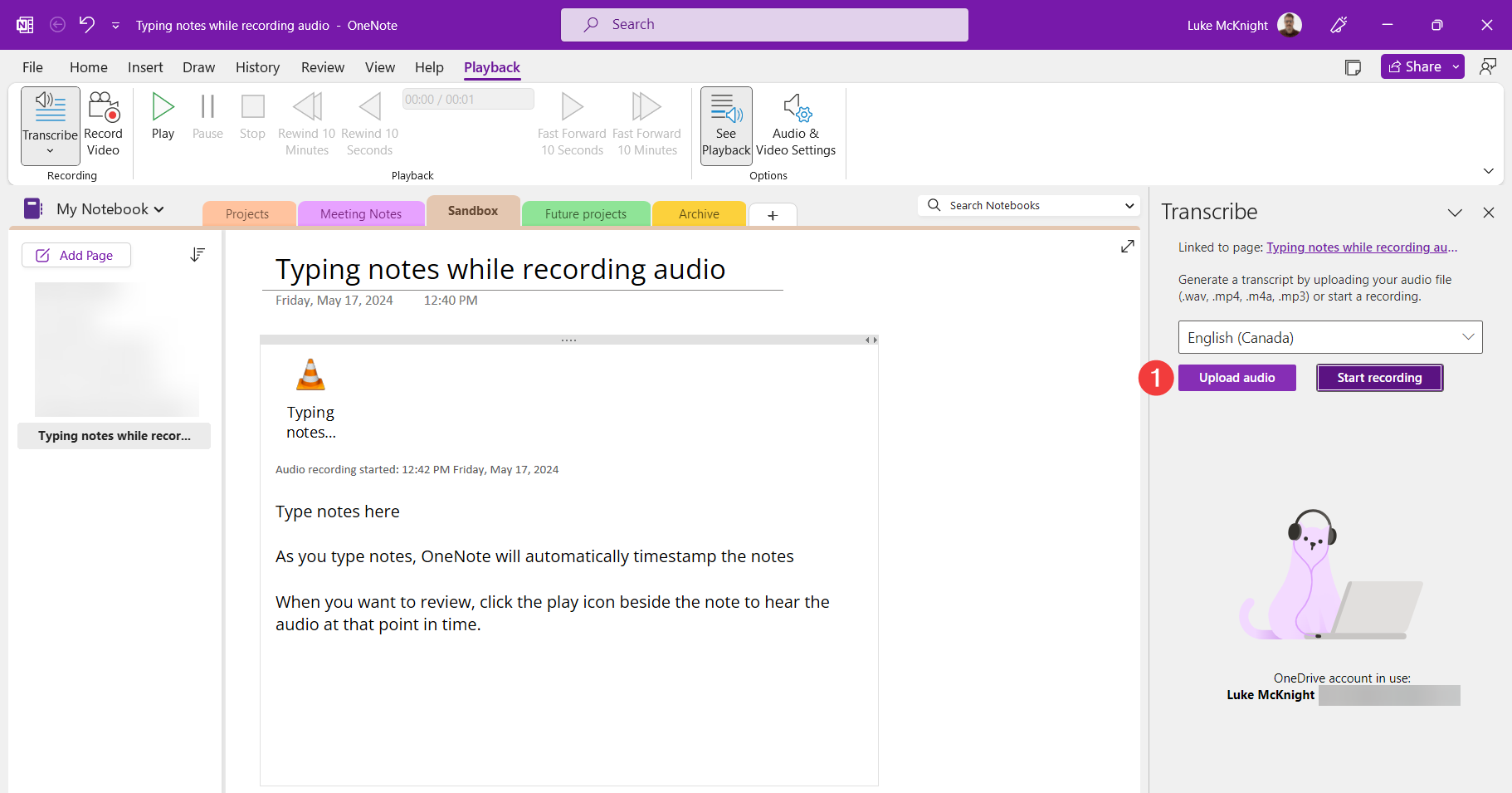
Microsoft OneNote can record audio while you type notes, and links each note to the moment in the recording when you typed it.
To record audio and type notes in OneNote:
- On the Home tab, open the Transcribe menu (1) and select Record Audio (2).
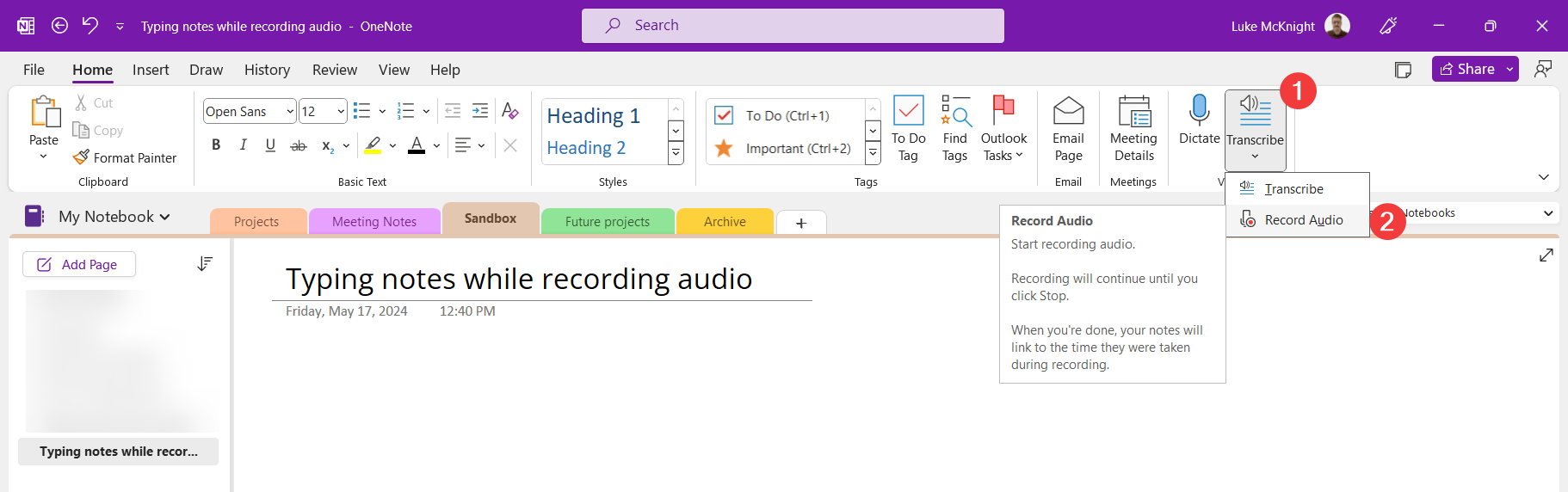
- If the Transcribe menu does not appear on the Home tab, check the Insert tab.
- OneNote will automatically begin recording.
- Type your notes below.
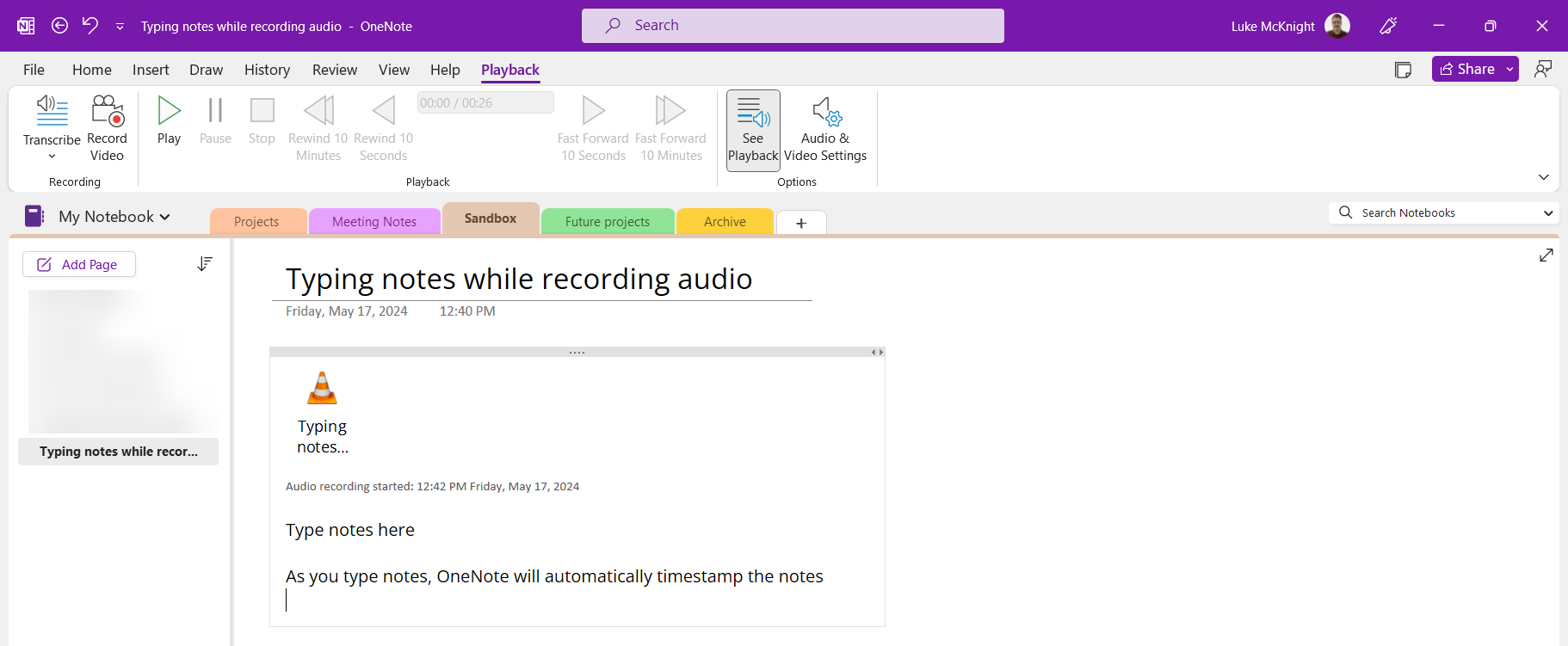
- When finished, click the Stop button on the Playback tab.
- Place the mouse cursor on a line of text and then click the play button that appears to the left.
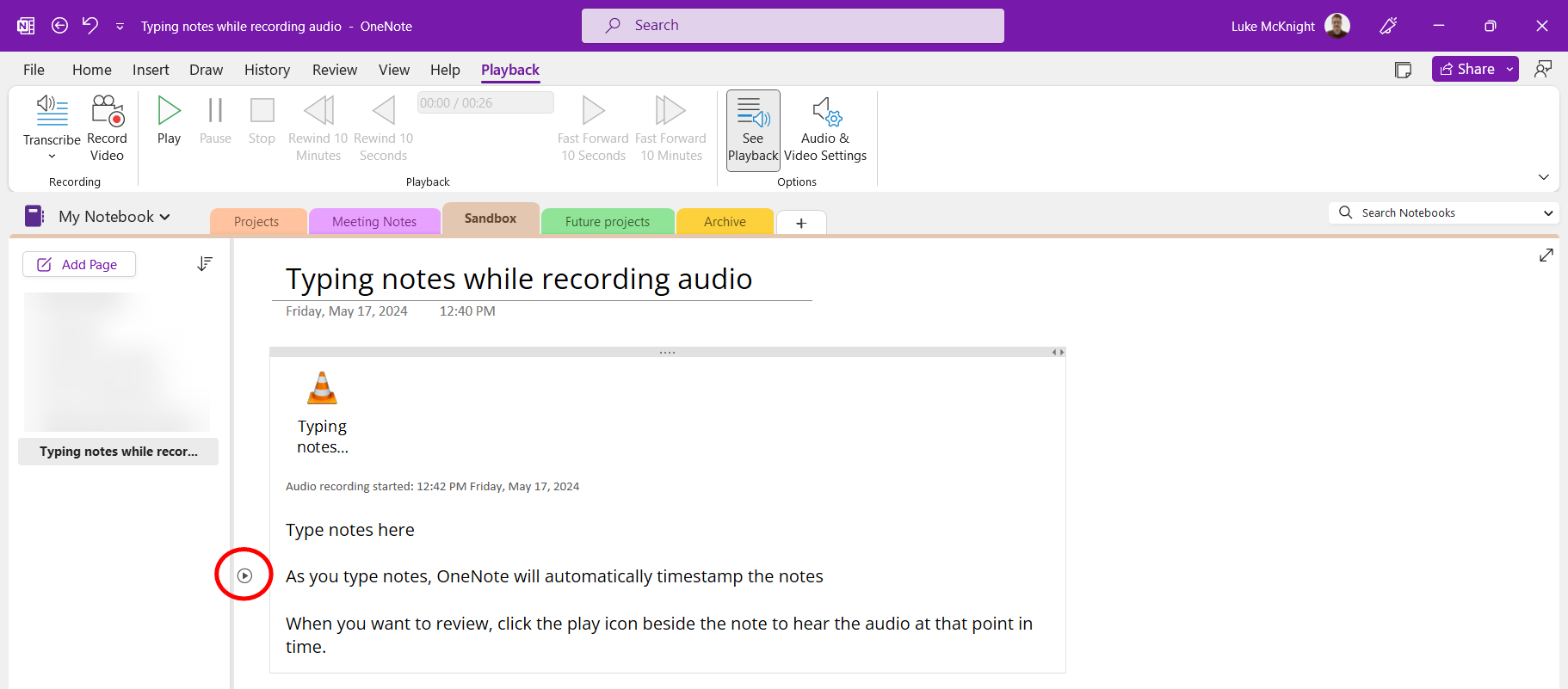
- OneNote will play the audio from the time you typed the note.
Watch: Record Audio in OneNote (YouTube video)
To transcribe the entire audio file:
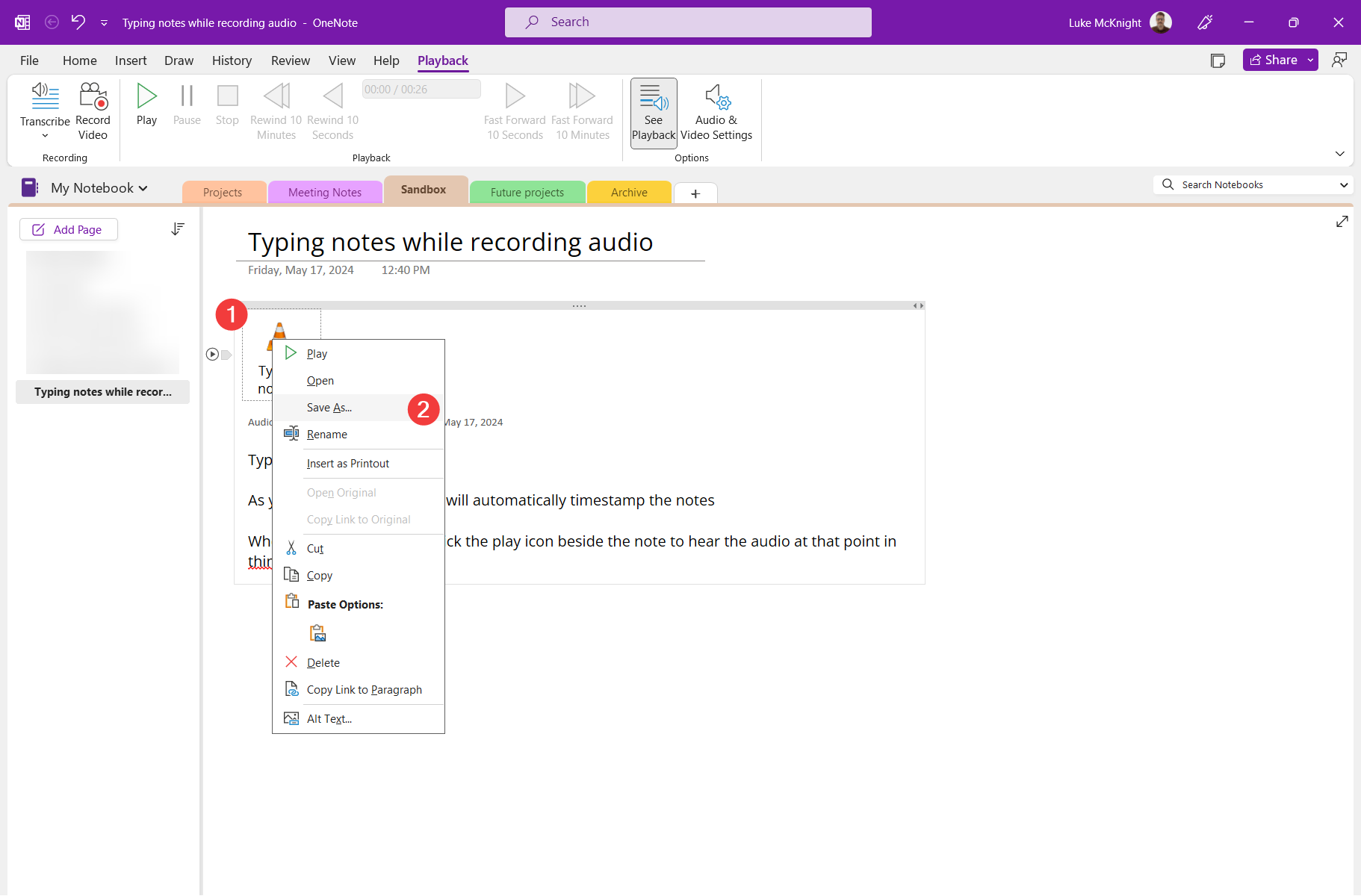
- Right-click on the audio file and select Save As…
- On the Playback tab, open the Transcribe menu and click Transcribe.
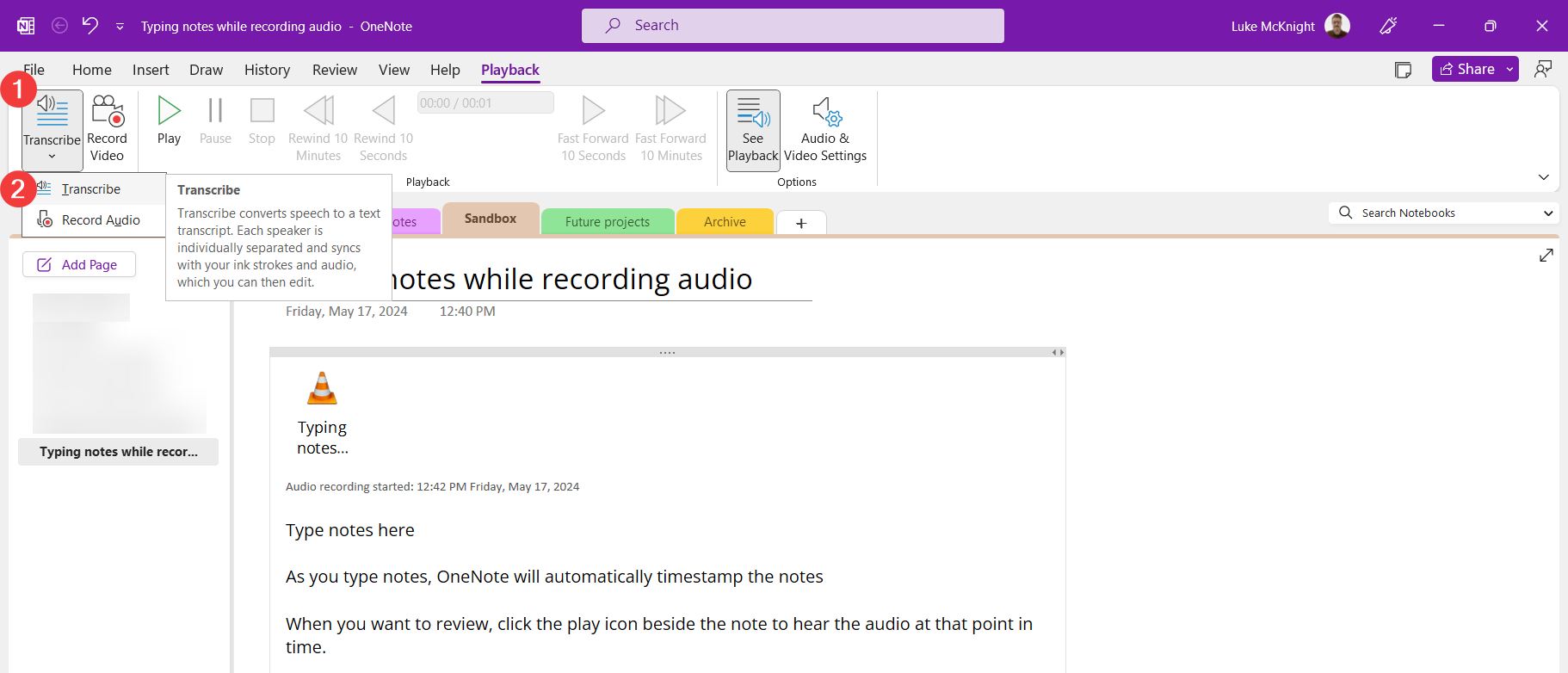
- In the Transcribe panel that opens, click Upload and select the audio file saved in step 1.
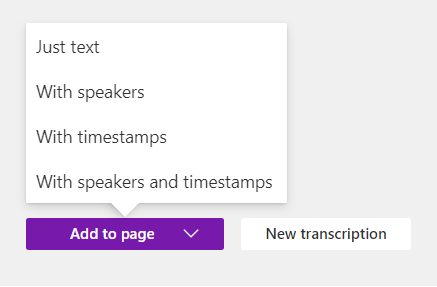
- When transcription is complete, open the Add to page menu and select your desired format.
Genio
Genio (formerly Glean, and before that Sonocent) is a note-taking app that can transcribe audio to text. Its note-taking tool, Genio Notes, is available as a web app and a mobile app. If you already have a Glean account, you will be moved to Genio the next time you sign in.
To use Genio to take notes and transcribe audio:
- Sign in to Genio Notes.
- Select New Event.
- Click Record and choose Microphone. The first time you record, allow Genio to use your microphone.
- While Genio records, you can add notes, headings, or attachments. Each one is linked to that moment in the recording.
- When the presentation is over, stop the recording.
- Select Transcript, then Transcribe Audio. Choose a language and select Transcribe Audio again.
- When it’s ready, select Transcript to view the transcript.
To use Genio to transcribe pre-recorded audio:
- Sign in to Genio Notes.
- Select New Event.
- Select Import Audio and choose a file. The file must be an .mp3 or .wav file, up to 3 hours long. Keep the Event open until the import is finished.
- Select Transcript, then Transcribe Audio. Choose a language and select Transcribe Audio again.
- When it’s ready, select Transcript to view the transcript.
- Highlight text and copy it to a Word document, or select Post to add it to your notes in the Genio Event, where it is saved automatically.
Notta
Notta is a transcription and note-taking app with a free plan that includes a limited number of minutes each month.
To use Notta to take notes and transcribe audio:
- Log in to Notta.
- Select Record an Audio.
- Click Add Notes to add a timestamped note.
- Click Stop.
- Select Download to export the recording, the transcript, or both.
To use Notta to transcribe pre-recorded audio:
- Log in to Notta.
- Select Import Files.
- Once transcription is complete, open the file from the Notta Dashboard.
- Make edits, add notes, and export in various formats.
Otter.ai
Otter.ai is a transcription app available on the web, as a Chrome extension, and as a mobile app.
To use Otter to take notes and transcribe audio:
- Sign in to Otter.
- Click Record.
- Otter will open a new conversation and begin recording.
- Click on any transcribed text to add a comment.
- Select Stop Recording when you are finished. The audio recording and transcribed text will be available for review and export.
To use Otter to transcribe pre-recorded audio:
- Sign in to Otter.
- On the Otter dashboard, select the Import button.
- Drag and drop your file or select Browse files.
- Wait for the transcription process to complete.
- Select Go to transcript.
- Play the audio and correct the transcript as needed.
- Add comments and highlights to the transcript.
- Export the transcript from My Conversations.