Finding More Tools
These free websites help you find more assistive technology and accessibility settings than this resource covers.
On this page:
My Computer My Way
My Computer My Way, from the UK charity AbilityNet, has step-by-step guides to the accessibility features built into phones, tablets, and computers. You can filter the guides by need, symptom, condition, and device.
My Computer My Way detects your device and operating system and shows the guides for it. To look up a different device, for example when helping someone else, change the Operating system filter. 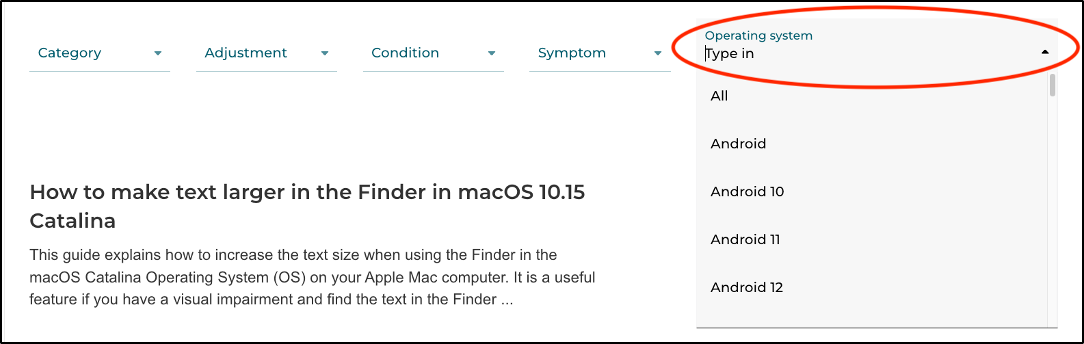
Filters
There are five filter menus. 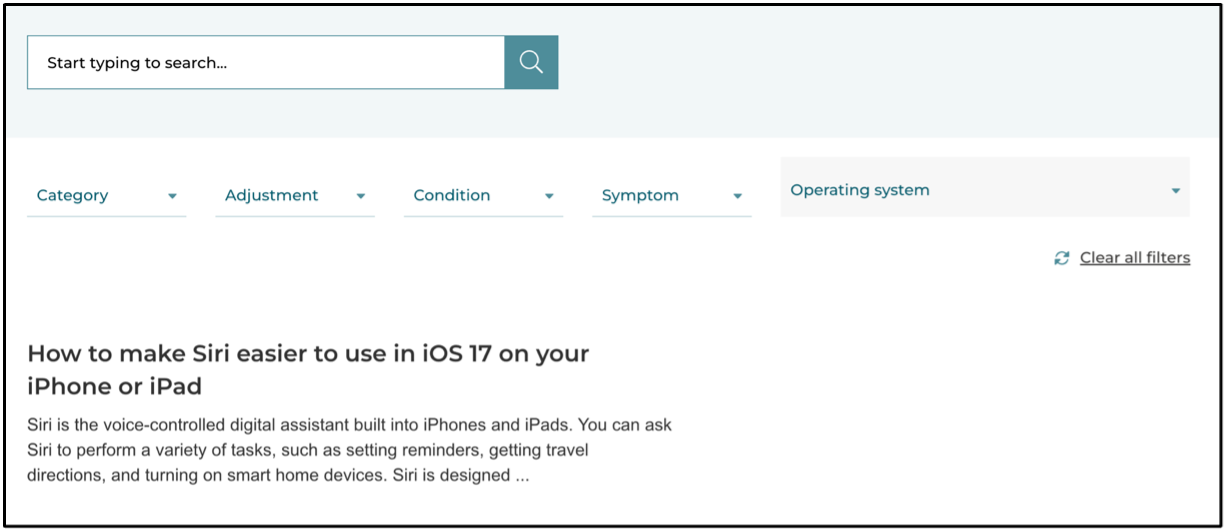
The first menu is Category: Cognitive, Hearing, Motor, and Vision. Each filter menu works with a mouse or keyboard, and you can type to search within it. 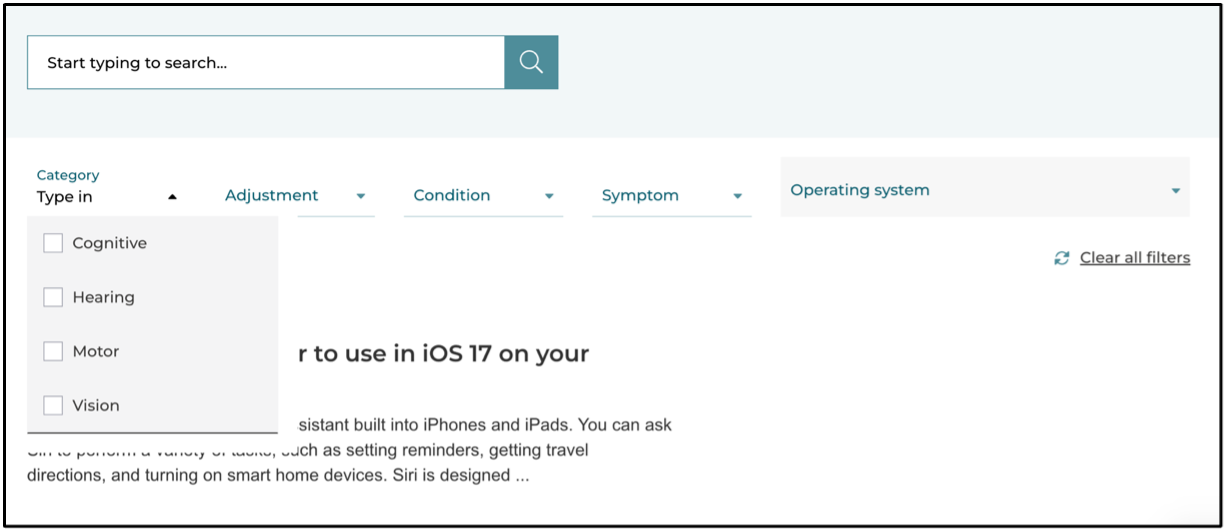
You can select one or more options in each filter. You don’t need to use every filter, but each one you use narrows down the options in the others.
The next filter, Adjustment, includes options such as captioning, colour settings, keyboard settings, magnify, text settings, voice options, zoom and more. 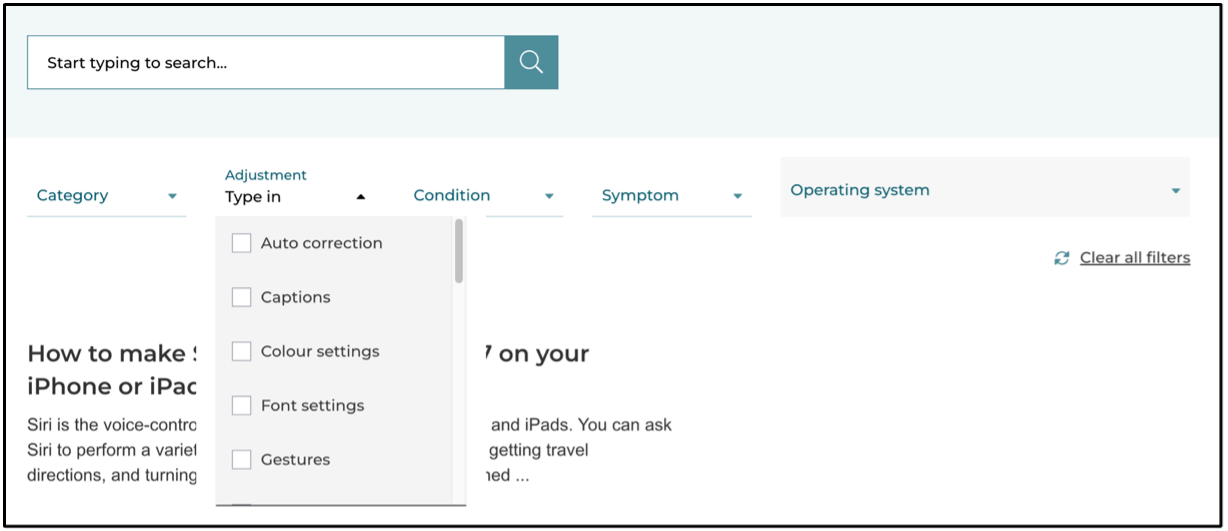
The next menu, Condition, lists common physical, cognitive, vision, hearing, and neurological conditions. 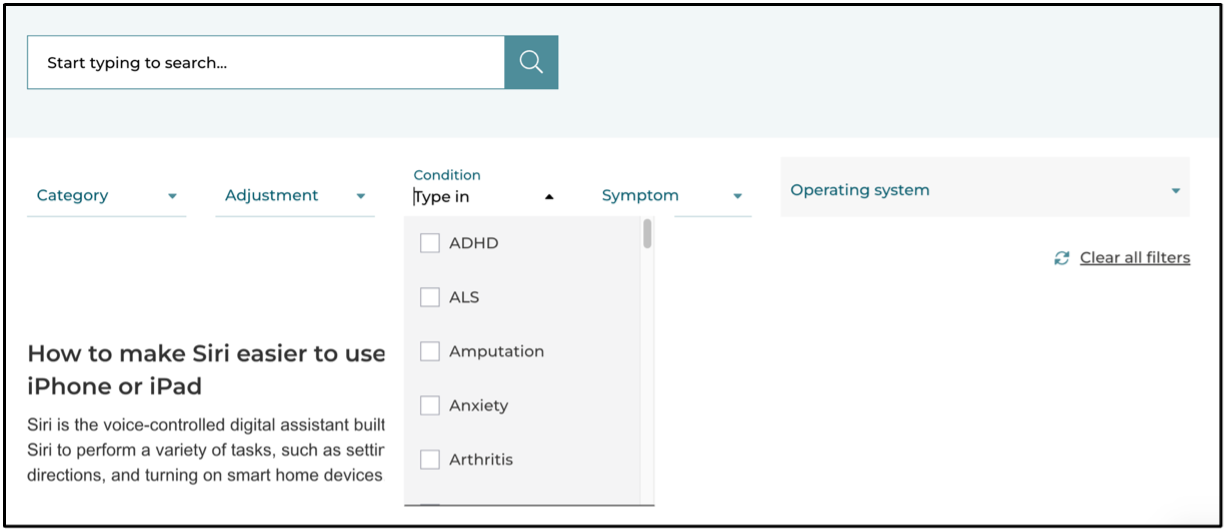
Use this filter with caution, even if your condition is listed: a useful tool won’t appear if it isn’t tagged with that condition, so you could miss it.
The fourth menu is Symptom, such as eye strain, hearing loss, low dexterity, or problems reading. 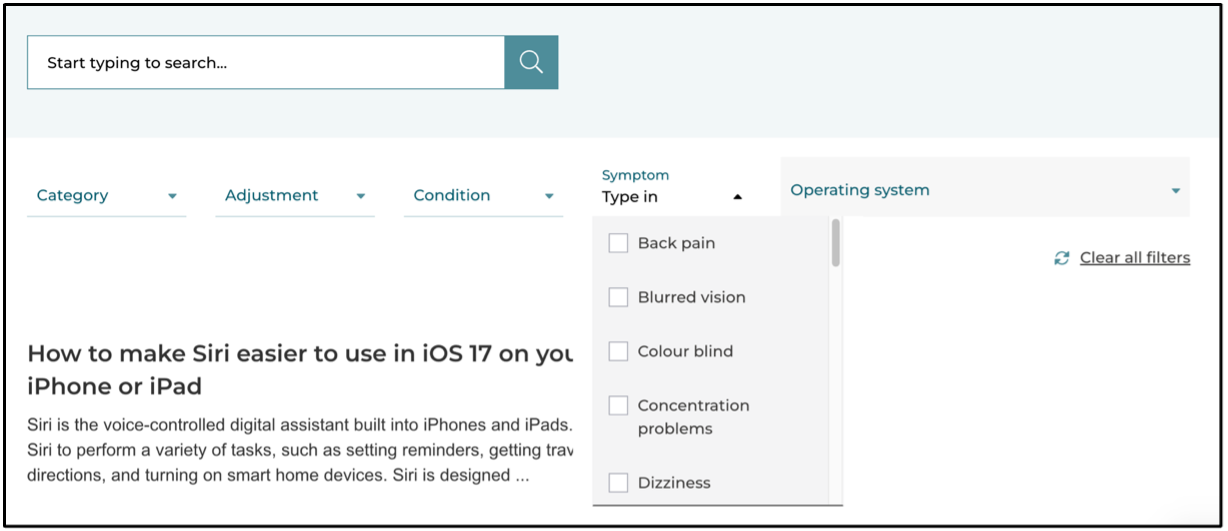
The last menu is Operating system, which is set to your own device to start with. You can choose only one operating system at a time. 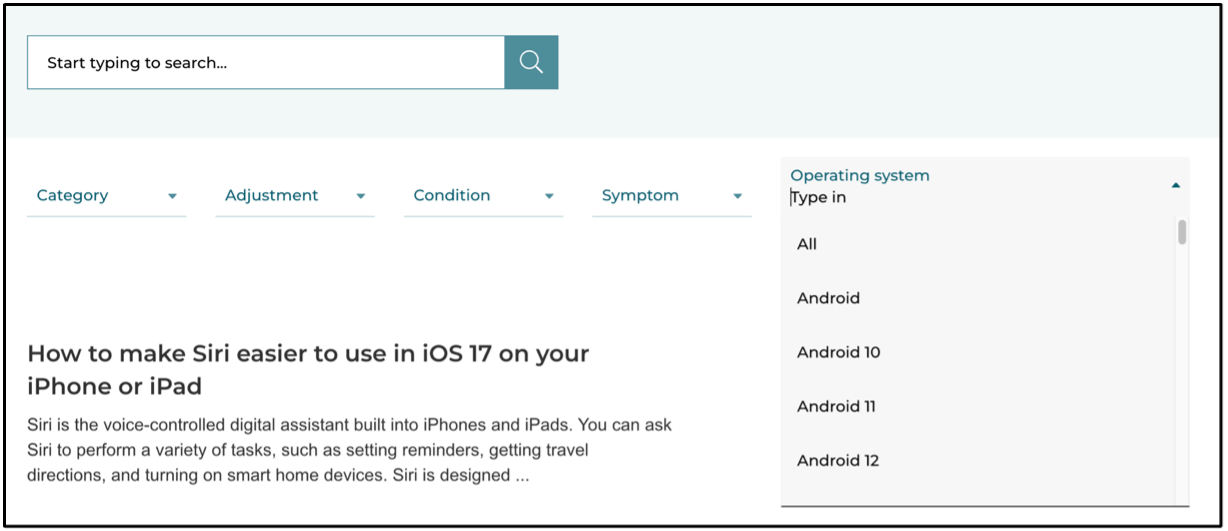
Clear Filters
To remove a filter, select the X beside it. To remove them all, select Clear all filters. !(../assets/images/finding-more-tools/mcmw-clear-filters.png)
Search
Search is handy when you know what you’re looking for. To discover features and tools, the filters are usually easier. 
Settings
My Computer My Way has no settings to change. If the site isn’t working properly, try clearing its cookies and site data in your browser’s settings.
Notable Issues
My Computer My Way doesn’t cover separate assistive technology products such as JAWS, Read&Write, or Kurzweil.
It is generally up to date, covers older operating systems too, and is the most complete collection of guides to built-in accessibility tools and settings. Even so, it doesn’t list everything: there may be useful tools and settings that it doesn’t cover.
Links and Further Reading
- My Computer My Way by AbilityNet
- AbilityNet factsheets on assistive technology
- Helpful tech tips: My Computer My Way – AbilityNet
Learn and Try
Learn and Try is a free directory of tools that make computers, tablets and phones easier to use, from Raising the Floor (the makers of Morphic). It covers built-in accessibility features, free tools and commercial assistive technology for Windows, Mac, Chromebook, iPhone, iPad and Android. Each tool has a short description, a demonstration video, and a link to the manufacturer’s page.
You don’t need an account, and the site doesn’t store your answers or searches.
There are two ways to start:
- Tool Finder: answer a few questions and get a list of suggestions. Best if you’re not sure what you’re looking for.
- Browse All Tools: filter the full list yourself.
Using the Tool Finder
- Select Use Tool Finder, then Start.
- Choose whether you’re looking for yourself or someone else.
- Choose what the person needs help with, such as reading, writing or vision. You can choose more than one. Select Next.
- Choose the devices they use, then select Next. The Tool Finder shows how many tools match.
- Select See My Tools to open the matching list.
The list opens on the Browse All Tools page with your answers already selected as filters, so you can keep narrowing it down from there.
Browsing All Tools
Tools are grouped under light-blue headings by what they help with. If you’re new to this, select a heading first: it explains the kinds of features to look for in that type of tool.
Select a tool’s name to open it. You’ll see:
- a short description and demonstration video
- the devices it runs on
- whether it needs to be installed
- the price, and a link to the manufacturer’s page
A tool that fits more than one heading appears in grey the second time, so you can skip it.
The list may also include headings you didn’t choose, such as Vision, when those tools could still help.
Filters
The filters are on the left side of the Browse All Tools page. Each one you check narrows the list.
- Functions: what the person needs help with, such as reading, writing, cognitive or vision.
- Devices: the devices the tool needs to run on, such as Windows or Chromebook.
- Need to Install?: show only tools that are built in or web-based. These work even when you can’t install software, such as on a college or library computer.
- Purchase Options: show only tools that are free or have a free trial.
Select Clear all filters to start over.
Above the list, you can choose how many tools to show at once and sort by Name, Company or Newest Added.
Saving and sharing a Short List
When you find a tool you want to come back to, select Add to Short List. Your Short List appears at the top of the page, where you can compare the tools you’ve saved.
The Short List is not saved when you leave the site. To keep it, select COPY link to SHORT LIST and save the link, or paste it into an email or message to share it. The link opens the same list again.
Settings
Learn and Try has no settings to change. To make the page larger, use your browser’s zoom (Ctrl + + on Windows and Chromebook, Cmd + + on Mac).
Notable Issues
Learn and Try doesn’t include every product, and tools change often, so check prices and details on the manufacturer’s page before you buy.
Links and Further Reading
- Learn and Try by Raising the Floor
- Transcript of the Learn and Try walkthrough video, which describes each step of the Tool Finder and Browse page
- Contact Raising the Floor for help or to report a problem
AT Hive
The AT Hive, from the Irish education charity AHEAD, helps you find assistive technology by what you want to do, the devices you use, and the accounts you have. For each tool, it has how-to guides, links, advice, and demonstration videos.
The home page has an introductory video on how to use it. 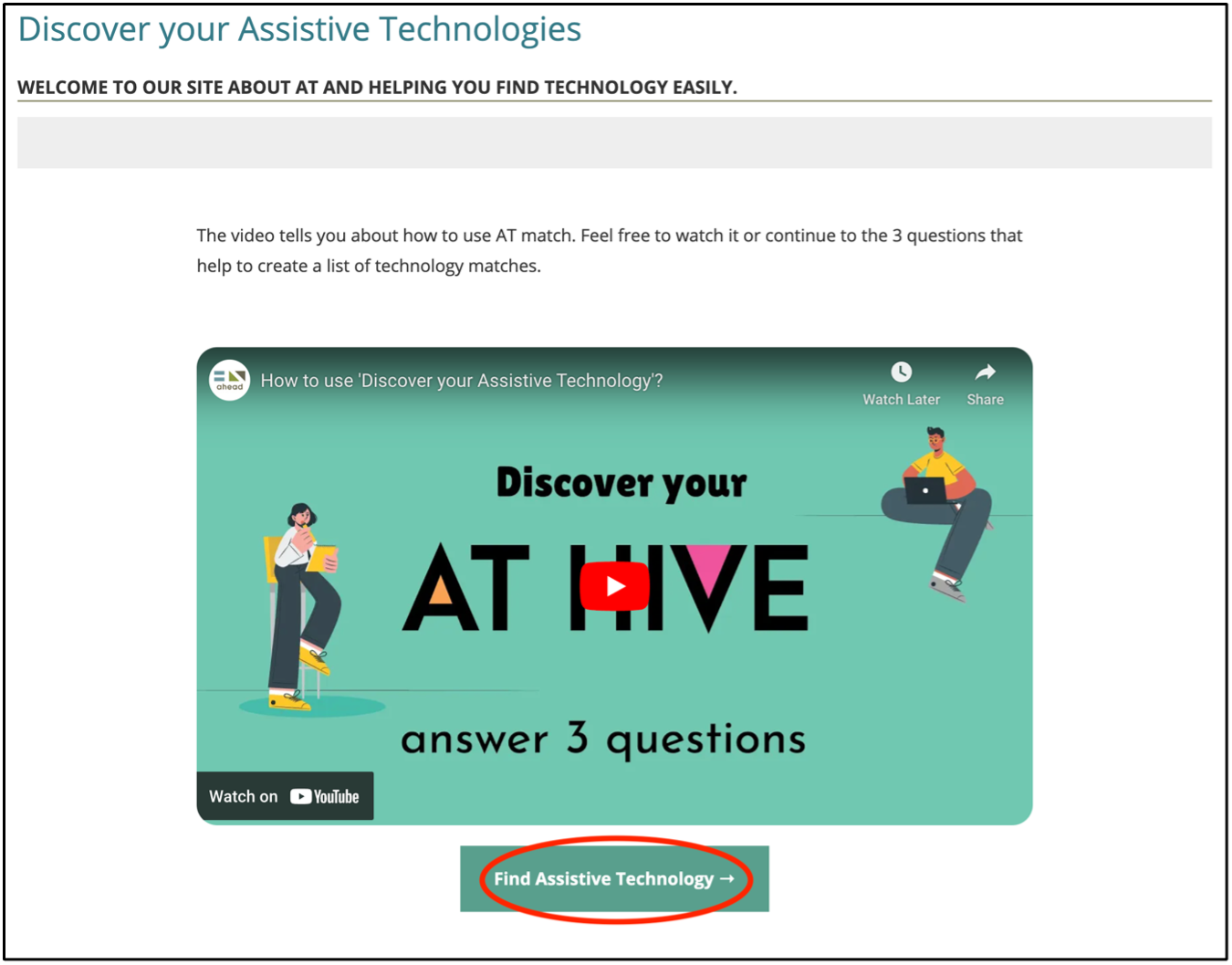
Using the AT Hive
- Select Find Assistive Technology, then choose what you want help with: reading, magnification, revision and recall, writing, note-taking, spelling & grammar, organisation, motivation and focus, working together, captions and subtitles, recording, or mindset.
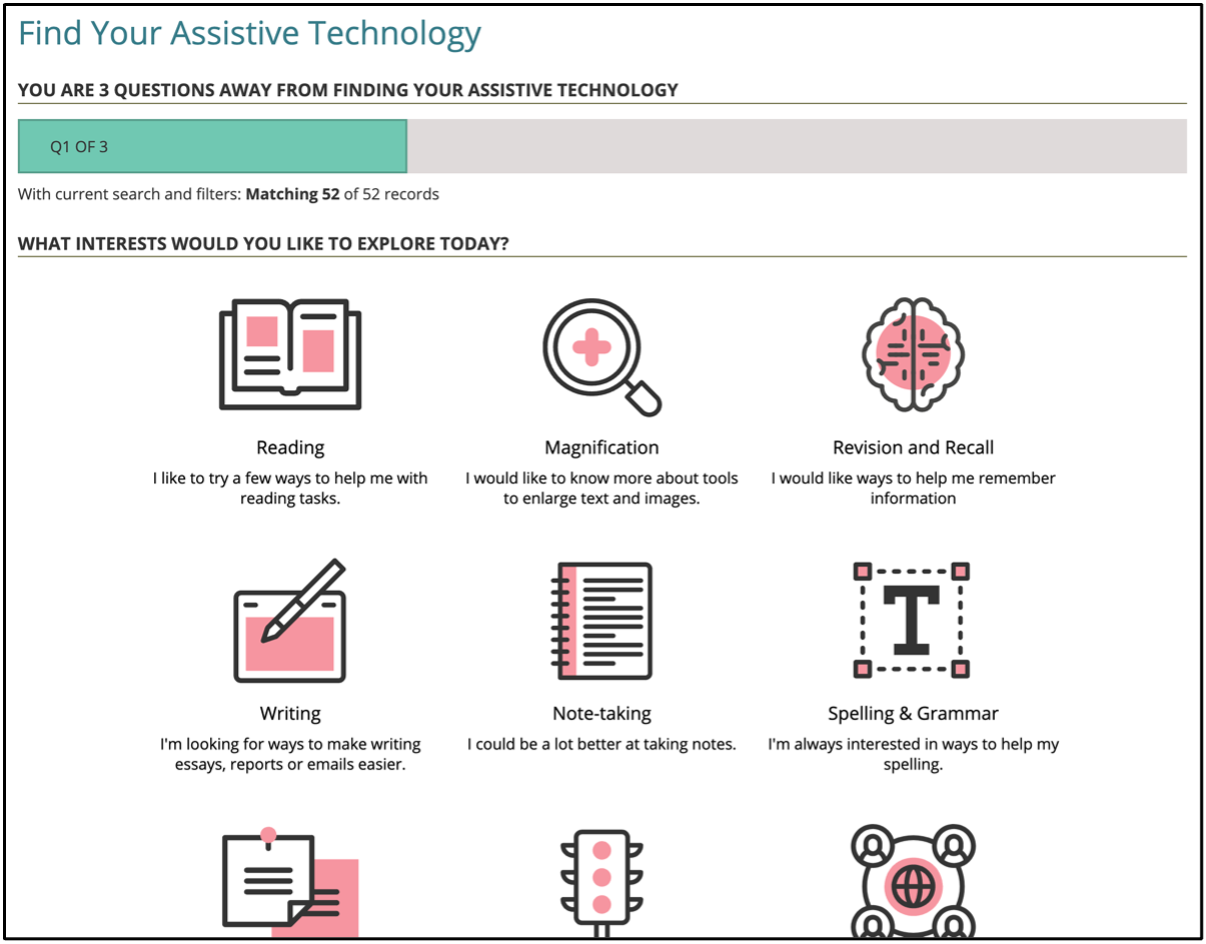
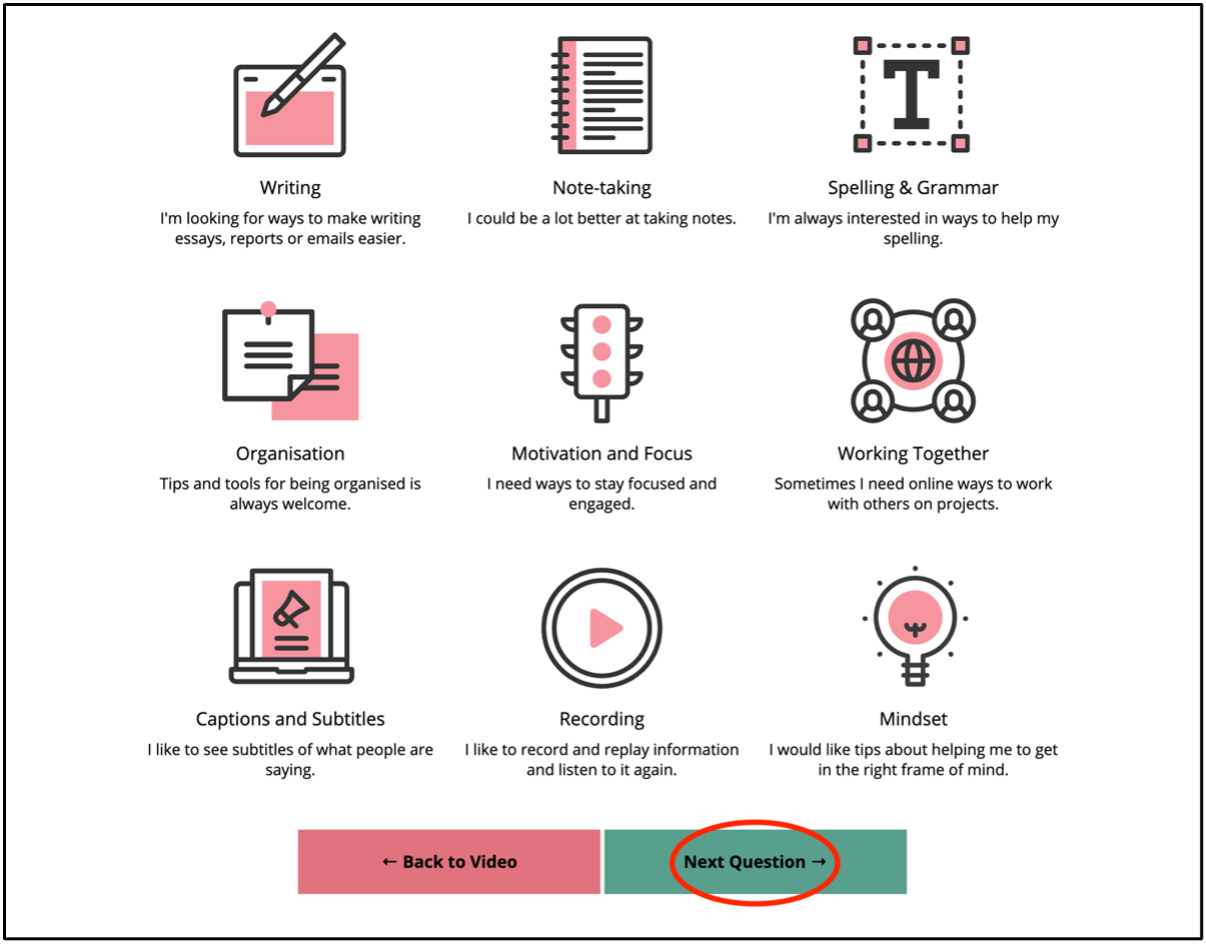
- Choose one or more, then select Next Question at the bottom of the page.
- Select the devices you use.
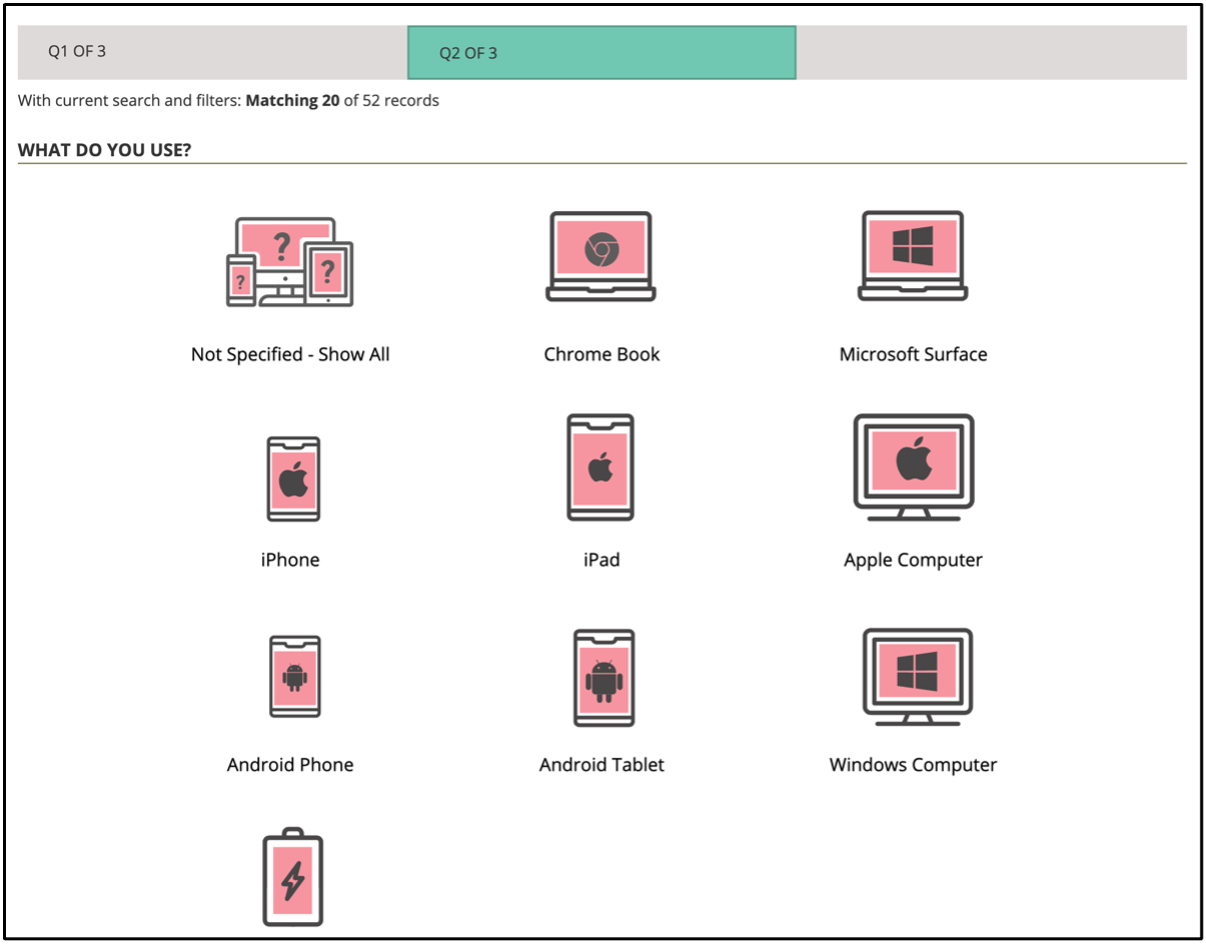
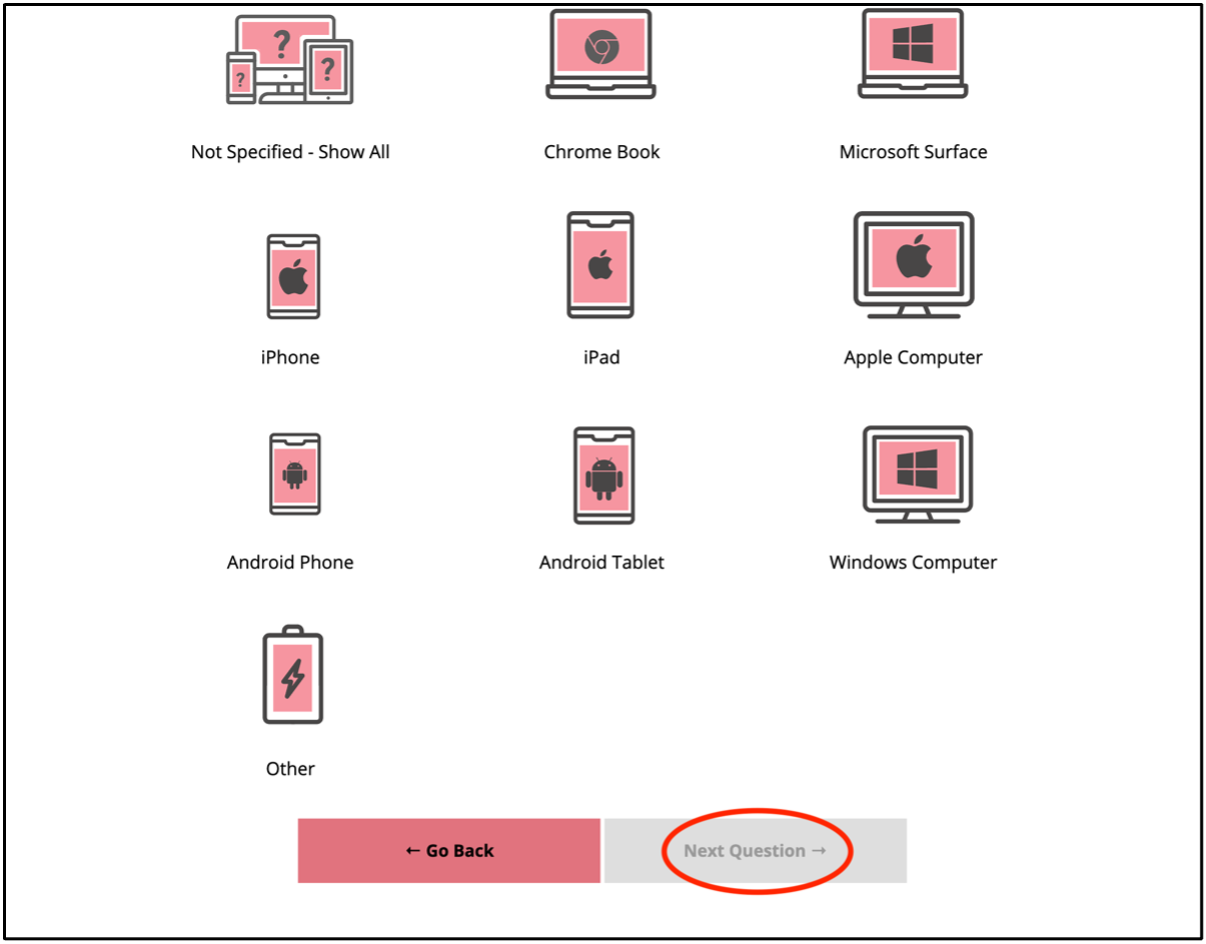
- If there is a Detect My Current Device button above the options, you can use it to select your current device automatically. Then select Next Question.
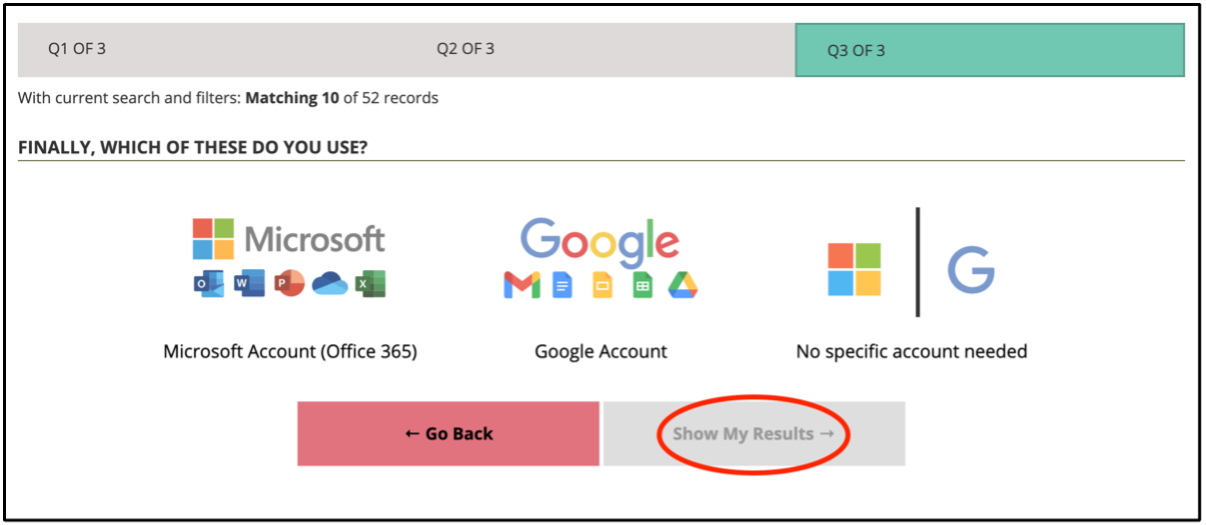
- Select Microsoft Account, Google Account, or No specific account needed, then Show My Results.
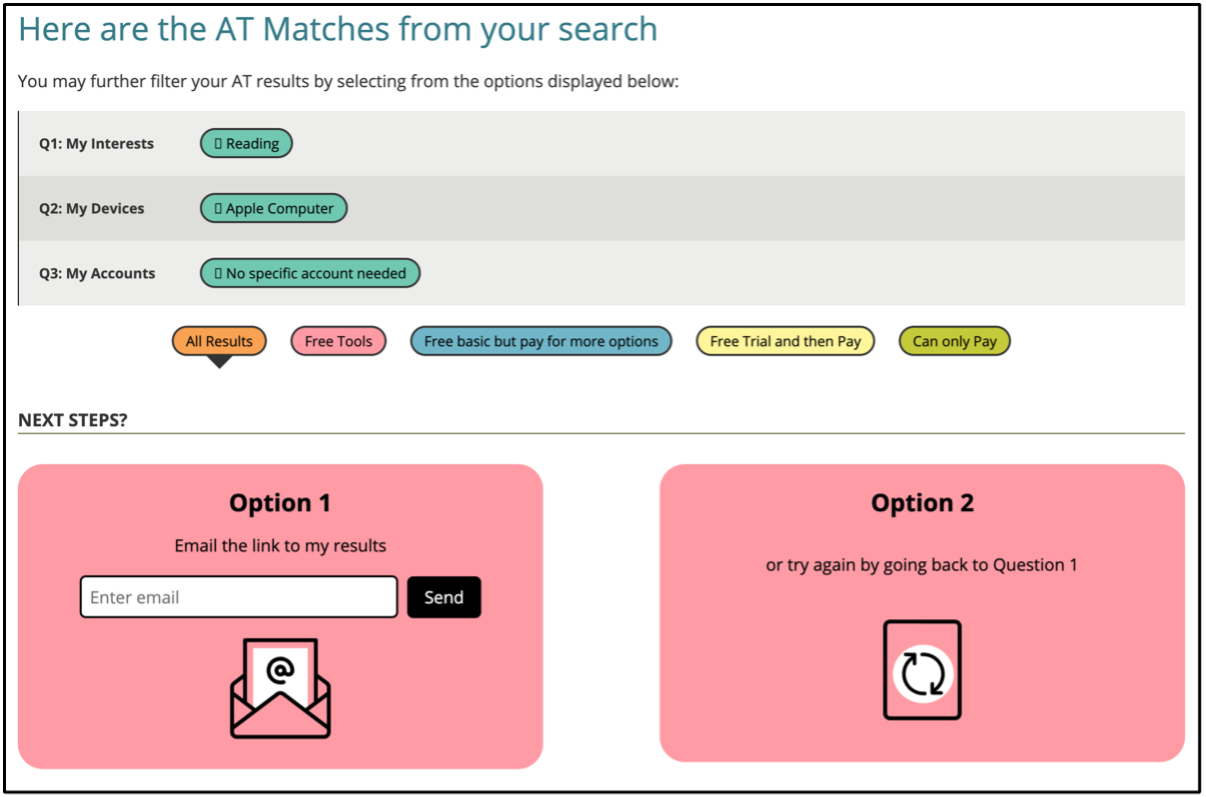
- The AT Hive shows the tools that match your answers. Click an answer to remove it. You can also filter by price (free, freemium, free trial, or paid) and email yourself the results.
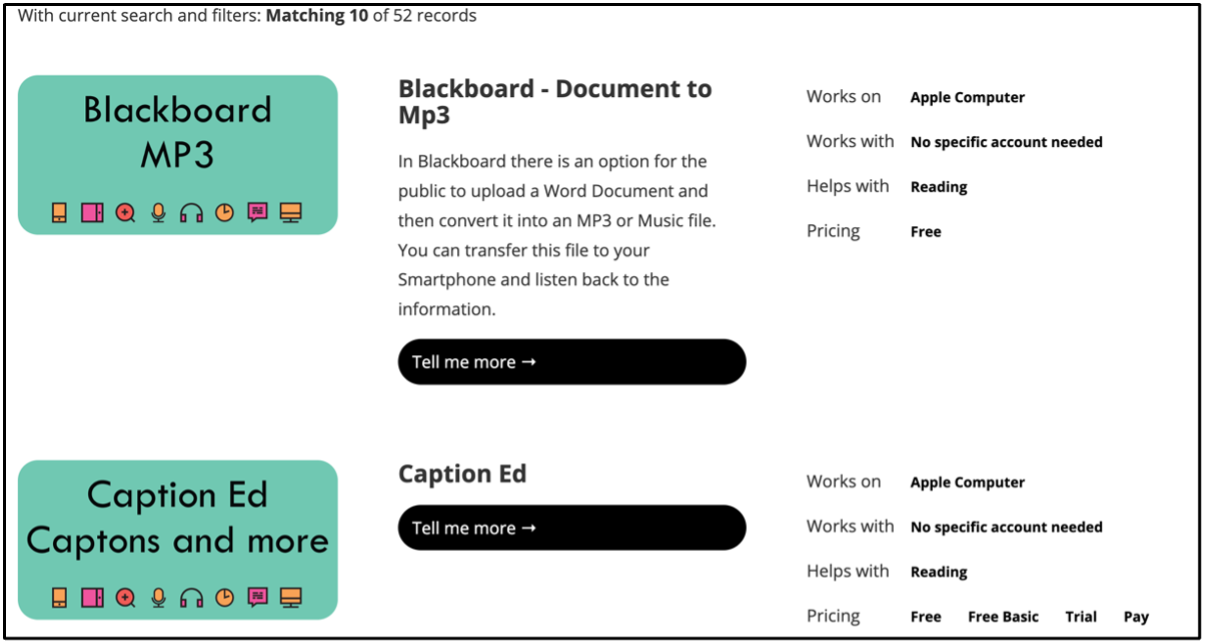
- Scroll down to the results. Select Tell me more for guides, links, and demonstration videos.
Settings
The AT Hive has no settings to change. If the site isn’t working properly, try clearing its cookies and site data in your browser’s settings.
Notable Issues
The AT Hive includes only a few of the tools and settings built into devices, and doesn’t list specialist assistive technology such as JAWS, NVDA, or Kurzweil.