Equatio Quick Start Guide
Available at Langara: Langara provides it to students and/or staff.
Paid: you or your organization needs to buy it.

Equatio is software for writing, editing, and reading math and other STEM content on a computer.
Use Equatio to:
- Create accessible STEM content in Google Docs, Microsoft Word and PowerPoint, and Brightspace.
- Write math by typing, handwriting, or speaking, and hear math read aloud.
- Use accessible chemistry and graphing tools.
Install
- Go to Equatio Desktop.
- Choose Windows or Mac.
- Follow the installation guide.
Access
Sign in with the account your school or organization uses for Equatio.
Select Sign in with Microsoft and use your Langara email and password. 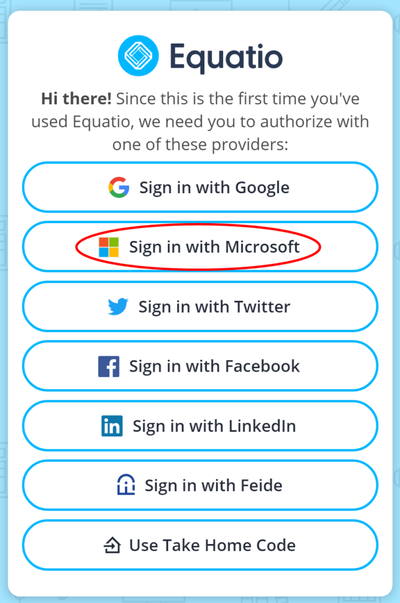
Basic Functions
Writing math
- Open Equatio.
- Open the Equation Editor to type math.

- Type the math as you would say it (for example, “x squared”), or use math notation. Press Enter to accept a suggestion as you type.
- Click Insert Math, or Copy Math As…, to put accessible math into your document.
Reading math
Equatio’s Screenshot Reader reads aloud math that is only available as a picture, such as math in a scanned PDF or on a web page.
To use Equatio’s Screenshot Reader:
- Open Equatio.
- Select Screenshot Reader on the toolbar.

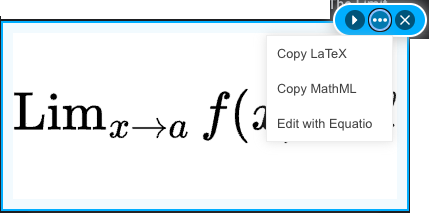
- Draw a box around the math. Equatio reads it aloud. You can also copy it as MathML or LaTeX, or open it in the Equation Editor to change it.
For videos and guides, see Equatio on Texthelp Academy. Also review detailed Equatio guides in the Accessibility Handbook for Teaching and Learning.
For help at Langara, contact assistivetech@langara.ca.