Magnifiers
Magnifiers enlarge part or all of the screen. Most computers and phones have one built in, and most also let you make text and everything else on screen bigger.
On this page:
ZoomText
ZoomText is available on computers in L121 as well as Accessibility Services exam computer labs.

ZoomText Magnifier/Reader is a Windows magnification and reading program for people with low vision. It enlarges and enhances what’s on screen, echoes your typing and important program activity, and reads content aloud. You can control ZoomText with the mouse, keyboard, or voice commands.
This guide uses Caps Lock for the ZoomText modifier key.
Setup
Getting Started with ZoomText – Freedom Scientific
Open ZoomText before other programs, such as web browsers or document software.
When ZoomText opens, the ZoomText toolbar appears. 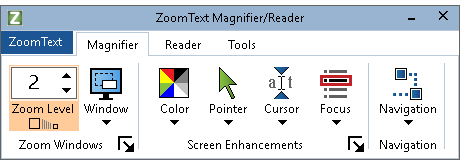
Navigate menus using the mouse or keyboard:
- Alt + Z opens the menu.
- Arrow down for help, configurations, and settings.
- Go to Preferences.
- Check the Start ZoomText automatically when Windows starts checkbox, if desired.
- You can also set ZoomText to run on the Windows sign-in screen.
- To keep changes to your settings, go to ZoomText > Configurations > Save As Default, or press Alt + Z, then C, S and Enter.
- Go to Command Keys for a searchable list of keyboard shortcuts.
- At any point press Esc to close menus.
Press Tab to move focus between menus, tabs, and controls.
Use the Left Arrow and Right Arrow keys to move between tabs and controls.
Press Enter on a control to turn it on or off, or to open its menu.
Caps Lock + Ctrl + U brings the ZoomText toolbar to the front.
Caps Lock + Ctrl + Enter turns ZoomText off or on without closing it.
Or select the ZoomText menu on the toolbar and select Enable ZoomText or Disable ZoomText.
To set zoom level 1 as default on startup:
- Set zoom level to 1.
- Click ZoomText.
- Select Configurations.
- Click Save As Default.
Magnifier Tab
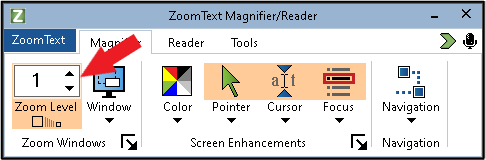
The Magnifier tab has these tools and options:
Zoom Level
Mouse:
- Click the up or down arrow to zoom in or out.
- Caps Lock + Shift + mouse scroll wheel to zoom in or out.
Keyboard:
- Caps Lock + Up Arrow to zoom in.
- Caps Lock + Down Arrow to zoom out.
- Caps Lock + Enter toggles between 1x zoom and the current zoom level.
Window
- Window > One Monitor to select a zoom mode (full, overlay, docked, lens, line).
- Caps Lock + Z to cycle through zoom modes.
- Freeze View freezes part of the screen so you can zoom in on it while it stays still.
Color
- Caps Lock + C to toggle on and off.
- Color > Settings has the colour enhancement options.
- Select Scheme to choose a colour scheme (inverted, yellow on black, black and white, and so on).
Pointer
- Caps Lock + P to toggle pointer enhancements on or off.
- To change the pointer’s size and colour, select Pointer > Settings.
Cursor
- Caps Lock + R to toggle cursor enhancements on or off.
- More styles are under Cursor > Scheme, and more options under Cursor > Settings.
Focus
- Caps Lock + F to toggle focus enhancements on or off.
- Focus enhancements highlight the item that has keyboard focus. Change the style under Focus > Scheme.
Navigation
Settings for how ZoomText follows the mouse pointer and keyboard focus, and where it zooms and reads from.
Reader Tab
ZoomText Magnifier/Reader also includes a screen reader. It isn’t as full-featured as JAWS or NVDA, but it can read everything on the screen and has many options for reading text and documents aloud.
Press Alt + R to go to the Reader tab of the ZoomText toolbar. It has settings for keyboard and mouse echo (speaking what you type or point at) and different reading modes.
Turn off, change, and add voices in the Voice menu. 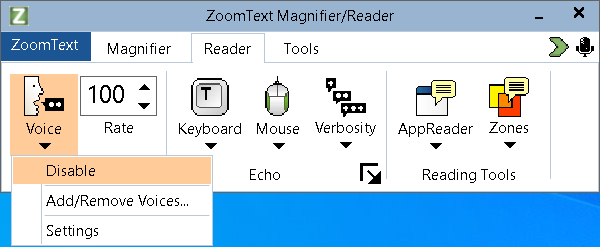
Change the speaking speed with the number above Rate.
AppReader
Caps Lock + Alt + R launches AppReader in the mode selected on the toolbar. 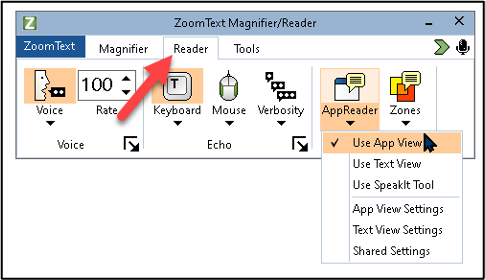
Caps Lock + Alt + A starts App View, which reads the open document or web page and outlines what is being read.
Press Caps Lock + Alt + left-click to start reading from the mouse pointer.
While AppReader is reading:
- Press Enter to pause, and Enter again to resume.
- Right Arrow and Left Arrow move to the next and previous sentence; Down Arrow and Up Arrow move by paragraph.
- Press Tab to switch between App View and Text View.
- Press Escape to stop AppReader.
Text View shows the text being read in a separate window, in the colours and font you choose. Press Caps Lock + Alt + T to start it.
With SpeakIt, click a word, image, icon, or other item and ZoomText reads it. On the Reader tab, click AppReader and select Use SpeakIt Tool, or press Caps Lock + Alt + S. 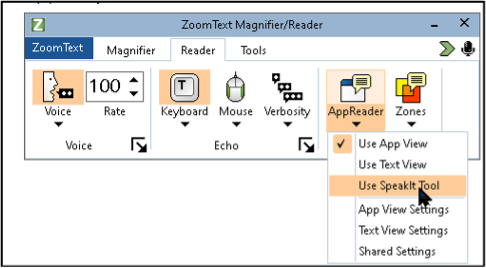
You can also click and drag over text while SpeakIt is on to hear it. Press Escape before selecting the next text.
SpeakIt doesn’t highlight each word as it reads, as App View and Text View do.
To listen to text while you do other things, use Background Reader (see Tools below).
Tools
Go to the Tools tab or press Alt + T. 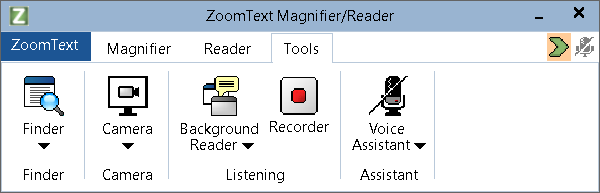
Finder searches the page or document and lists what it finds. Press Caps Lock + Ctrl + F.
Camera shows a printed document held up to a webcam, enlarged on screen. Press Caps Lock + Ctrl + C. Its toolbar has zoom and colour options.
Background Reader reads highlighted text aloud while you do other things:
- Highlight text.
- Press Caps Lock + Ctrl + B or navigate to the Tools tab and select Background Reader.
Recorder can create audio files of text you have copied to the Windows clipboard. You can listen to the audio later or on a different device.
Voice Assistant lets you give ZoomText commands with your voice. Press Caps Lock + Alt + Space or click the microphone icon at the top right of the ZoomText toolbar. To set it up, on the Tools tab select Voice Assistant > Getting Started.
By default, ZoomText reads back what you type. To turn this off, select Reader > Keyboard > No Echo. 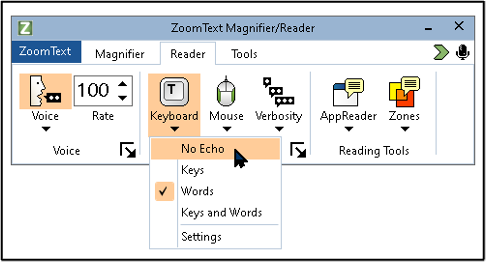
Android

Visibility Enhancements (Samsung)
These steps are for Samsung phones. On other Android phones, look under Settings > Accessibility for Magnification and Display size and text.
- Go to Settings > Accessibility.
- Select Visibility Enhancements.
- Choose High contrast or Large display.
- Select Magnification and turn on Magnification shortcut.
- Use two fingers to move the zoom window around the screen.
- Tap the two-arrow icon in the bottom right to toggle full screen zoom.
- Tap the Accessibility shortcut in the bottom right and select Magnification to turn it off.
- Select Screen zoom.
- Use the slider to change the size of items displayed on screen.
- Select Font size and style.
- Drag the slider to change the default font size.
- Select the default font style.
- Turn on Bold font to make all text bold.
- The Visibility Enhancements menu has more settings to explore.
Windows

Magnifier
- Open Settings and select Accessibility.
- Select Magnifier.
- Or press Windows + Ctrl + M to open Magnifier settings directly.
Here you can turn Magnifier on or off and change the zoom level, the zoom increments, and other settings, such as starting Magnifier when you sign in.
To turn on Magnifier and zoom in, press Windows + + (plus sign). On most keyboards the plus sign is on the = key, so Windows + = works too. Some laptops may be set up to require pressing fn ?.
Press Windows + - to zoom out.
Windows + Esc turns off Magnifier.
Magnifier has three views: Full Screen, Docked, and Lens. Change views in the Magnifier menu, or while Magnifier is running press:
- Ctrl + Alt + M to cycle through the views
- Ctrl + Alt + F for Full Screen (hold Ctrl + Alt + Space to see the whole screen for a moment)
- Ctrl + Alt + D for Docked
-
Ctrl + Alt + L for Lens
- Use Magnifier to make things on the screen easier to see – Microsoft Support
- How to magnify the screen with the Magnifier tool in Windows 11 – My Computer My Way
See also Morphic, a toolbar with quick access to Magnifier and other Windows accessibility tools.
Display Settings
To make text or everything on screen bigger:
- Go to Settings > Accessibility.
- Choose Text size and use the slider to make text bigger.
- To make everything bigger, go to Settings > System > Display and choose a percentage under Scale.
To change colours and contrast:
- Go to Settings > Accessibility.
- Choose Contrast themes and pick a theme.
- Or choose Color filters, turn them on, and pick a filter.
- Turn on Keyboard shortcut for color filters, then press Windows + Ctrl + C to turn the filter on or off.
Mouse pointer and touch and Text cursor under Settings > Accessibility have options to make the pointer and cursor easier to see.
macOS

macOS has a built-in magnifier called Zoom. To turn it on:
- Go to System Settings > Accessibility > Zoom.
- Turn on Use keyboard shortcuts to zoom.
- Keyboard shortcuts:
- Command + Option + 8 toggles zoom on/off.
- Command + Option + = zooms in.
- Command + Option + - zooms out.
- Keyboard shortcuts:
- Or turn on Use trackpad gesture to zoom and follow the instructions shown.
In the same settings, choose a Zoom style:
- Full Screen zooms the whole screen.
- Split Screen shows a zoomed window at the top of the screen that follows the pointer.
- Picture-in-Picture shows a small zoomed box that follows the pointer.
Advanced… has more options.
Turn on Use scroll gesture with modifier keys to zoom to zoom with the trackpad or scroll wheel while holding a key (Control by default).
Turn on Hover Text to show a large version of the text under the pointer while you hold Command. Options… changes the key and the text size.
Zoom in on what’s onscreen on Mac – Apple Support (CA)
Display Settings
To make everything on the screen bigger:
- Go to System Settings.
- Select Displays.
- Choose a size between Larger Text and More Space.
iOS

Zoom
- Go to Settings > Accessibility.
- Choose Zoom.
- Turn on Zoom.
- Double-tap with three fingers to zoom in and out.
- Drag with three fingers to move around the screen.
- Select Zoom Region to choose Full Screen Zoom or Window Zoom.
Display & Text Size
- Go to Settings > Accessibility.
- Choose Display & Text Size.
- Select Larger Text.
- Turn on Larger Accessibility Sizes.
- Drag the slider to choose the size.
- Back in Display & Text Size, there are other options such as Bold Text, Increase Contrast, and colour inversion.
Change the font size on your iPhone and iPad – Apple Support (CA)
Magnifier
- Open the Magnifier app.

- Or swipe down on the Home Screen and type “Magnifier.”
- Zoom in and out with the slider, or by swiping up and down in the viewfinder.
- Tap the screen to focus.
- To freeze the current view, tap the shutter button (bottom centre) or press a volume button.
- Other controls adjust the brightness and contrast, turn on the flashlight, and apply colour filters.
Magnify or describe things around you with Magnifier on iPhone – Apple Support (CA)
Browser Tools
Every web browser can zoom in on web pages:
- Zoom in: Ctrl (Command on macOS) + =
- Zoom out: Ctrl (Command on macOS) + -
- Reset to actual size: Ctrl (Command on macOS) + 0
Browsers can also set a default zoom level for all pages, a minimum font size, and your own fonts and colours. See Browsers for step-by-step instructions for Chrome, Edge, Firefox, and Safari, and for the UI Options Plus extension.