Reading Alternate Format Material
Alternate format material is print, or inaccessible digital material, that has been converted into an accessible format such as EPUB, Word, or accessible PDF. The tools on this page can read it aloud and let you change how it looks.
On this page:
TextAid

The TextAid web app has several tools to help with reading. Sign in as described under TextAid on the Text to Speech Tools page.
New Text
- Select New Text.
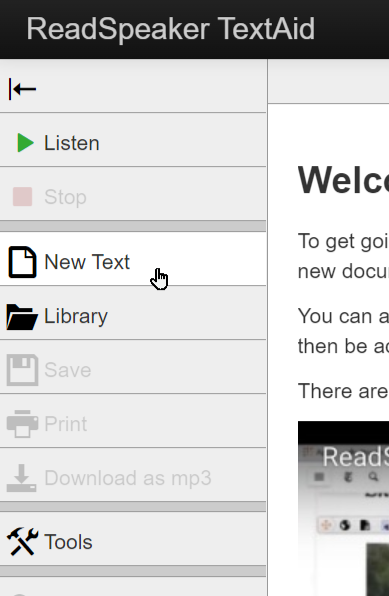
- Type or paste text from another source.
- Create, edit, and listen to the text in this window.
- Save it to your Library, Print it to paper or PDF, or Download it as an MP3 to listen to later.
Library
The Library holds the files you have saved, created, or uploaded.
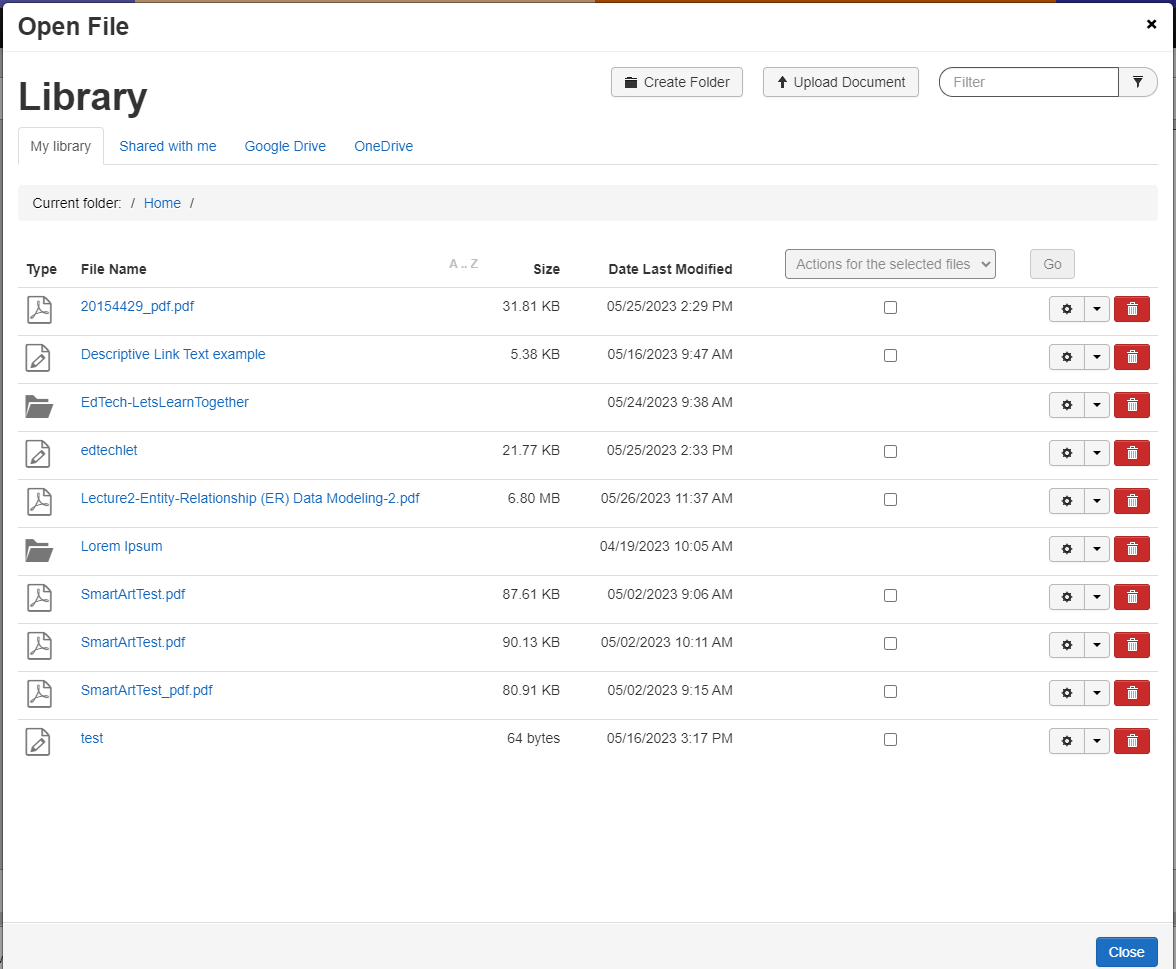
To add a new document to TextAid:
- Open Library from the left-hand toolbar.
- Select Upload Document to add PDFs or other documents you want to read.
- Once uploaded, click on the file in the Library window to access and read it.
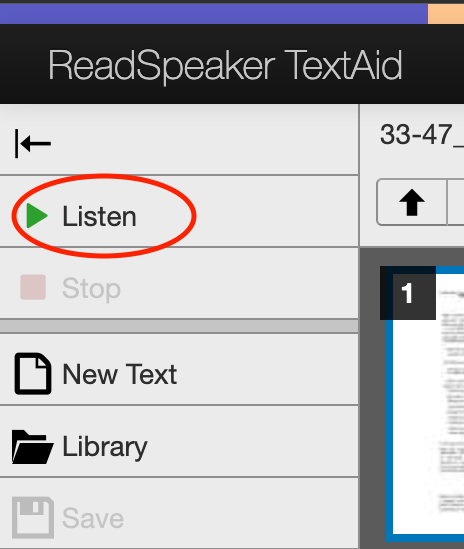
- Click Listen to begin reading.
- Select Text Mode to see the document as plain text. This may change its layout or formatting.
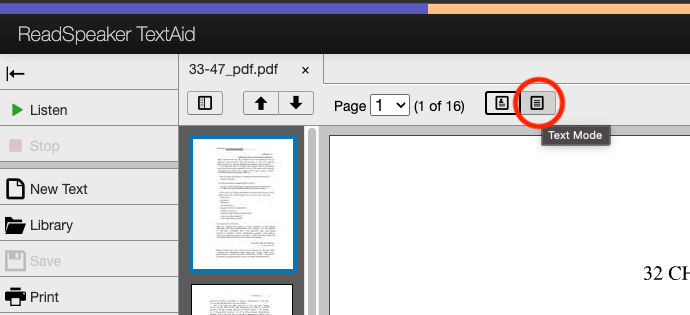
- Select Text Mode to see the document as plain text. This may change its layout or formatting.
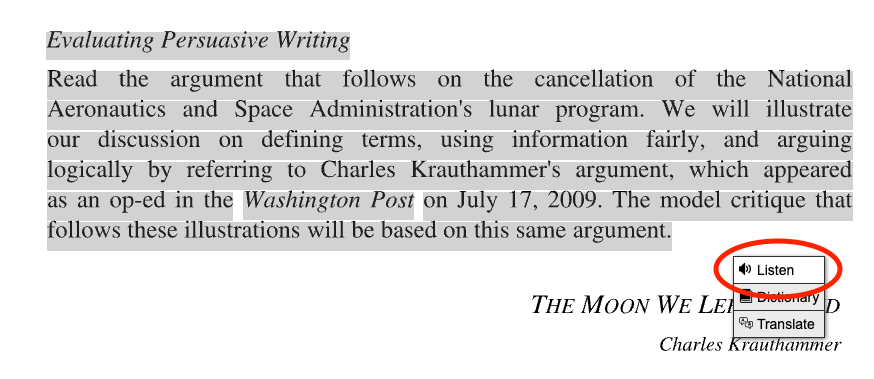
- Select text and click Listen to read only selected passages.
Annotations and Highlighter
- Select Annotations to add notes to a document.
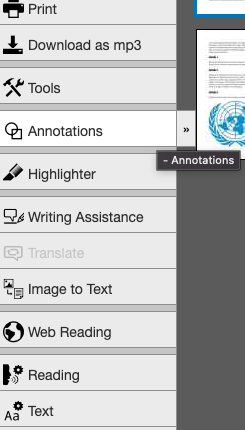
- The Annotations toolbar opens with options for sticky notes, text boxes, shapes, and markers.
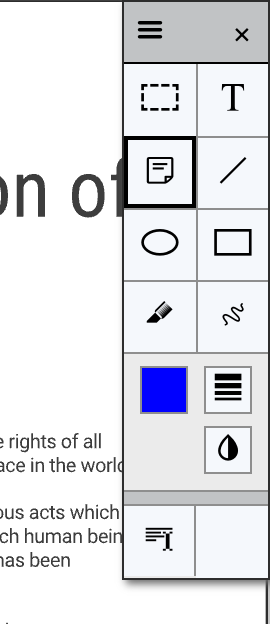
- Make notes and other markings and then select Save in the toolbar on the left.
The Highlighter lets you highlight passages of text and then collect and download your highlights.
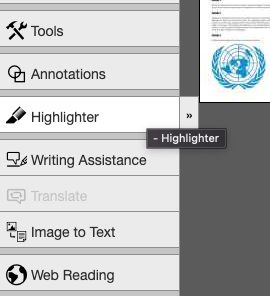
- Select the Highlighter tool in the left-hand toolbar.
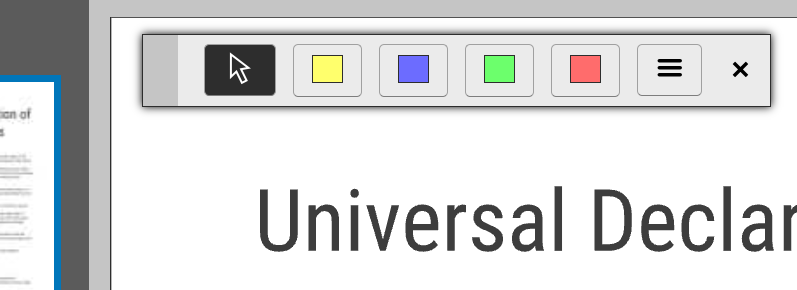
- The Highlighter toolbar will appear with options to select different colours.
- After highlighting content, select the menu for options.
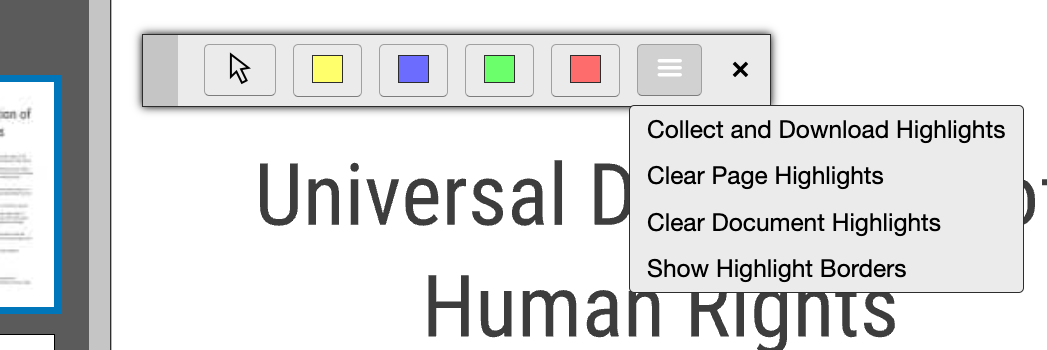
- Select Collect and Download Highlights to gather your highlights into a new TextAid document. You can choose how they are collected and sorted.
- Tip: use a different colour for each topic, so your highlights are sorted by topic.
- Clear Page Highlights and Clear Document Highlights will remove highlights from the active page or whole document.
- Show Highlight Borders adds a different border (solid, dashed, or dotted) to each highlight colour, which helps if you have trouble telling the colours apart.
- Select Collect and Download Highlights to gather your highlights into a new TextAid document. You can choose how they are collected and sorted.
Tools
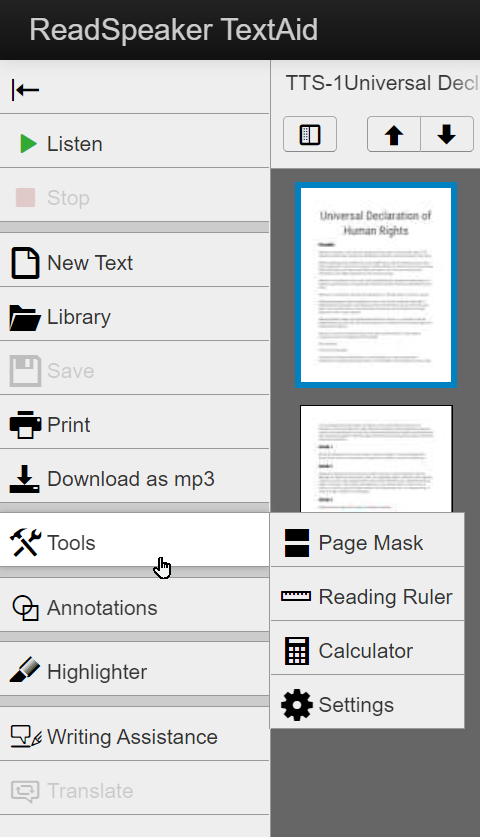
- Page Mask
- Dims or blocks out the rest of the screen except for the line(s) you are reading.
- Reading Ruler
- Places a solid bar on screen that follows your mouse.
- Calculator
- A basic calculator that reads its calculations aloud.
- Settings
- Settings to customize Page Mask and Reading Ruler.
Image to Text
Upload a picture of text and TextAid converts it to text it can read aloud, and saves it to your Library.
To use Image to Text:
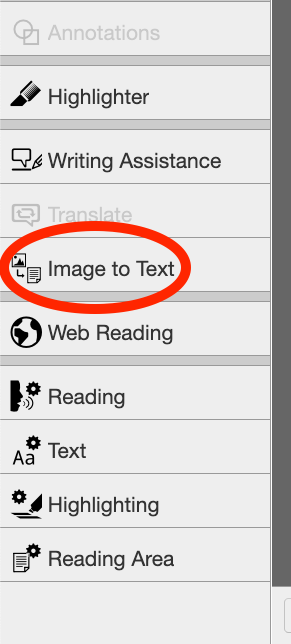
- Select Image to Text in the sidebar.
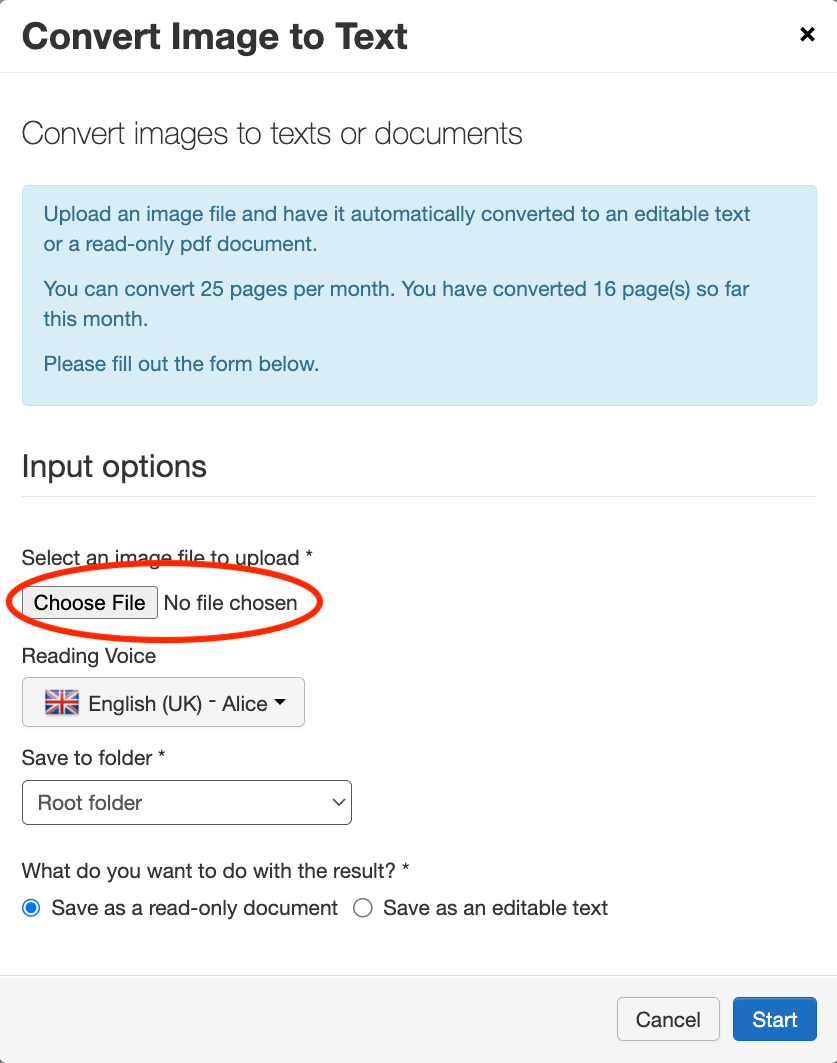
- Select Choose File and select your file.
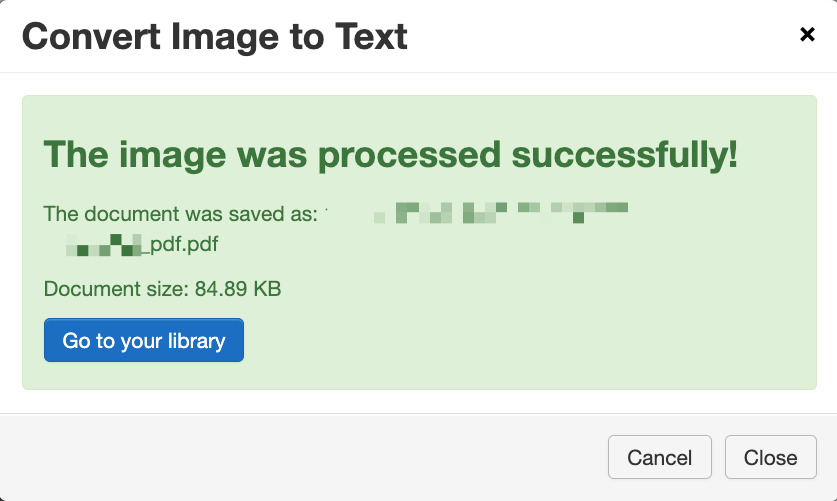
- Wait for the file to process and then select Go to your library to access your file.
- You can now use the reading options and tools described above.
- Select the Listen button to read the whole document.
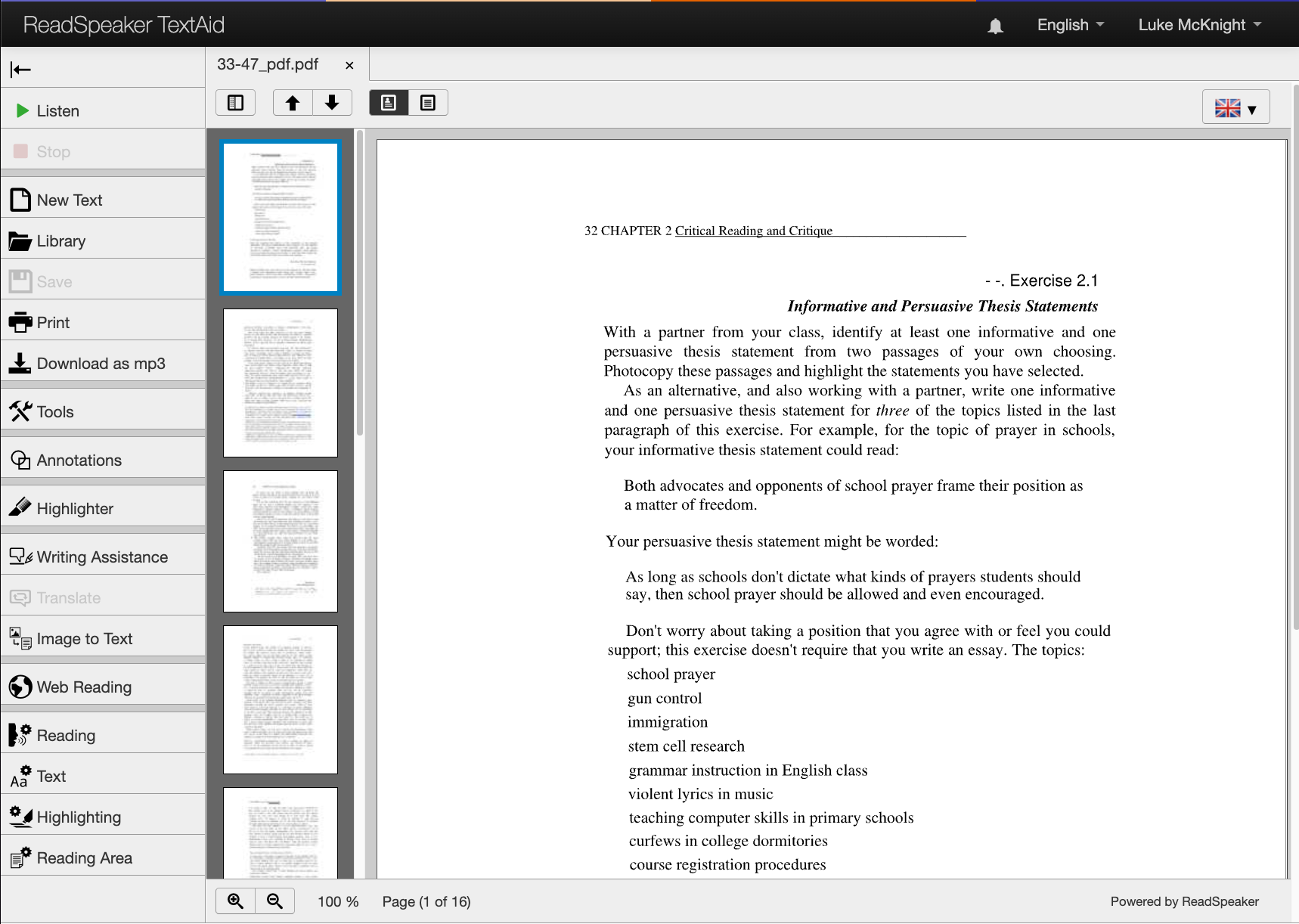
- Select Text Mode to see the text as plain text and use more tools, such as selecting text to listen to it.
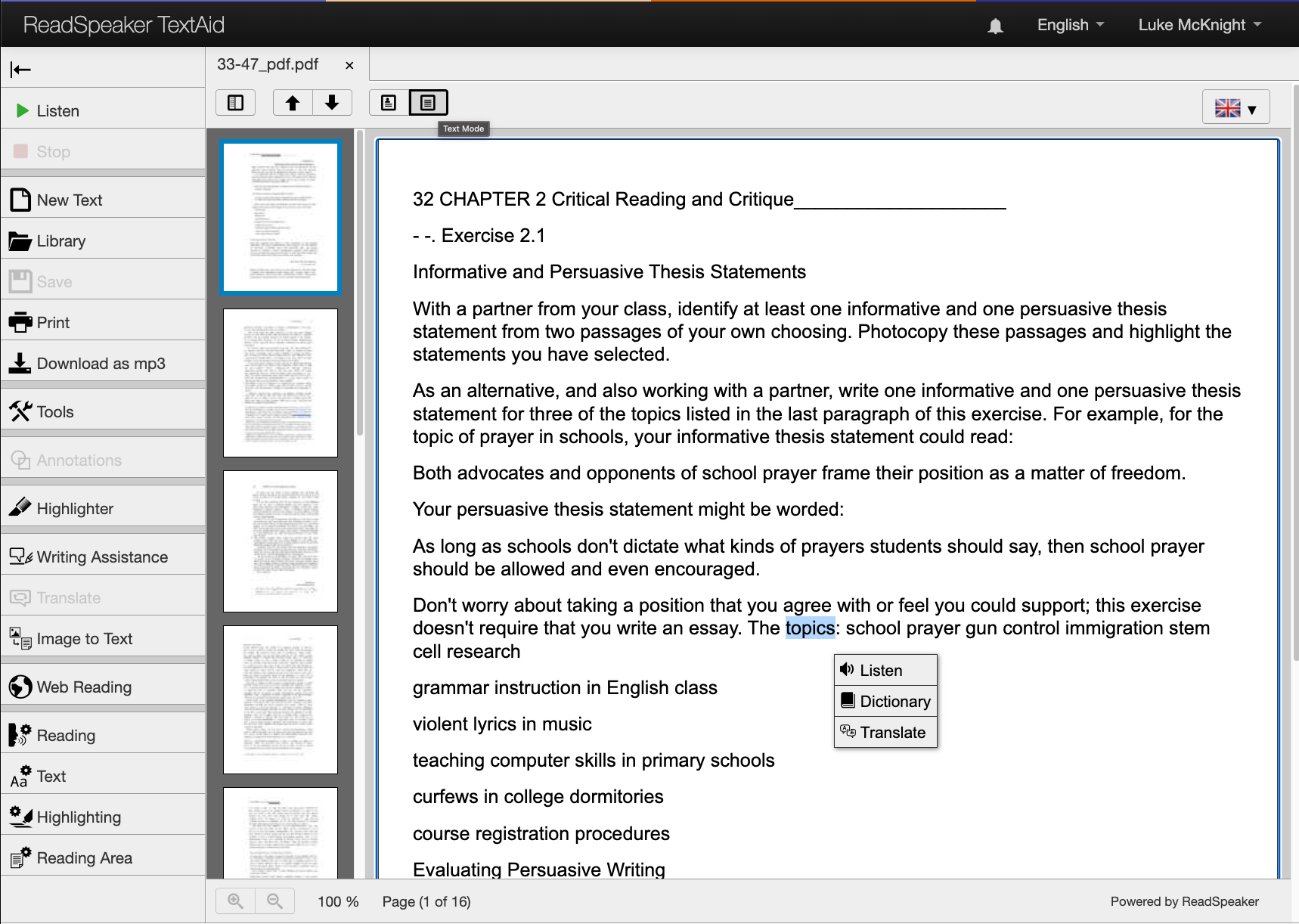
Settings
- Reading
- Use this menu to change Reading Voice, Reading Speed, and Pause Between Words.
- Use the Play button at the bottom of the window to hear a preview.
- Text
- Find settings for Text Colour, Background Colour, Text Size, Font Style, and Text Spacing.
- A preview of changes appears at the bottom of the window.
- Changes made here will only be visible in Text Mode.
- Highlighting
- These are settings for word and sentence highlighting while reading, not the Highlighter tool.
- Choose the colours for the highlighted word, the highlighted sentence, and the text.
- Reading Area
- Choose how text is selected for reading or highlighting.
- Mouse selection: click and drag over the text you want.
- Text selection: hovering the mouse over text selects a block of it, such as a paragraph.
- From mouse pointer to page end selects all text from the mouse pointer location to the end of the page.
Calibre
Calibre is available on Langara devices through the Software Center application.
Calibre is a free e-book reader and library. Download Calibre for Windows, macOS, and Linux.
Set up Calibre
Calibre is mainly for reading EPUB files. To read PDFs in Calibre, first change one setting:
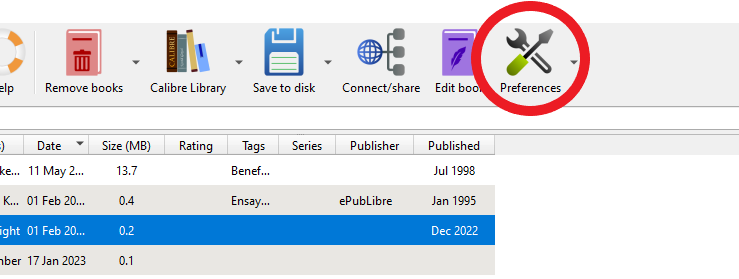
- Navigate to Preferences.
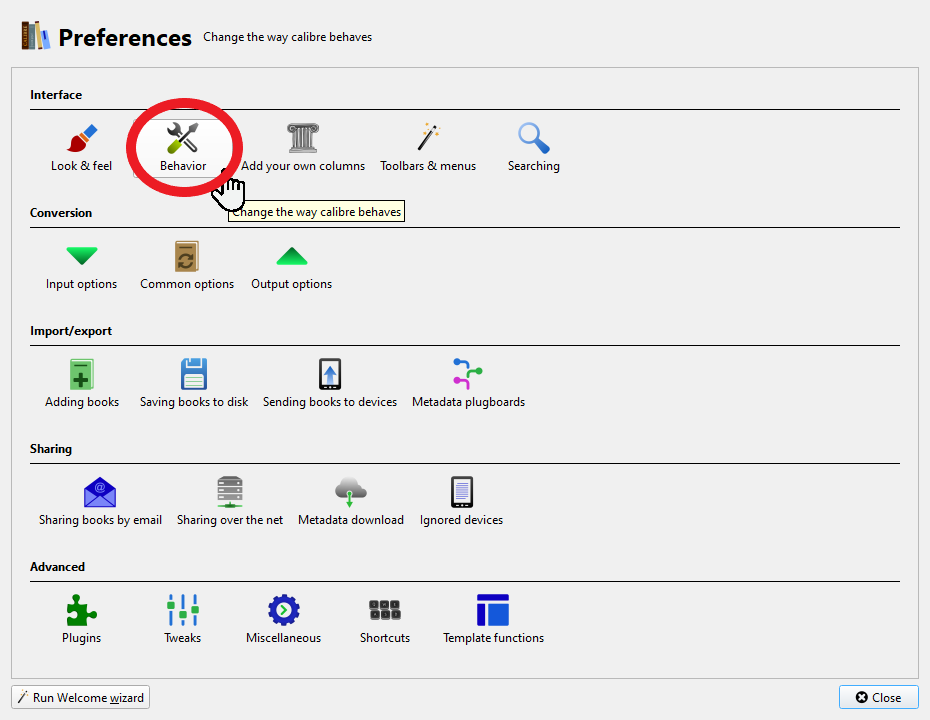
- Select Behavior.
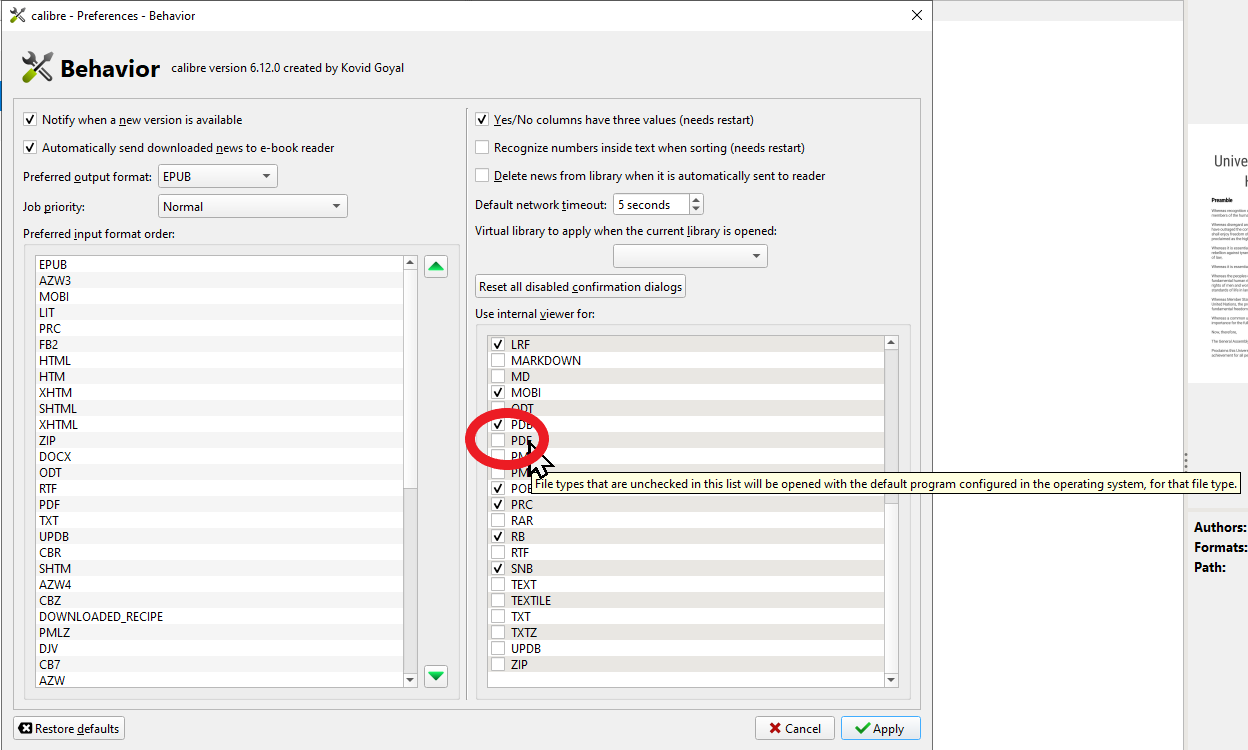
- Check PDF under Use internal viewer for.
Using Calibre
Calibre can organize e-texts, PDFs, and other documents in a library. To add files, select the menu beside Add books: 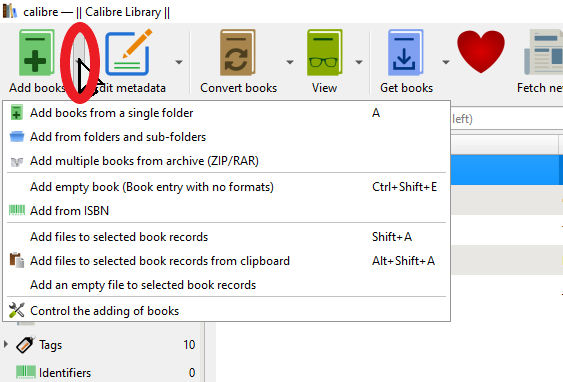
Select Add books from a single folder for single files or Add from folders and sub-folders for multiple files.
To open a book or file, double-click it. To have it read aloud, right-click in the document window and select Read aloud: 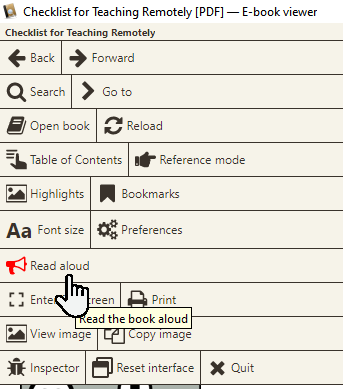
The same menu has Font size and Preferences, where you can change how the book looks.
While Calibre reads aloud, a toolbar appears with options to pause, change the speed, and change the voice. 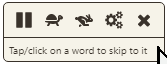
Kurzweil
Kurzweil 3000 is available on computers in L121. Accessibility Services can help you apply to ATBC for funding or an equipment loan. For information and resources on Kurzweil, contact assistivetech@langara.ca.
Kurzweil opens many document types, including Word, PDF, EPUB, and Kurzweil’s own KES files.
Students in British Columbia may be able to get funding for their own copy, or borrow equipment, through Assistive Technology British Columbia (ATBC). Contact your institution or ATBC for more information.
Getting started with Kurzweil
Select File > Open and choose the file you want to read.
The first time you open a file, Kurzweil converts it. Long documents may take a while. 
By default, Kurzweil starts reading from the blinking red cursor.
Select Audio Options to change voice and speed. 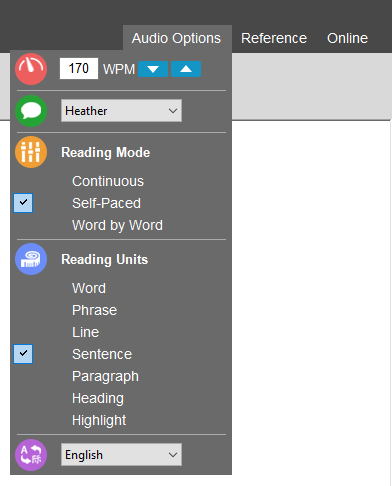
Reading Mode and Reading Units control how Kurzweil reads. Continuous reads until you pause it, while Self-Paced pauses after each Reading Unit (word, line, sentence, and so on). To read only part of a document, select it and press Play.
To see the highlighting without hearing the voice, turn off Audible Reading. 
- Press F3 to play or pause reading
- Press F2 to go to the previous Reading Unit (word, line, sentence, and so on)
- Press F4 to go to the next Reading Unit
Kurzweil also has tools for writing and mind mapping. For how-to videos and guides, visit the Kurzweil Academy.
Speechify
Speechify is a text to speech app with a free version. It is available for:
Getting started with Speechify
In the web app, you can add files from your device, Dropbox, or Google Drive. 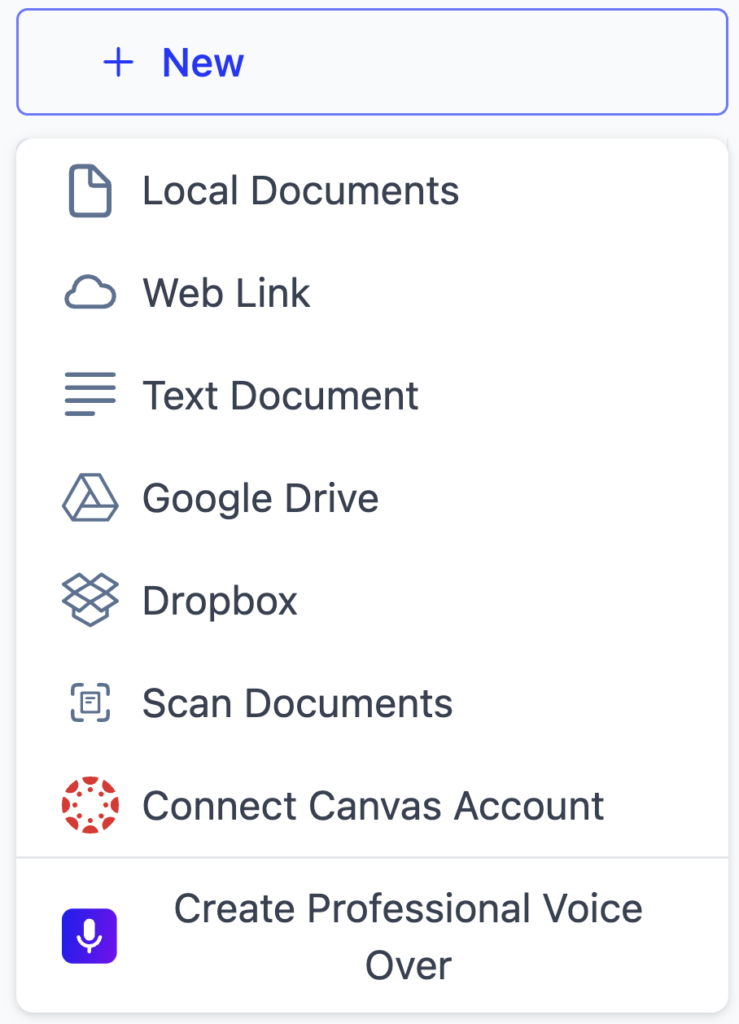
Your files are kept in a library, which you can organize into folders. Click the plus button to create a folder. 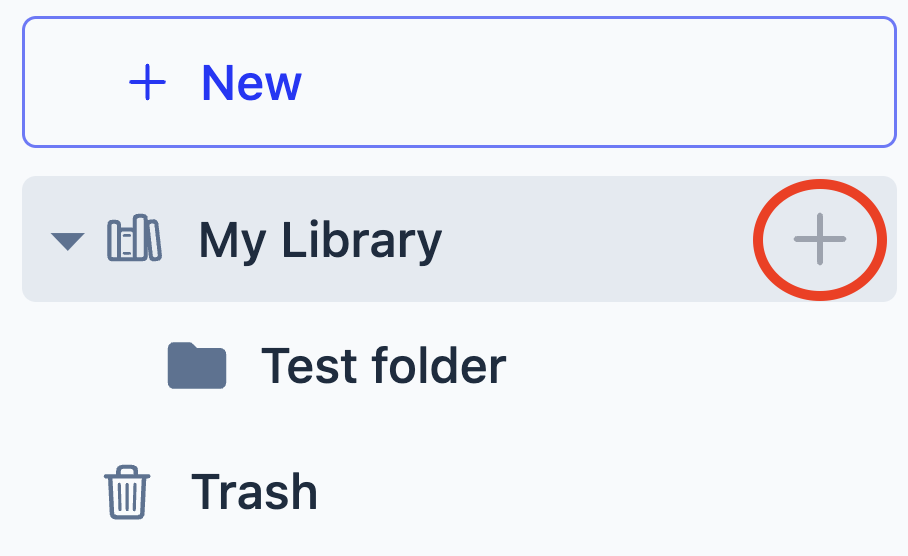
Folders can be edited, renamed, and deleted.
When a document is open, change the voice, speed, and appearance in the menu on the left. 
Only the standard voices (those without a golden diamond on the profile picture) are free.
NaturalReader
NaturalReader is a text to speech tool with a free version. Use it online, or download NaturalReader for Windows and macOS or the NaturalReader app for Android and iOS.
Getting started with NaturalReader
You can build a library of files: 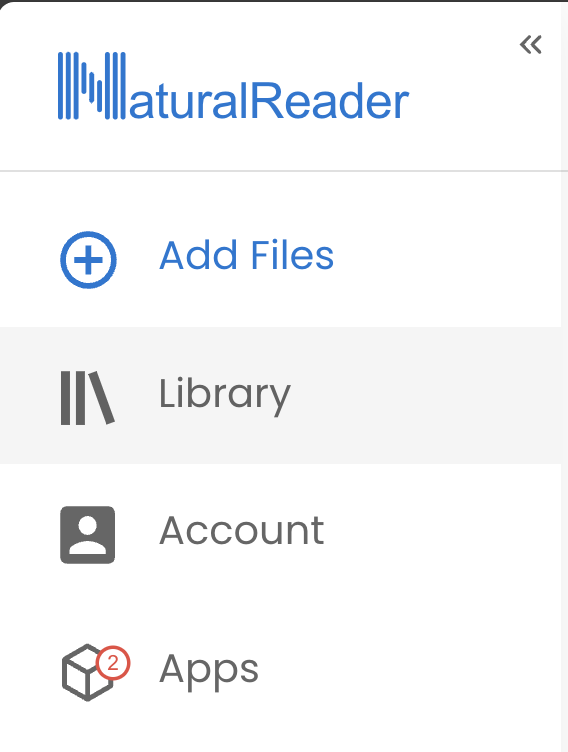
Add files from various sources: 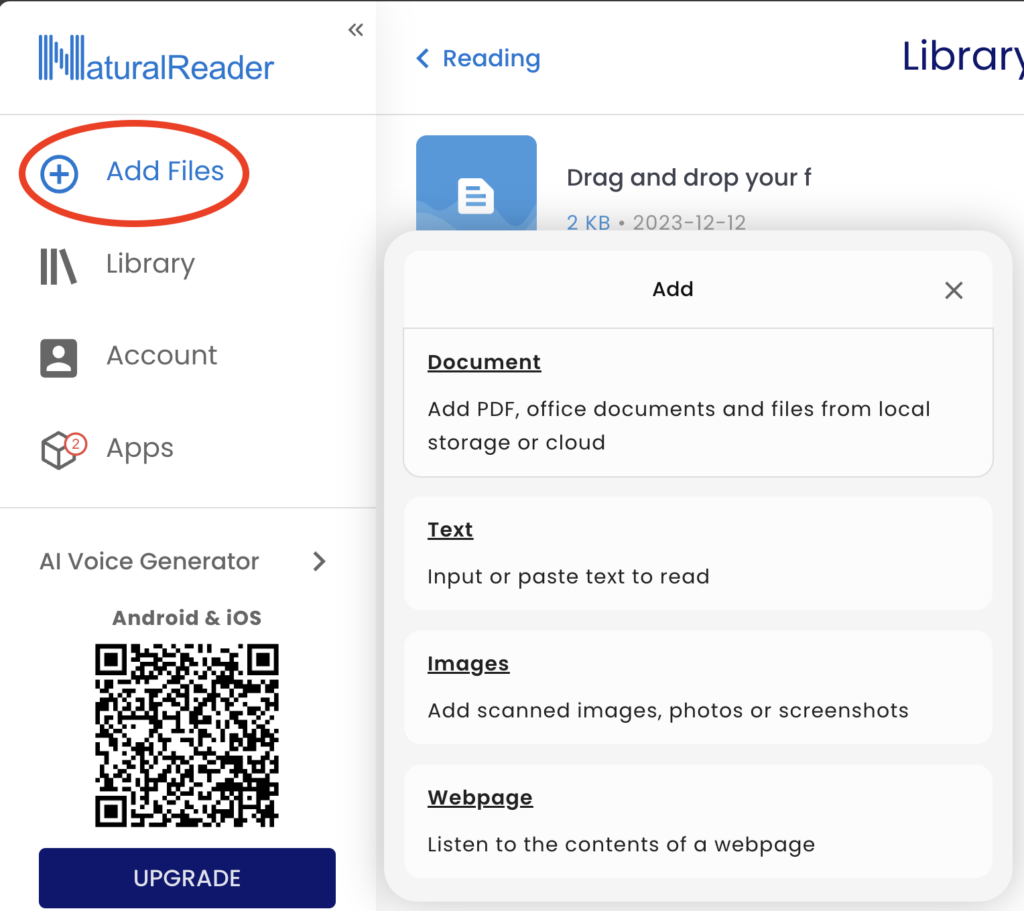
Change the voice and playback speed with the toolbar along the top: 
Only a few voices are free. Most need a paid subscription.
Settings are available from the More icon (three dots) in the top right corner.