Optical Character Recognition
Optical character recognition (OCR) turns pictures of text, such as scans, screenshots, and photos, into text you can select, copy, and have read aloud. These tools can help you get the text out of inaccessible documents and websites.
None of these tools replace accessible documents. The people who create content are always responsible for making it accessible.
On this page:
Screenshot Readers
Screenshot readers capture part of your screen and pull out the text, for example from a scanned PDF, an image, or a badly built website.
Windows Snipping Tool
The Windows Snipping Tool has a text extractor for copying text from anything on screen.
Open Snipping Tool with Windows + Shift + S and click the Text Extractor button in the toolbar.
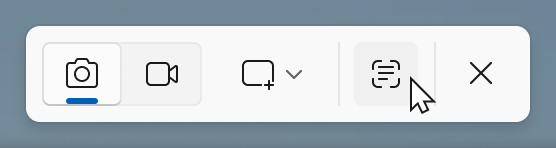
Click and drag over the text. The text is copied to the clipboard, ready to paste into a document.
PowerToys
Microsoft PowerToys is a free set of extra tools for Windows. Its Text Extractor copies the text from any part of the screen, including images and videos.
- With PowerToys running, press Windows + Shift + T to activate Text Extractor.
- Click and drag over content.
- The text is copied to the clipboard.
- Paste it into Notepad, Word, or another app.
iOS/iPadOS/macOS

Live Text lets you select and copy text in photos, screenshots, and paused videos on iPhone and iPad (iOS and iPadOS 15 or later) and Mac (macOS 12 or later).
On a Mac, open an image or an inaccessible document in Preview, Photos, or Safari. Over text, the pointer turns into a text cursor: click and drag to select the text, then copy it.
On iPhone and iPad, open the image in Photos (or point the Camera at the text) and tap the Live Text button  , or touch and hold a word.
OneNote
In OneNote for Windows, insert an image or a file printout, right-click it and select Copy Text from Picture, then paste the text into OneNote or another document.
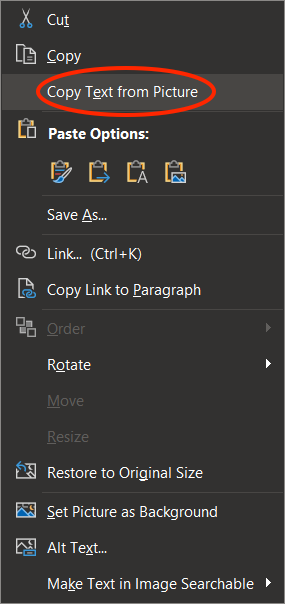
Copy text from pictures and file printouts using OCR in OneNote – Microsoft Support
The Microsoft Lens scanning app was retired in early 2026 and removed from the app stores. Microsoft recommends the scanner in the OneDrive mobile app instead.
Google Lens

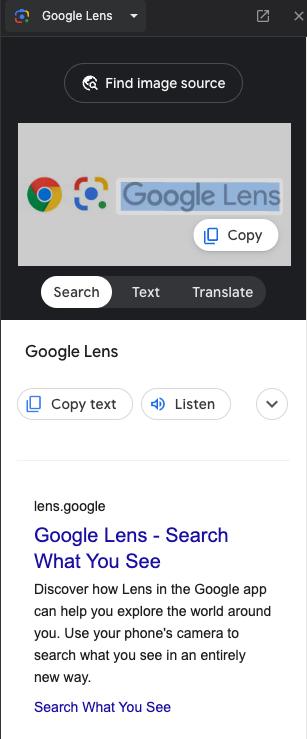
Google Lens, like Apple’s Live Text, can pick out the text in a photo on your phone. Download Google Lens for Android. Google Lens is also built into Chrome on computers:
- In Chrome, navigate to an image and right-click on the image.
- Select Search Image with Google.
- Highlight the text you want, or use the Select all text button.
- Use the Copy text or Listen buttons.
ShareX

ShareX is a free screenshot app for Windows that includes OCR. Capture all or part of the screen, then copy the text into another program, for example to have it read aloud.
- Download ShareX from the Microsoft Store.
- Open ShareX.
- Select Capture.
- Select Text Capture (OCR)…
- Draw a box around the text. The text appears in a new window, where you can copy it, or send it to an online service such as Google Translate, which can read short passages aloud.
Snagit
Contact edtech@langara.ca for Snagit licensing information.

Snagit is paid screen capture and recording software for Windows and macOS. To copy all the text from an image:
- Open an image in the Snagit Editor (either via screenshot or existing file).
- Right-click and select Grab Text…
- The Grab Text Results window appears with options to edit, copy parts of the text, or Copy All.
To select specific text:
- Open an image in the Snagit Editor (either via screenshot or existing file).
- Click the Selection tool.
- Click and drag around desired text.
- Right-click and choose Grab Text.
- The Grab Text Results window appears allowing you to edit and copy the text.
Firefox (macOS)

- Right-click on an image.
- Select Copy Text from Image.
- A pop-up containing the image’s text appears.
- The complete text is automatically copied to the clipboard.
- To copy only part of it, select that text and press Command + C.
- Click Close or press Escape.
This feature is only available in Firefox for macOS.
Equatio

Equatio’s Screenshot Reader reads aloud math that is only available as a picture, and can copy it as MathML or LaTeX. For steps, see Reading math in the Equatio Quick Start Guide.
Many screenshot readers limit how much text they can capture at once, or crash on large selections. They are not meant for converting whole documents: for that, use one of the OCR tools below.
Optical Character Recognition Tools
TextAid
Access TextAid using your Langara email and password.

Using TextAid
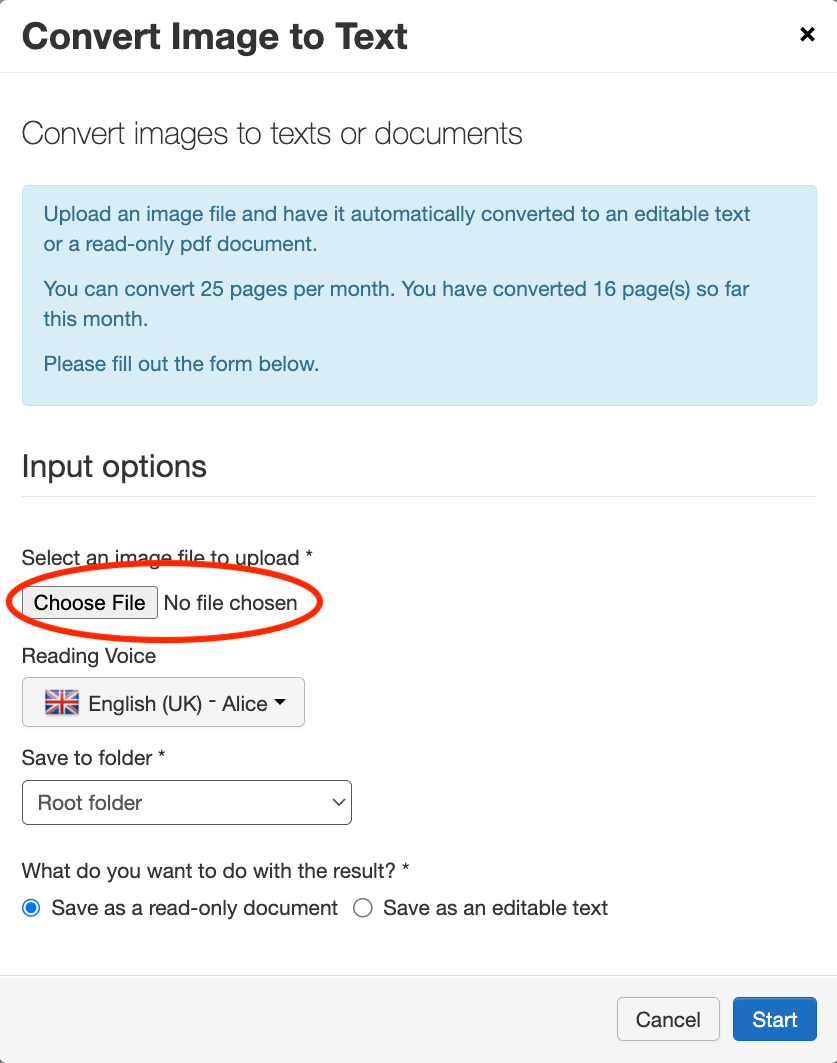
Upload a picture or scan of text and TextAid converts it to text it can read aloud, and saves it to your Library.
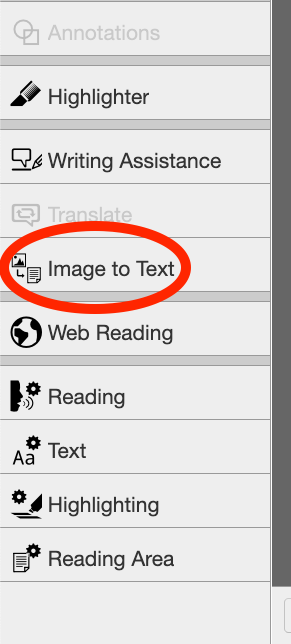
- Select Image to Text in the sidebar.
- Choose file, set options, and click Start.
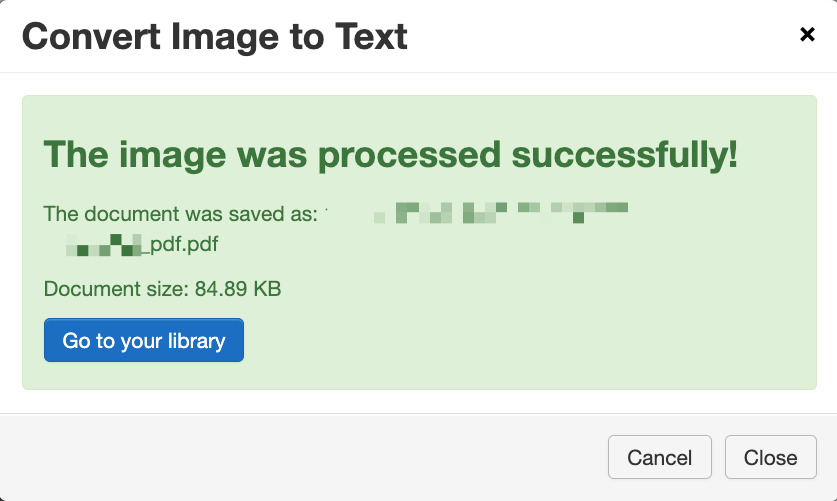
- Wait for the file to process and then select Go to your library to access your file.
- You can now use the reading options and tools described in Reading Alternate Format Material.
- Click the Listen button to read the whole document.
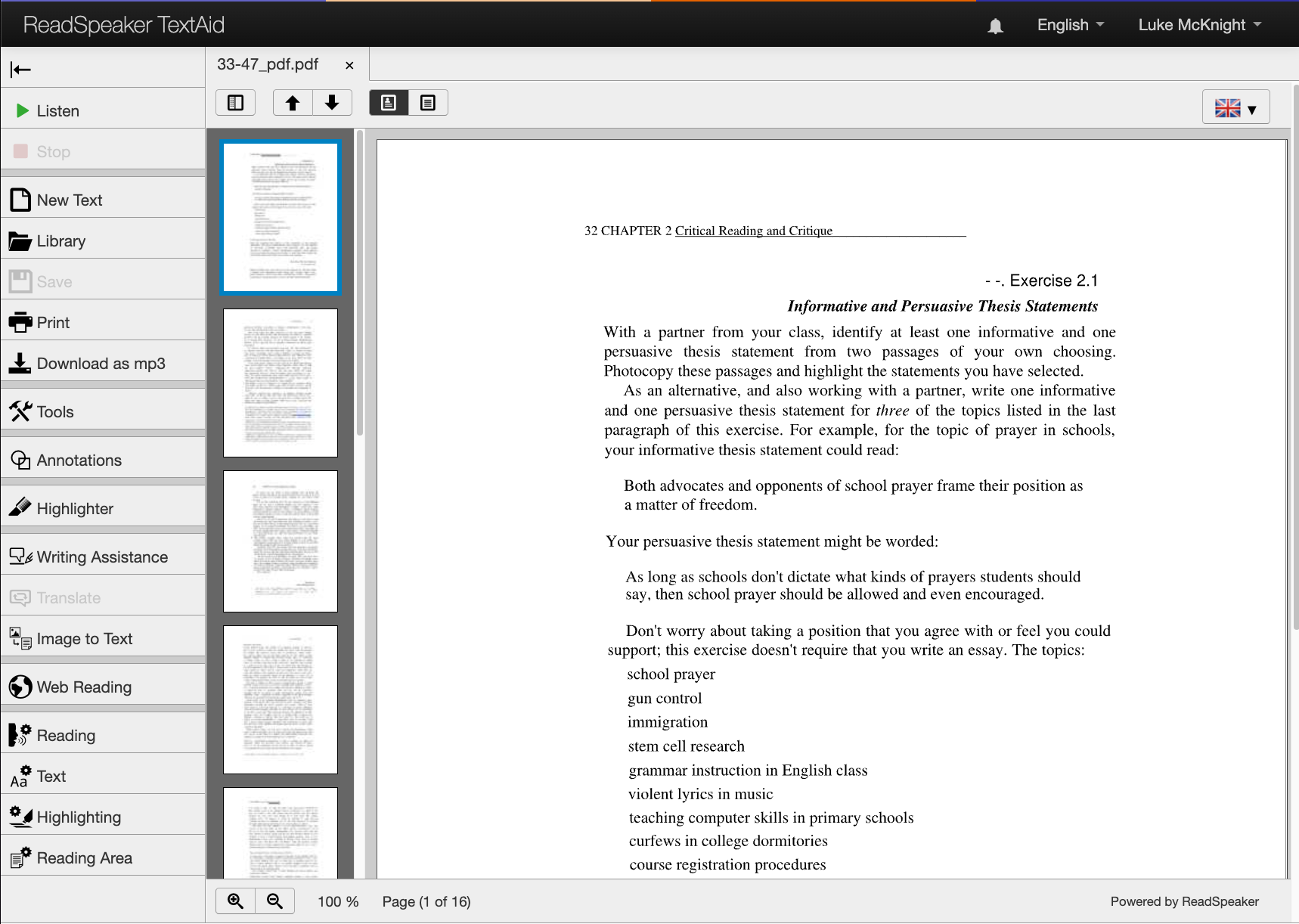
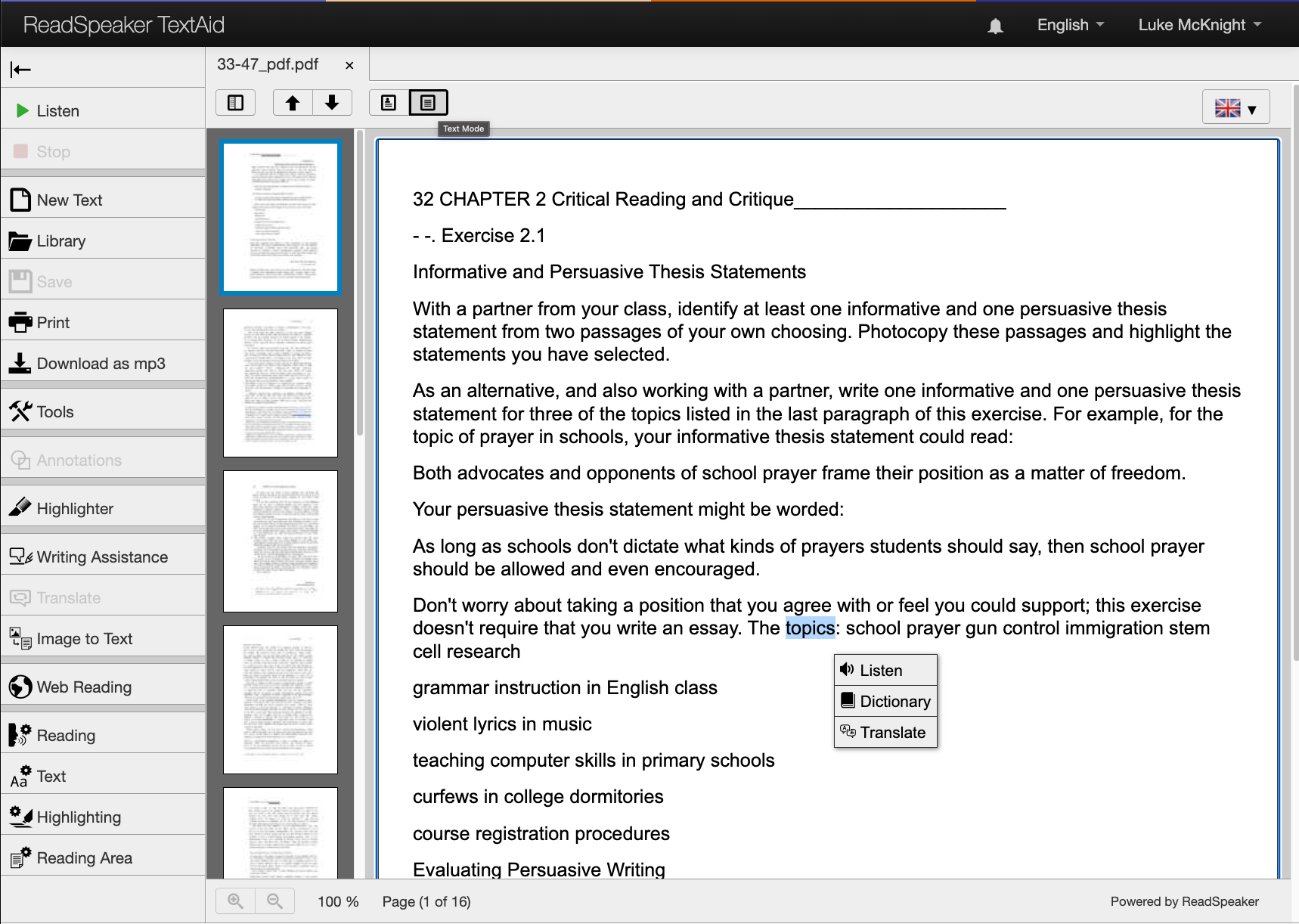
- Select Text Mode to see the text as plain text and use more tools, such as selecting text to listen to it.
Kurzweil
Kurzweil is available on computers in L121.
Kurzweil can scan printed pages and turn them into documents it can read aloud.
Using Kurzweil
- Select the Scan tab.
- Select Scanner Setup to choose your scanner and page size.
- Turn on any options you need before you scan:
- Scan in Color (scans are black and white by default)
- Double-Sided Scanning for pages printed on both sides
- Two Page Mode to scan two pages of an open book at once
- Scan Repeatedly to scan several pages without pressing scan each time. Turn the page while the timer counts down.
- Place the page on the scanner and select Start a Scan.
- When the scan is done, use the Kurzweil reading tools to have it read aloud.
If something goes wrong:
- Rescan Page replaces a page that came out too light, too dark, or crooked.
- Insert Page adds a page you missed. Go to where it belongs, place it on the scanner, and select Insert Page.
- Delete Page removes a duplicate or poor scan.
- Edit Underlying Text lets you fix words Kurzweil read incorrectly.
See the Kurzweil 3000 for Windows Getting Started Guide (PDF), pages 22-24 for more.
Google Drive

Using Google Drive
Google Drive can convert scanned PDFs and images into editable text:
- Upload the file to Google Drive. It must be a PDF, JPEG, PNG, or GIF file of 2 MB or less.
- Right-click the file and select Open with > Google Docs. A new Google Doc opens with the text from the file.
Acrobat
Acrobat licences can be requested through Langara IT.

The free Adobe Acrobat Reader can’t do OCR. You need a paid version of Acrobat.
Using Acrobat
- Open a PDF file containing a scanned image in Acrobat for Mac or PC.
- Open the Scan & OCR tool.
- Under Recognize Text:
- Choose In This File.
- Click Recognize Text.
- OCR does not make a PDF fully accessible: making the text readable is only the first step.
Langara has an OCR scanner and Kurzweil software available in L121. Contact assistivetech@langara.ca for more information.